
Add AI traffic to your Assetto Corsa server with AssettoServer: install it from the Mod Manager, reset two config files, set EnableAi to true and choose which car slots the AI drives. About ten minutes from start to finish.
On this page
Before you start
- AssettoServer replaces AC Server Manager. The two don't work together, so after this guide you configure your server through Configuration Files instead of AC Server Manager.
- Every track needs AI lines (the
fast_lane.aifile in the track'saifolder). The default tracks have them. Some custom tracks don't; for those, search for "Assetto Corsa how to make AI paths" and follow one of the many community guides, or pick a traffic track that ships with AI lines, such as Shuto Revival Project. - This guide covers the basics. AssettoServer has many more options (traffic density, speeds, plugins); they're all in the AssettoServer wiki.
Take a backup before you start so you can go back to your AC Server Manager setup if you change your mind.
Step 1: install AssettoServer
- Press STOP.
- Open Mod Manager and uninstall AC Server Manager.
- Still in Mod Manager, install AssettoServer (AI Traffic).
- Press START so the server creates all the files AssettoServer needs, then press STOP again.
Step 2: switch on AI traffic
- Open Configuration Files, edit
server_cfg.iniwith the Config Editor, tick Reset file to default and press Save & Exit.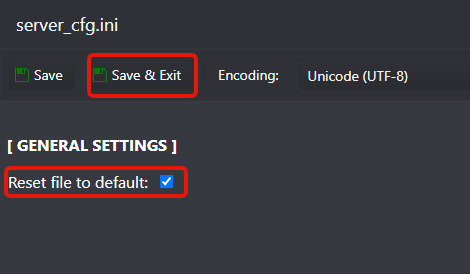
- Do the same for
entry_list.ini: Config Editor, tick Reset file to default, Save & Exit.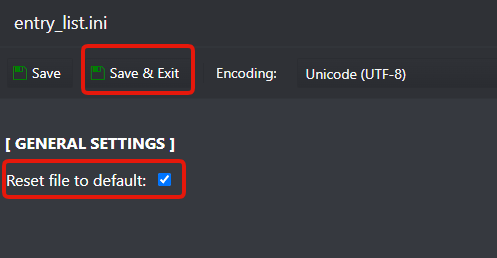
- Edit
extra_cfg.ymland setEnableAi: true, then save.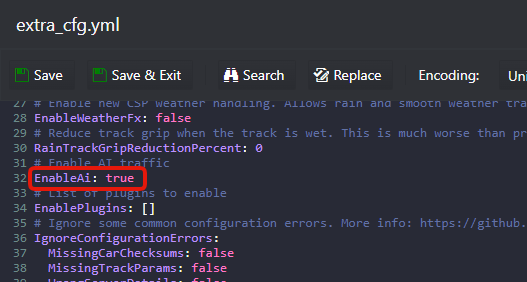
Step 3: choose the AI cars
- Edit
entry_list.iniagain, this time with the text editor. - Add
AI=autoto every car slot you want the AI to drive, like this:[CAR_1] DRIVERNAME=JohnDoe1 MODEL=bmw_m3_e30 SKIN=alpine_white ... AI=auto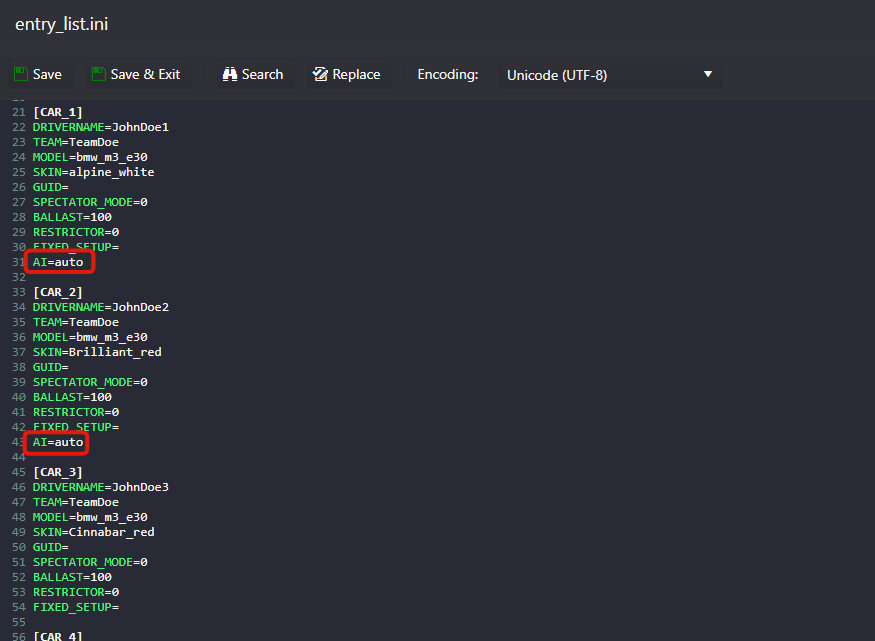
- Save and press START. Join the server and the AI traffic should be on the road.
| Setting | What the slot does |
AI=auto | AI drives the car while no player is using the slot; a joining player can take it over |
AI=fixed | The slot is always AI and players can't take it |
| no AI line | A normal player slot |
More AI cars means more work for the server. If traffic stutters, use fewer AI slots or upgrade your package: see How to upgrade your hardware package.
Troubleshooting
The server starts but there's no AI traffic. Why?
Check these three things: EnableAi: true is saved in extra_cfg.yml, your car slots have AI=auto or AI=fixed in entry_list.ini, and your track has AI lines. The Log Viewer usually tells you which one is missing.
The server won't start after the changes. What now?
Open the Log Viewer for the error. Most often a car or track named in the config isn't installed on the server. See How to add new cars and How to add new tracks.
Can I add rain and weather too?
Yes, AssettoServer handles weather as well. See How to add rain weather to your Assetto Corsa server.
Related guides
Need a hand? Open a support ticket. Our team is here 24/7.