
Project Zomboid Build 42 Stable is now available on all GTXGaming servers. Pick the right upgrade path for your server before you update, so you don't lose your world or player progress by accident.
Build 42 Stable went live on Steam on 29 July 2026 as version 42.20. This guide explains what to do depending on your current server version, and whether you want to stay on your current build or move to Build 42 Stable.
On this page
- Before you update to Build 42 Stable
- I have a Build 41 server and want to keep playing Build 41
- I have a Build 41 server and want to upgrade to Build 42 Stable
- I have a Build 42 Unstable server and want to keep playing Build 42 Unstable
- I have a Build 42 Unstable server and want to upgrade to Build 42 Stable
- Build 42 Stable questions
Before you update to Project Zomboid Build 42 Stable
Which path you take depends on two things: the version your server runs now, and whether you want to keep your existing world.
- Staying on Build 41 or Build 42 Unstable: keep your world, and select the matching Steam beta branch in your game client.
- Moving to Build 42 Stable: be ready to start a fresh world. Saves from Build 41 and Build 42 Unstable are not compatible with Build 42 Stable.
Your game client and your server must run the same build, or you can't join.
I Have a Build 41 Server and Want to Keep Playing Build 41
To keep playing your existing Build 41 world, update your server to the latest Build 41 version and roll your Steam client back to the legacy41 branch.
- Stop your server.
- Click the Steam Update button.
- Start your server.
- In Steam, right-click Project Zomboid and select Properties.
- Open the Game Versions & Betas tab.
- Select the legacy41 branch.
- Join your server.
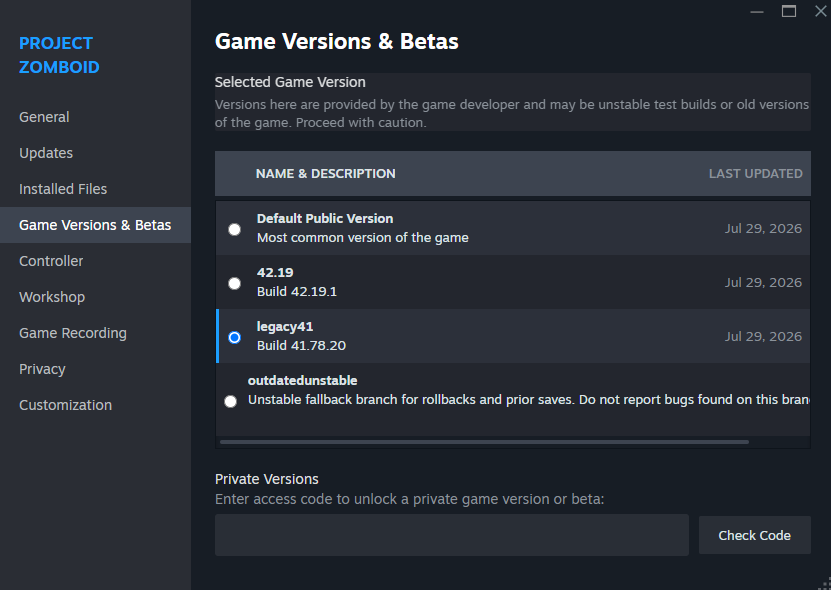
Important Tips
- Update your server to the latest Build 41 version before joining.
- If your server uses mods, review them carefully. Some previously abandoned Build 41 mods have been updated for Build 42 and may no longer support Build 41.
- Some Workshop authors provide separate Build 41 and Build 42 versions of their mods.
I Have a Build 41 Server and Want to Upgrade to Build 42 Stable
Unfortunately, migrating an existing Build 41 world to Build 42 Stable is not supported.
Build 42 brings big engine, map, save and mod changes, so existing Build 41 worlds and player progress cannot be transferred.
Important
- Build 41 saves are not compatible with Build 42 Stable.
- Existing worlds, player progress, and mods cannot be migrated.
- A completely new Build 42 world must be created.
GTXGaming provides a dedicated Build 42 server configuration that has been optimised for the new version.
You can switch your existing server to it with our Game Switch feature (Switch Game Server in the Client Area), or contact our support team if you need help. Step by step: How to switch your game server to a different game.
I Have a Build 42 Unstable Server and Want to Keep Playing Build 42 Unstable
To keep playing your existing Build 42 Unstable world, do not update your server to Build 42 Stable.
Updated your server by accident? Roll it back to the latest Build 42 Unstable version with these steps.
- Stop your server.
- Click the More button.
- Select Change Server Version.
- Choose Build 42.19 Unstable from the list.
- Start your server.
- In Steam, right-click Project Zomboid, select Properties, then open the Game Versions & Betas tab.
- Select the 42.19 beta branch.
- Join your server.
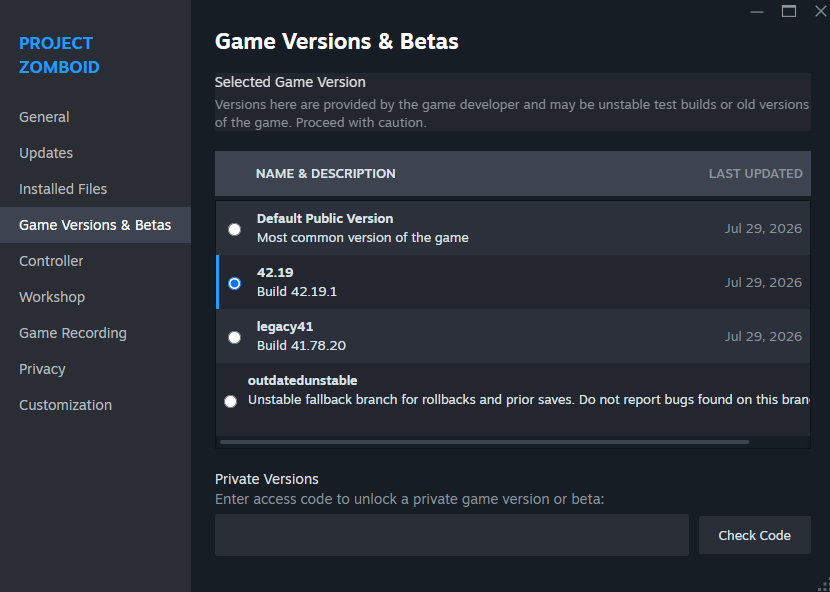
Older copies of this guide said 42.10 here. The beta branch for Build 42 Unstable saves is called 42.19, as shown in the screenshot and in the developers' Build 42 Stable announcement.
Important Tips
- Do not run a Steam Update if you want to remain on Build 42 Unstable.
- Some Workshop mods have already been updated for Build 42 Stable and may no longer work on Build 42 Unstable.
- Review your installed mods before updating them.
I Have a Build 42 Unstable Server and Want to Upgrade to Build 42 Stable
The Project Zomboid developers recommend starting a completely new world when you upgrade from Build 42 Unstable to Build 42 Stable.
The map, game settings, save format and many gameplay systems have changed, so existing Build 42 Unstable saves are not compatible with the final Build 42 Stable release.
Important
- Build 42 Unstable worlds are not compatible with Build 42 Stable.
- A complete server reinstall is recommended.
- This ensures all new map content, settings, and files are generated correctly.
- Stop your server.
- Click the More button.
- Select Reinstall Server.
- Start your server.
- Join your brand-new Build 42 Stable world.
Build 42 Stable questions
Can I move my world to Project Zomboid Build 42 Stable?
No. Build 41 saves are not compatible with Build 42 Stable, and Build 42 Unstable saves are not compatible with the final Build 42 Stable release either. You need to start a new world. To keep your old world, stay on the legacy41 or 42.19 branch instead.
Which Steam branch do I need to keep playing Build 41?
In Steam, right-click Project Zomboid, select Properties, open Game Versions & Betas and select legacy41. Update your server to the latest Build 41 version first with the Steam Update button.
Why can't I join my server after the update?
Your game client and the server must run the same build. Check the branch selected under Game Versions & Betas in Steam: the default branch for Build 42 Stable, legacy41 for Build 41, or 42.19 for Build 42 Unstable. Also check that your mods support the build you play.
Looking for high-performance Project Zomboid server hosting? Deploy your server in minutes with full control, instant setup, automatic updates, Workshop mod support and powerful management tools: see Project Zomboid server hosting plans.
Related guides
Not sure which path fits your server? Open a support ticket.