
Install Stationeers LaunchPad (StationeersLaunchPad) and BepInEx on your Stationeers dedicated server in one click from the Mod Manager, then add Steam Workshop mods from the game panel.
In this guide you'll learn how to install and manage Steam Workshop mods on your Stationeers dedicated server. We explain how to tell whether a mod requires BepInEx and the StationeersLaunchPad Plugin, and how to install both correctly when needed. Follow it step by step to keep your mods organised and your server stable and compatible.
On this page
Stationeers LaunchPad and Workshop mods: important notes before installing
Always install mods carefully, one by one, to avoid compatibility issues or startup crashes.
- There are two types of mods: XML-only mods and StationeersLaunchPad Plugin mods.
- Most newer mods require the StationeersLaunchPad Plugin, while older ones are XML-only.
- Always check the Workshop page for installation notes or required dependencies like BepInEx.
- Some mods only work on local servers and not on dedicated servers.
- Some mods must be installed on the server side only. Read the mod description carefully.
Detect mods that require StationeersLaunchPad Plugin and BepInEx
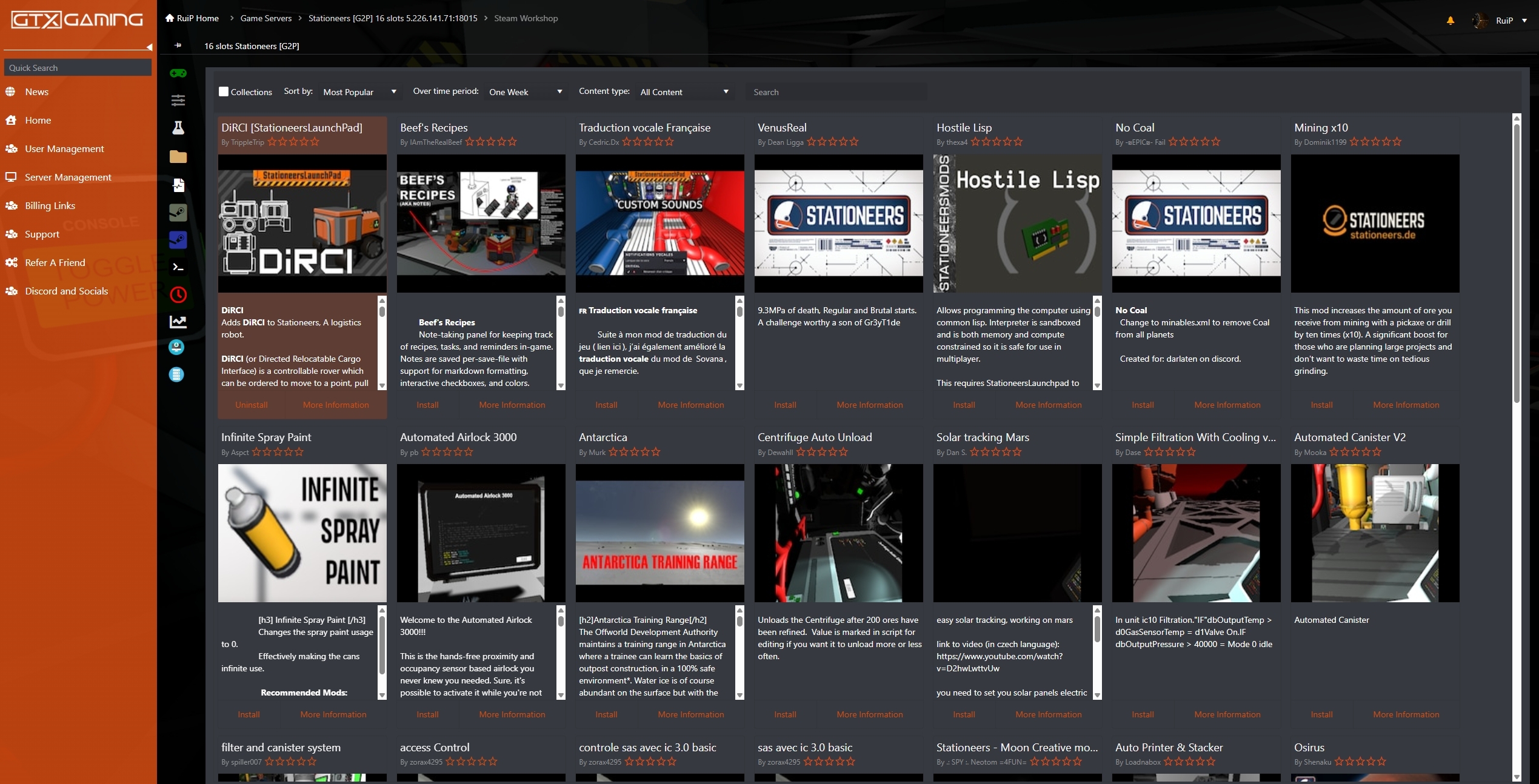
Mods that depend on the StationeersLaunchPad Plugin usually mention it clearly in the Steam Workshop description. When a mod requires the plugin, you'll typically see a message similar to this example:

If you use such mods, you'll also need to install both BepInEx and the StationeersLaunchPad Plugin on your own computer (client side).
Install Steam Workshop mods
Before installing, always check whether the mod requires the StationeersLaunchPad Plugin. If it does, follow the next section first.
- Stop your server: press STOP in the game panel.
- Go to the Steam Workshop button in your control panel.
- Search and install the desired mods.
- Start your server again.
Install StationeersLaunchPad Plugin and BepInEx on the server
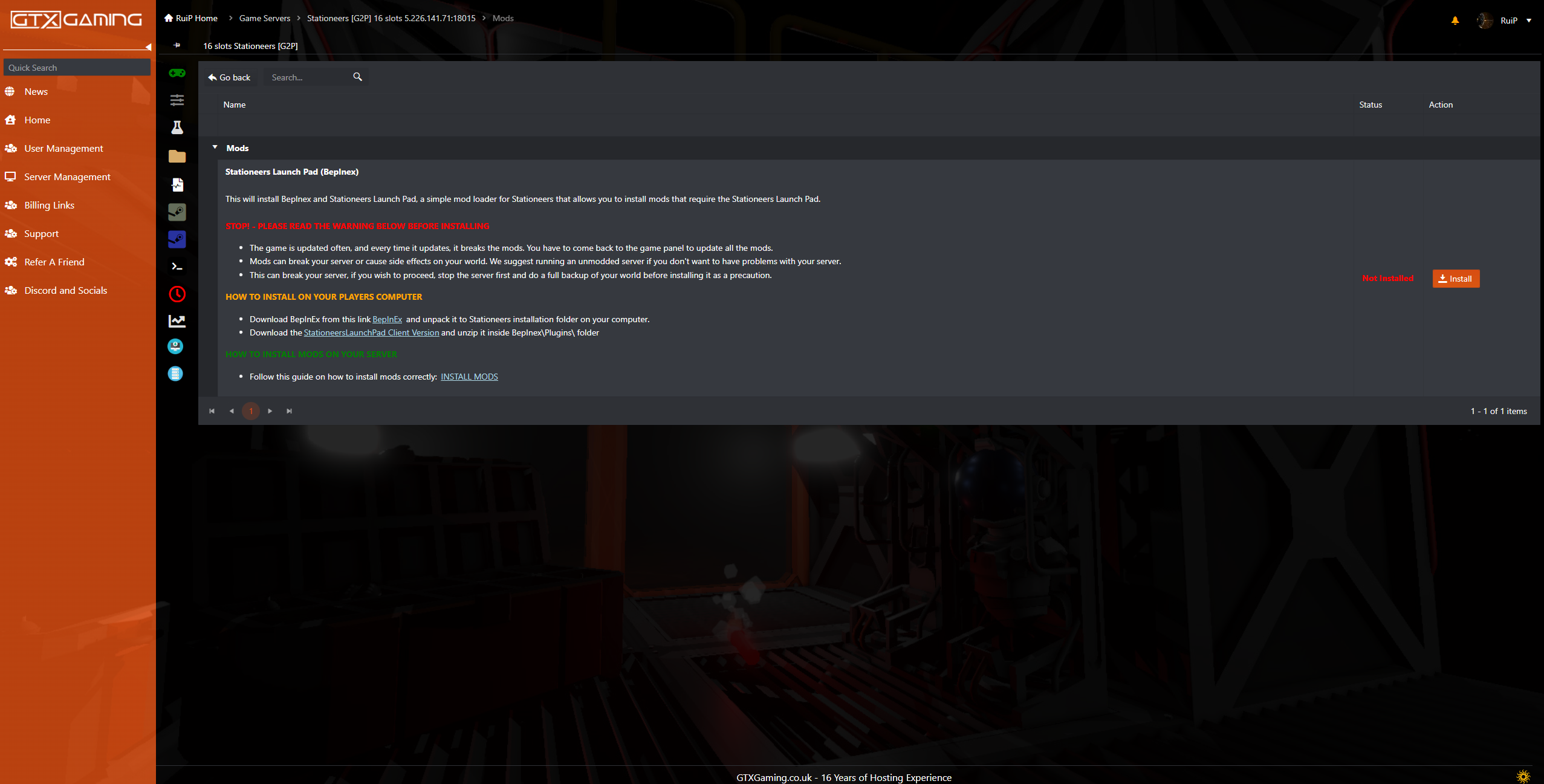
This process installs the latest versions of both BepInEx and Stationeers LaunchPad automatically on your server.
- Stop your server.
- Open the Mod Manager in your control panel.
- Find and install Stationeers LaunchPad (BepInEx).
- Start your server.
Install StationeersLaunchPad Plugin and BepInEx on the client
Do this on your own computer, and every player who uses plugin mods does the same.
- Download BepInEx and extract it into your Stationeers installation folder. The
BepInExfolder anddoorstop_config.iniend up next torocketstation.exe. - Download the StationeersLaunchPad Client Version and unzip it inside the
BepInEx\Plugins\folder (create it if it doesn't exist).
Tips and warnings
Always test mods one at a time to prevent crashes and data loss.
- Keep your mods up to date. Outdated mods often cause startup failures.
- Always back up your server before testing new mods.
- When troubleshooting, temporarily remove mods to identify the cause of crashes.
- Client and server BepInEx versions must match for mod compatibility.
With BepInEx and StationeersLaunchPad properly installed, your Stationeers server can support a wide range of modern Workshop mods. Take time to read each mod's description and update notes: it's the best way to ensure smooth performance and compatibility.
Questions
How do I install Stationeers LaunchPad on my dedicated server?
Stop the server, open the Mod Manager in the game panel, find Stationeers LaunchPad (BepInEx) and install it, then start the server. This installs the latest BepInEx and StationeersLaunchPad on the server automatically.
Do players need BepInEx and StationeersLaunchPad too?
Yes, for mods that require the plugin. Extract BepInEx 5.4.23.3 into the Stationeers installation folder, then unzip the StationeersLaunchPad client version into BepInEx\Plugins\. Client and server BepInEx versions must match.
How do I know if a Workshop mod needs StationeersLaunchPad?
Read the mod's Steam Workshop description. Mods that need it say so clearly, often with a link to the StationeersLaunchPad GitHub page. Older XML-only mods don't need it.
Want an optimised, easy-to-manage Stationeers server? Order your Stationeers server hosting here and start customising your world with mods today.
Related guides
Need help with a mod? Open a support ticket.