
Connect to your Minecraft server with SFTP: log in to the GTX Minecraft game panel, copy the SFTP details from your server's Dashboard and connect with FileZilla using your game panel password.
We recommend using the FileZilla client to connect to your server using SFTP. It's a free FTP program that can be downloaded from https://filezilla-project.org.
Find your Minecraft server SFTP details
- Log in to your game panel at https://gamepanel2.gtxgaming.co.uk/ with your game panel username and password.
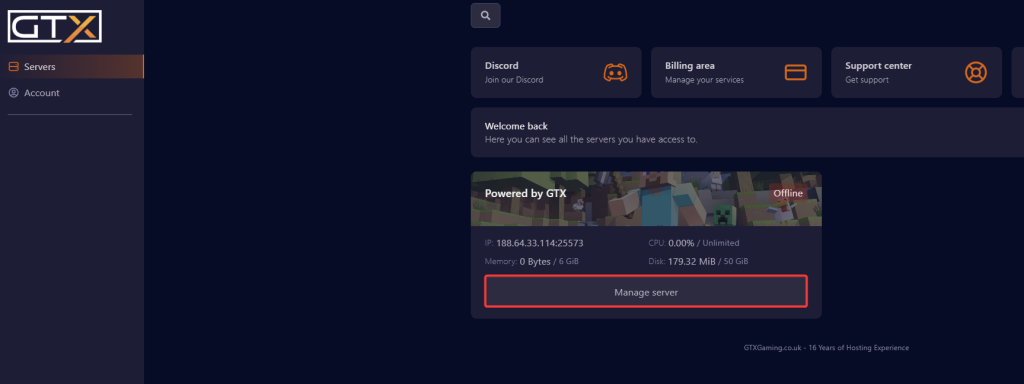
- Click Manage Server on the server you want to connect to the SFTP for.
- The SFTP connection details are shown at the bottom of the page, in the SFTP Details box.
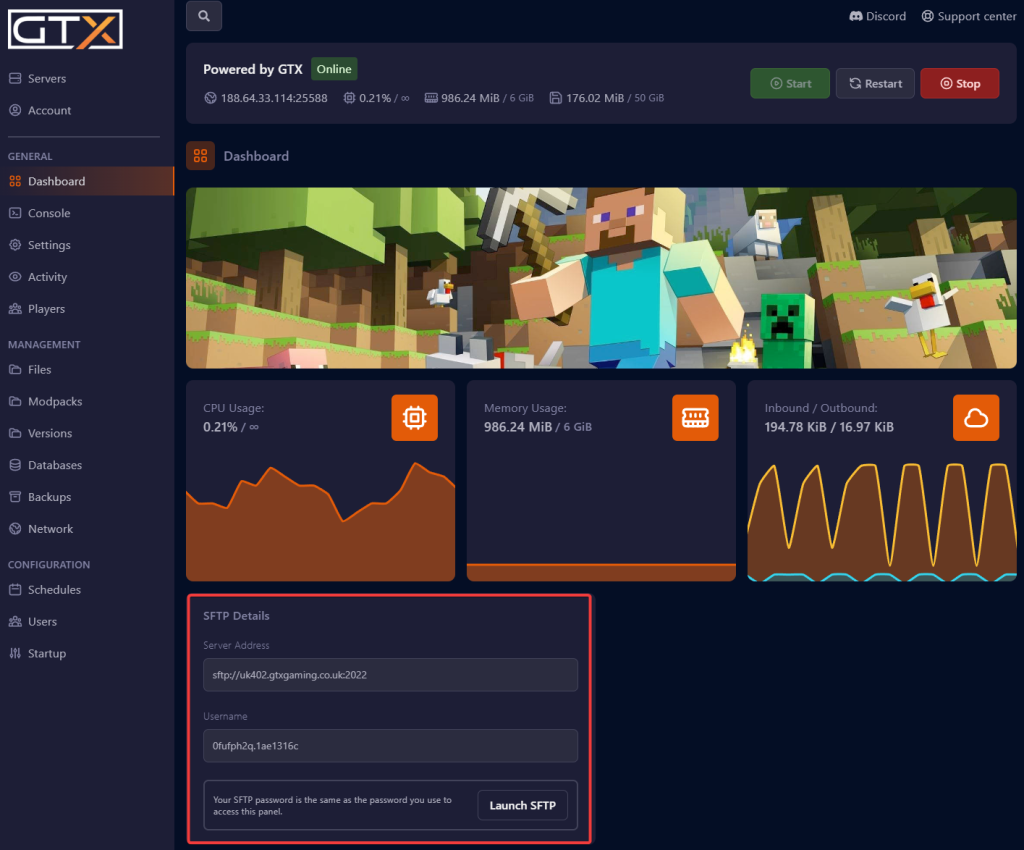
The information you need
The following information will be needed to connect to your SFTP:
- Address/Host: the Server Address, the part before the colon.

- Port: the number after the colon in the Server Address.

- Username: the Username shown in the box. Copy it exactly, including the part after the dot.

- Password: use the same password that you use to access the game panel.
Connect with FileZilla
- Open FileZilla. Enter your details into the quick connect bar (Host, Username, Password, Port) and click Quickconnect.

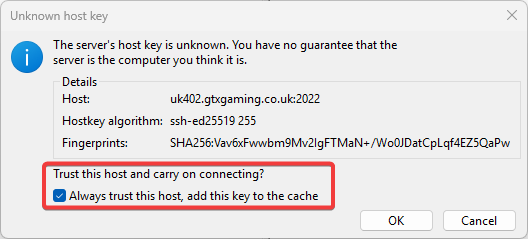
- It may pop up a warning for an Unknown host key. If it does, put a tick in Always trust this host before clicking OK.
- You should now be connected to your server via SFTP. Your server files show on the right-hand side of FileZilla.
Stop the server before you replace or delete files it uses, such as your world folder, so nothing is overwritten while it runs.
Minecraft SFTP questions
How do I connect to my Minecraft server with SFTP?
Log in to the Minecraft game panel at https://gamepanel2.gtxgaming.co.uk/, click Manage Server and copy the Server Address and Username from the SFTP Details box. In FileZilla, enter the host, port, username and your game panel password, then click Quickconnect.
What is my SFTP password?
It is the same password you use to log in to the Minecraft game panel. If you have forgotten it, see Changing your Minecraft game panel password.
FileZilla can't connect. What should I check?
Make sure the port is the number after the colon in the Server Address, not your game port. Copy the full username, including the part after the dot, and use your game panel password. If it still fails, open a support ticket.
Want your own Minecraft server? See our Minecraft server hosting.
Related guides
If you have any issues, please open a support ticket. Our support team is available 24/7.


