
Create a Minecraft server schedule in your game panel: add a schedule with cron-style times, then a task such as a daily restart. This guide sets up 1 restart a day at 1 am.
How to create a Minecraft server schedule
- Log in to your game panel at https://gamepanel2.gtxgaming.co.uk/
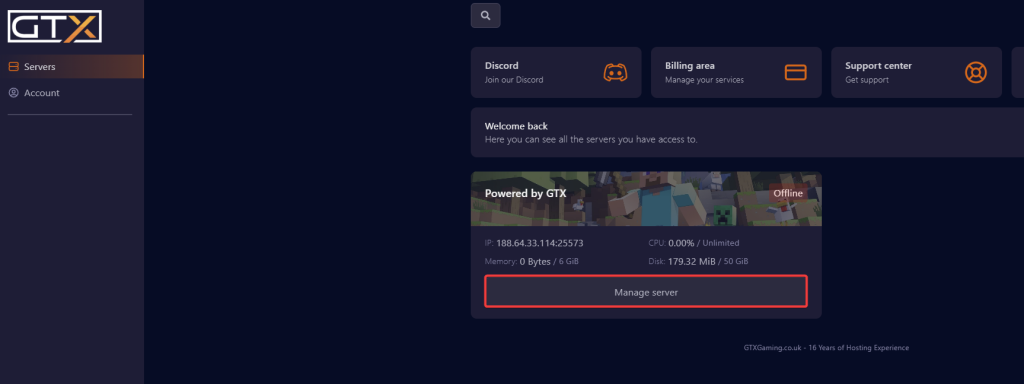
- Click Manage Server on the server you want to set up a scheduled task on.
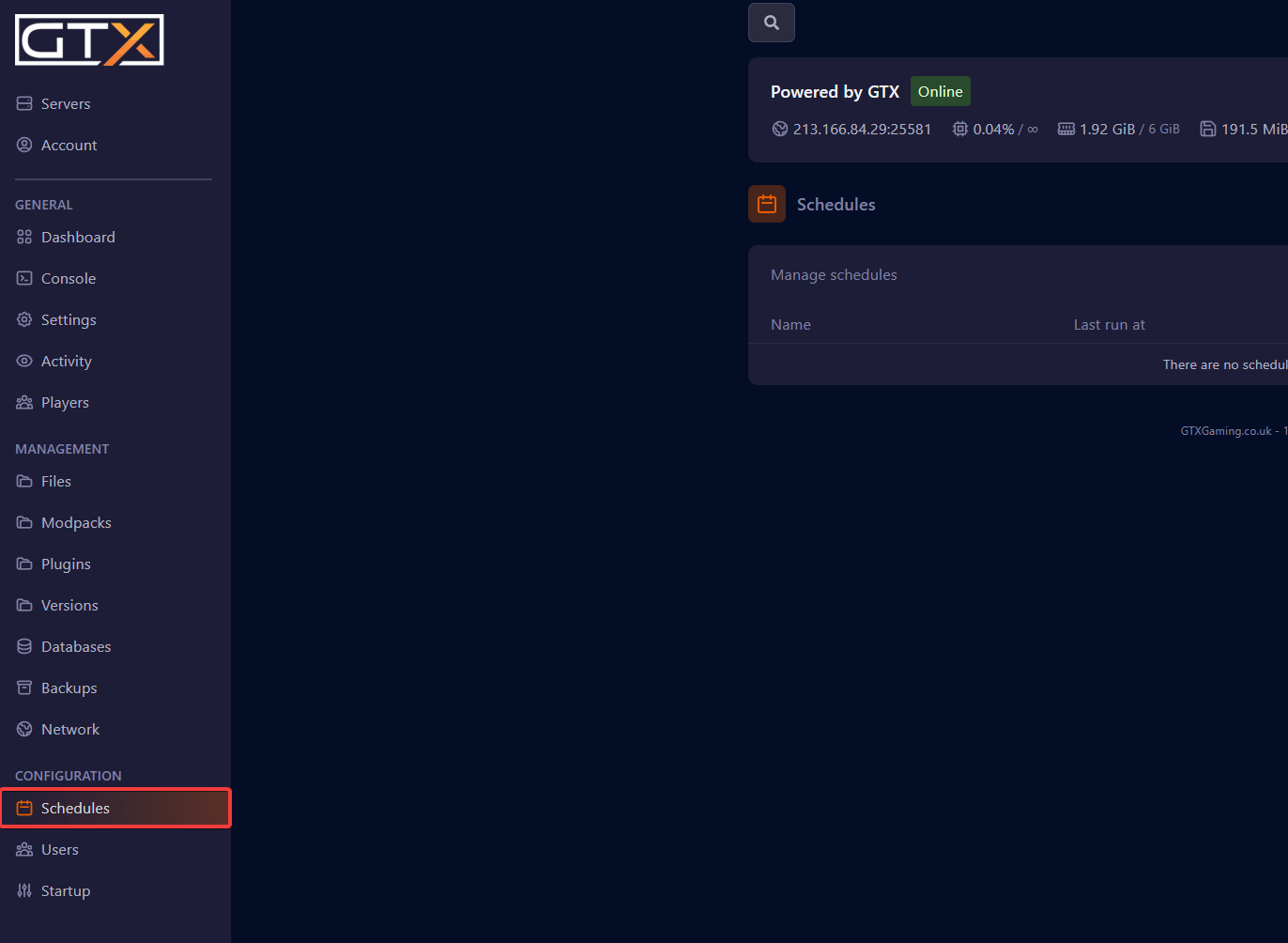
- Change to the Schedules page.
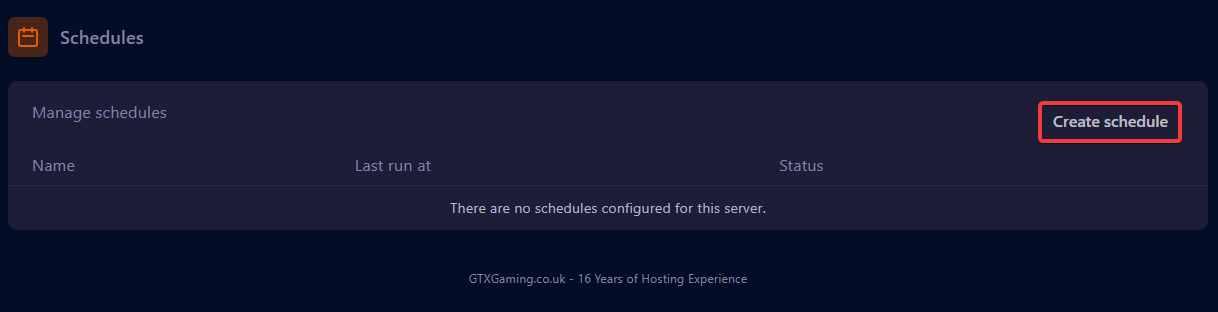
- Click Create Schedule.
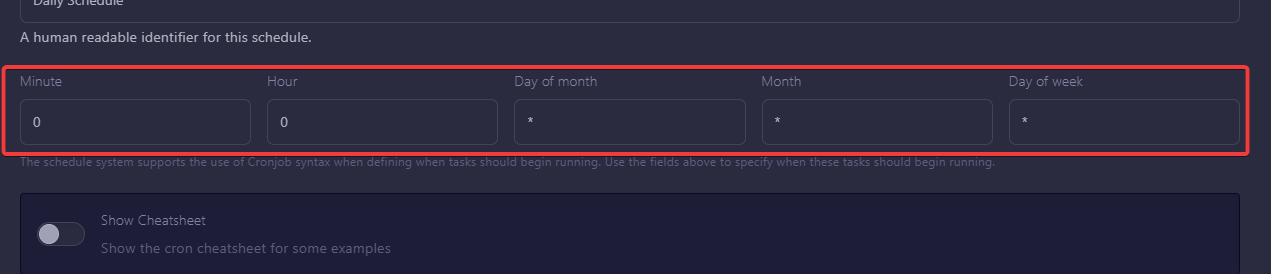
- Enter a name for the schedule. For this guide we use 'Daily Schedule'.

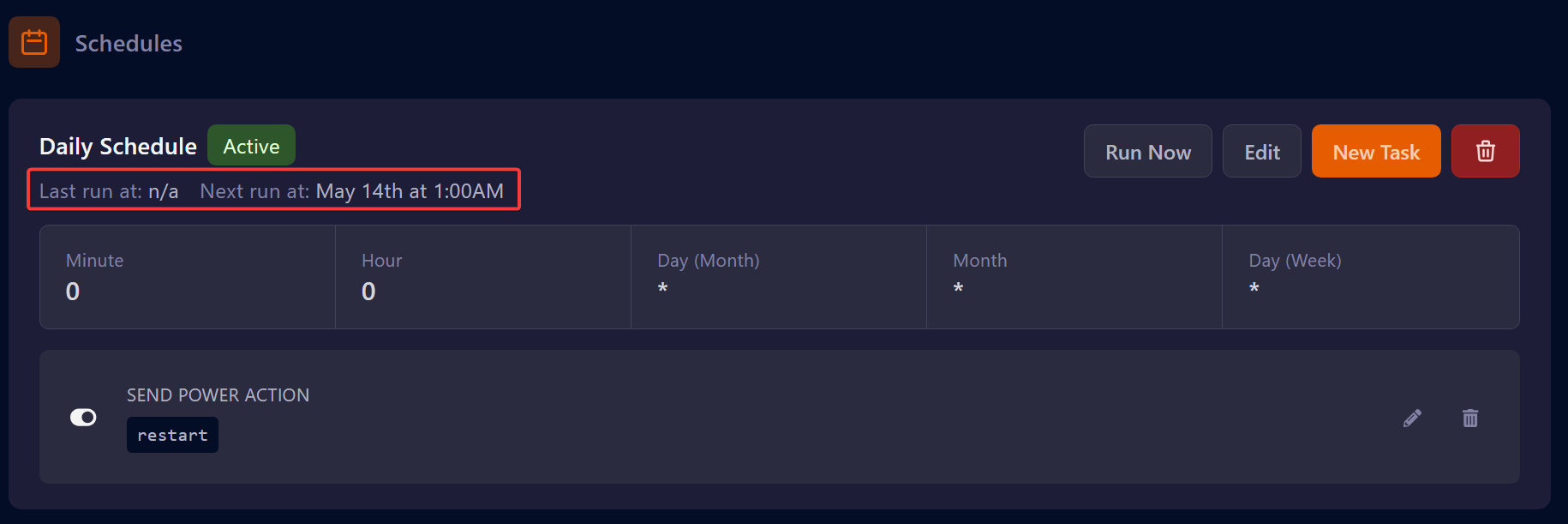
- Enter the Minute, Hour, Day of month, Month and Day of week for when you want the schedule to run. For this guide we do 1 restart a day at 1 am.
Examples of schedules
Each example lists the values for Minute, Hour, Day of month, Month and Day of week, in that order. * means "every".
- Every 30 minutes: Minute
*/30, Hour*, Day of month*, Month*, Day of week* - Every 6 hours: Minute
0, Hour*/6, Day of month*, Month*, Day of week* - Once a day: Minute
0, Hour0, Day of month*, Month*, Day of week* - At 0 minutes past the hour, every 6 hours, starting at 03:00 AM: Minute
0, Hour3/6, Day of month*, Month*, Day of week*
Add the task to the schedule
- After creating the schedule, specify what the task does. To add a task, click the New Task button.

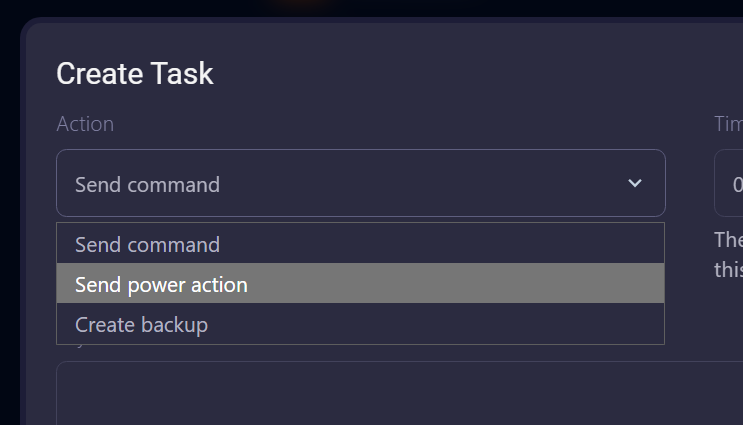
- Click the Action drop-down and select the action you want the task to perform. For this guide we use "Send power action to restart the server".
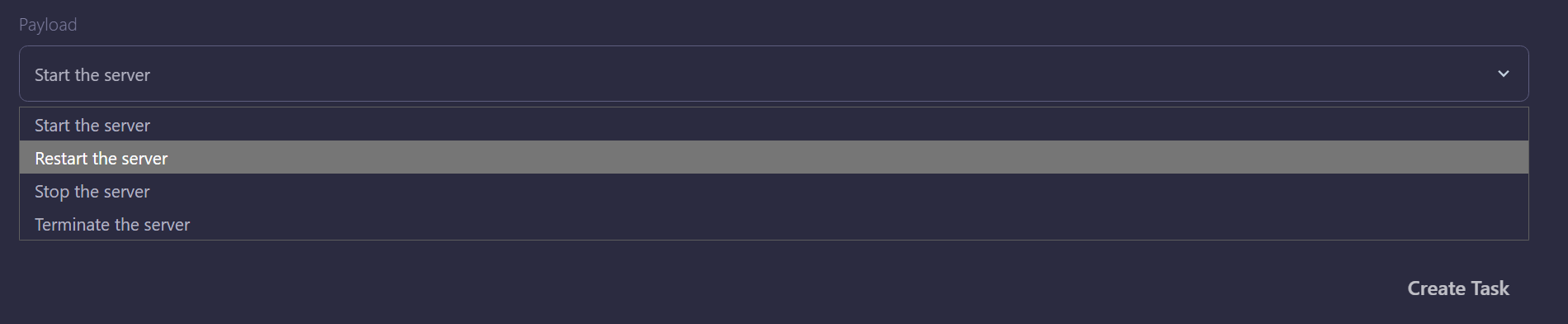
- Click the Payload drop-down menu, select the action you want the task to perform, then click Create Task.
- Once the task is set up, the schedule shows when it will run and what the task will perform.
Minecraft schedule questions
How do I create a Minecraft server schedule?
In the game panel click Manage Server, open Schedules, click Create Schedule, give it a name and the Minute, Hour, Day of month, Month and Day of week values, then add a New Task with the action you want (for example a restart power action) and click Create Task.
How do I restart my Minecraft server every 6 hours?
Create a schedule with Minute 0, Hour */6 and * for Day of month, Month and Day of week, then add a task with the Send power action action and the Restart the server payload.
Want your own Minecraft server? See Minecraft server hosting or Minecraft Bedrock server hosting.
Related guides
Any issues setting up a scheduled task? Our support team is available 24/7: open a support ticket.


