
Reinstall your Minecraft Java server from the GTX Minecraft game panel: open Manage Server, go to Settings and press Reinstall Server. Back up first, as reinstalling deletes all files.
Reinstalling the server will delete all files. Ensure you have a backup of anything you wish to keep before proceeding. See Backing up your entire Minecraft server.
How to reinstall your Minecraft Java server
- Log in to your game panel at https://gamepanel2.gtxgaming.co.uk/.
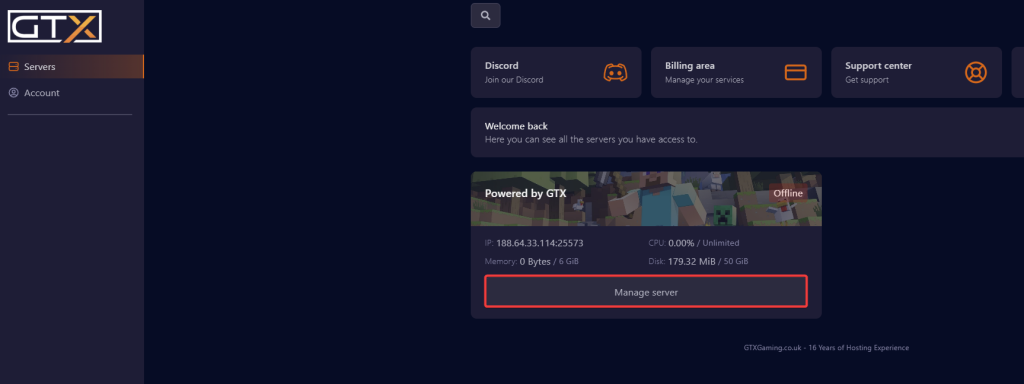
- Click Manage Server on the server you want to reinstall.
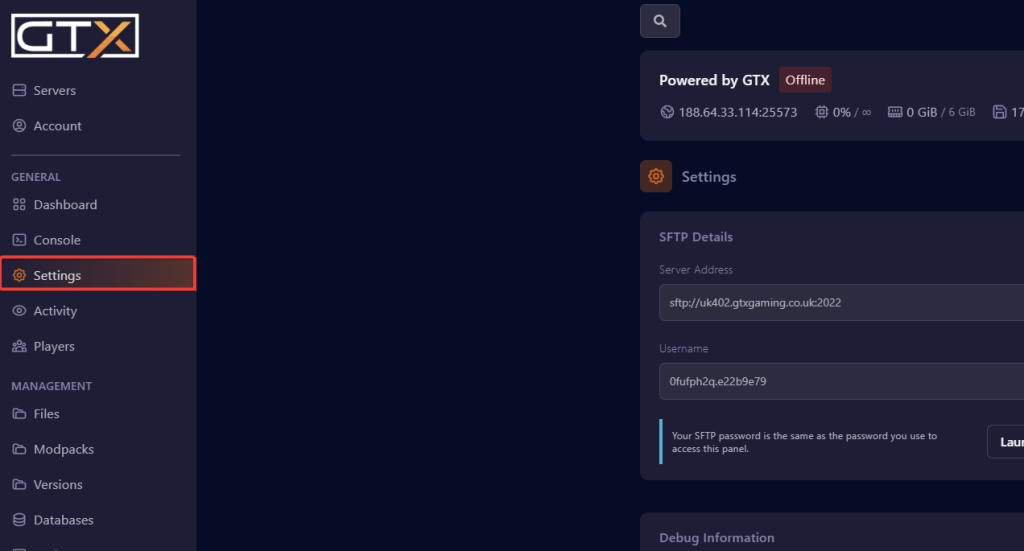
- Change to the Settings page in the left menu.
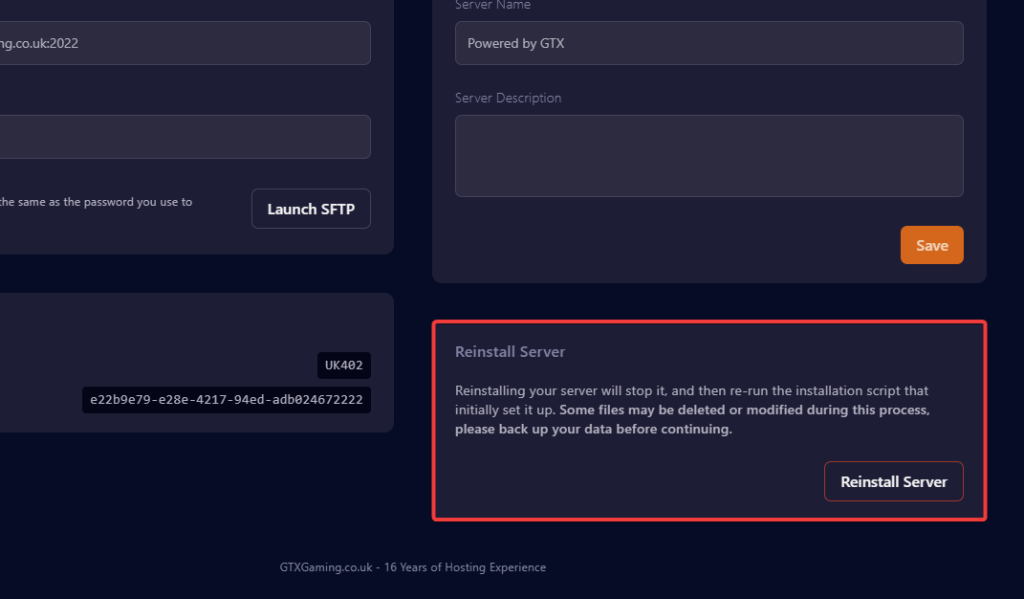
- Under Reinstall Server, click the Reinstall Server button.
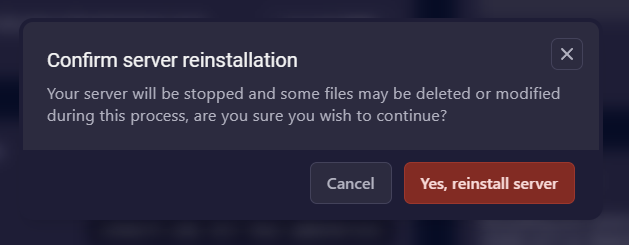
- A confirmation prompt will appear. Click the Yes, reinstall server button.
- Once the server has finished installing, it will return to the settings page.
After the reinstall
Your server starts again from a clean install. To bring your world or files back, restore the backup you made before reinstalling: see Restoring a full server backup for your Minecraft server.
Minecraft Java reinstall questions
How do I reinstall my Minecraft Java server?
Log in to the Minecraft game panel at gamepanel2.gtxgaming.co.uk, click Manage Server on your server, change to the Settings page and click Reinstall Server under Reinstall Server. Confirm with Yes, reinstall server. When it has finished installing, the panel returns to the Settings page.
Will reinstalling delete my Minecraft world?
Yes. Reinstalling the server will delete all files, including your world. Make a backup of anything you wish to keep before you reinstall.
How do I reinstall a Minecraft Bedrock server?
Bedrock servers have their own guide: Reinstalling your Minecraft Bedrock server.
Want your own Minecraft server? See our Minecraft server hosting.
Related guides
If you have any issues, please open a support ticket. Our support team is available 24/7.


