Cluster link your ATLAS MASTER and SLAVE servers in 4 steps: choose your map regions, add the SLAVE IP and ports to ServerGrid.json, pick each server's region in Start.bat and give both the same Cluster Sync ID.
This guide is divided into 4 sections to make it easier to follow. Read all steps carefully and follow them one by one from the start, and you will not have any issues linking your servers.
On this page
Section 1: Choose map regions to cluster link your ATLAS MASTER and SLAVE servers
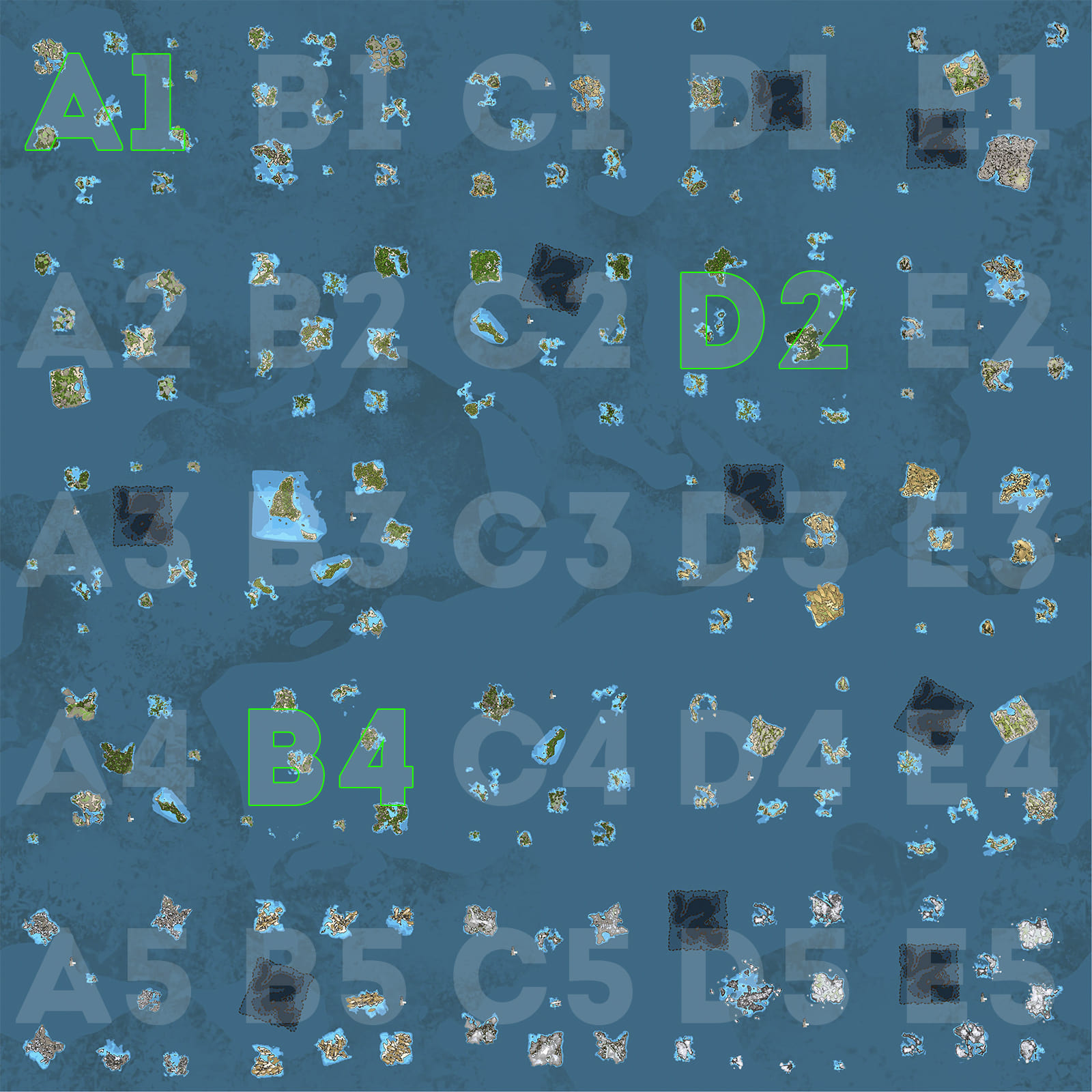
Check the regions available on the map: you need to have the exact same map installed on both MASTER and SLAVE servers. You can only spawn on HomeServers regions; HomeServers regions are the ones marked green.
- Click the map below that you have installed on your MASTER and SLAVE servers and take note of the regions you want to use: GTXGaming Official Map (1 to 25 Regions).
Section 2: Set up IP and ports
By default the MASTER server always loads the A1 region, but you can change it to any other region. Copy the MASTER IP and ports to the region you want to load, disable the A1 region, enable the one you want, and place the MASTER IP and ports on it.
- Go to your SLAVE server and press the CLUSTER SLAVE DETAILS button. Take note of the IP and ports.
- Go to your MASTER server and, under the Configuration Files button, edit the
ServerGrid.jsonfile with the EASY EDITOR option. - Scroll down and ENABLE the region you chose in Section 1, place the IP and ports you got in step 1 of this section, and save the file.
Section 3: Set up map regions
To travel between two or more regions, they need to be side by side. If you choose a region in each corner of the map, you will not be able to travel between them.
- Go to your MASTER server and, under the Configuration Files button, edit the
Start.batfile and select the region you want to load. - Go to your SLAVE server and, under the Configuration Files button, edit the
Start.batfile and select the region you want to load.
Section 4: Set up the cluster Sync ID
The Cluster SYNC ID is used to sync all settings between your MASTER and SLAVE servers. This ID needs to be exactly the same on the MASTER server and on all SLAVE servers. The MASTER server comes with a default ID, but you can type your own ID as long as you don't use SPACES or SPECIAL CHARACTERS.
- Go to your MASTER server, click the CLUSTER MASTER DETAILS button and take note of the Sync ID.
- Go to your SLAVE server and, under the Configuration Files button, edit the
Start.batfile and place the Sync ID you got from the previous step. - Start your MASTER server, wait 5 seconds and start your SLAVE server.
Please read: be aware of the following
- You need at least 1 MASTER and 1 SLAVE server to link them.
- This guide explains how to link 1 MASTER and 1 SLAVE. If you want to add more SLAVES, go through all steps for each slave.
- If you have a friend with an Atlas server, you can link your server to their server. Follow all steps normally, and in the Sync ID section use the same ID for your server and your friend's servers.
ATLAS cluster questions
How do I cluster link my ATLAS MASTER and SLAVE servers?
Pick side-by-side regions on the same map for both servers, add the SLAVE IP and ports (from CLUSTER SLAVE DETAILS) to the chosen region in the MASTER's ServerGrid.json, select each server's region in its Start.bat, then put the MASTER's Sync ID into the SLAVE's Start.bat. Start the MASTER first, wait 5 seconds, then start the SLAVE.
Why can't players travel between my ATLAS regions?
Regions must be side by side to travel between them. Regions in opposite corners of the map are not connected. Also check that both servers use exactly the same map and the same Sync ID.
Can I add more than one SLAVE server to my ATLAS cluster?
Yes. Go through all steps of this guide for each extra SLAVE server, using the same Sync ID on every server.
Want your own ATLAS servers to link into a cluster? GTX ATLAS servers come with the cluster details buttons and full file access: see ATLAS server hosting.
Related guides
Any questions? Our support team is available 24/7: open a support ticket.