
How to update your DayZ server: stop it, press Steam Update in the game panel and start it again. A modded server needs a few extra checks so mods, maps and XML files keep working.
On this page
How to update a vanilla DayZ server
Vanilla server: a server without mods, custom files or any other modifications.
- Stop your server: press STOP on your DayZ server.
- Press the Steam Update button on your Game Panel and wait for it to finish.
- Start your server: press START.
Steam Update failed or showed an error? On update day everyone updates at once and Steam gets overloaded. Retry in 5 minutes, or use the ADVANCED Steam Update and select a different update server.
How to update a modded DayZ server
Modded server: a server with mods, custom files and other modifications. Big DayZ updates often break mods, change files and add new entries to the mission XML files. A plain Steam Update may not be enough, so work through these steps:
- Stop your server: press STOP.
- Take a backup, so you can go back if the update goes wrong. See How to back up your game server.
- Press the ADVANCED Steam Update button on your Game Panel.
- Select the Save MPMissions option if you have custom edited XML files. This saves your mpmission with your custom XML files inside and creates a new
mpmissionsNEWfolder with the updated missions, so you can cherry-pick the new changes into your mission later. - Go to the Steam Workshop button and update any mods that require an update.
- If you have a custom map, go to the Mod Manager button and check if there's an update for it already. You can also check the map's Discord or GitHub for updates and extra information.
- Review any custom modifications you made and double-check everything: updates always break something.
- Start your server: press START.
Don't want to do this by hand every time? Set up automatic server updates and automatic Workshop mod updates, with warnings for your players.
Server not showing in-game or on DZSA Launcher after the update? What can I do?
If you can't see your server online or on DZSA Launcher after the update, most likely it is not starting at all: a bad update, a broken mod or incompatible modified files. Start your server and wait at least 5 minutes for it to go fully online, then check whether it is online:
- Query your server on Steam with your server's QUERY INFO IP+PORT (see the example below). In Steam, open View › Game Servers › Favourites, press Add a server, enter the address next to QUERY INFO in the panel and press Find games at this address.
- Game panel: click the Activity and Stats button (Activity & Stats). It shows whether your server is online or not.
How to query your server on Steam:
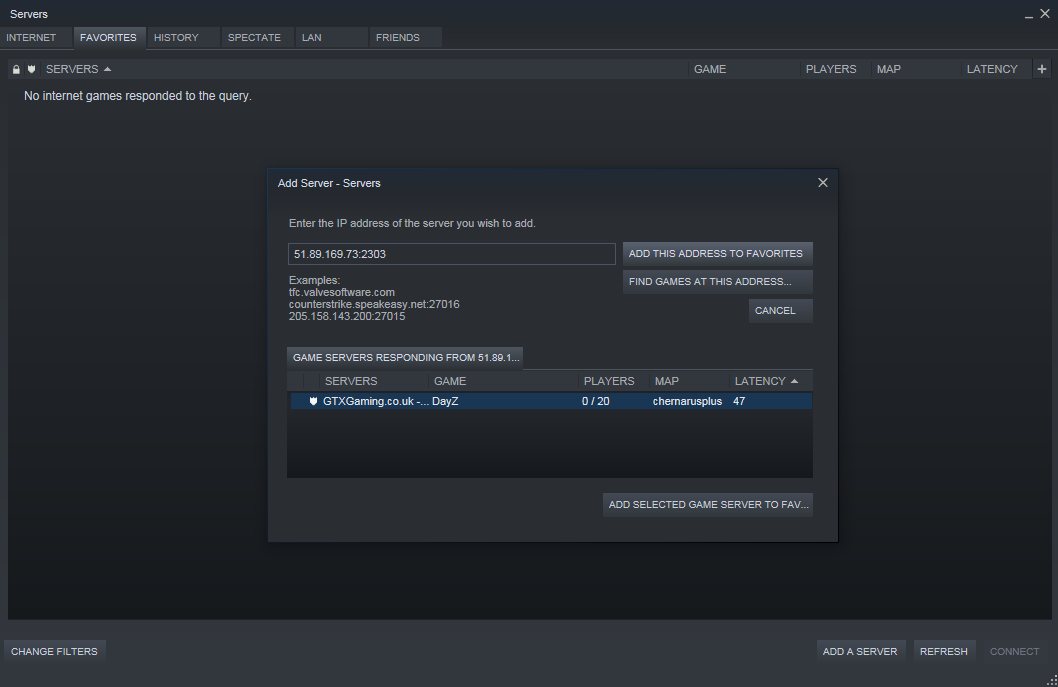
Server not showing online on Steam query or Activity and Stats button? What can I do?
If the Steam query and the Activity and Stats button both show the server offline, one of these is usually the cause.
Steam update failed
Sometimes Steam gets overloaded with everyone updating at the same time and the update fails.
Solution: go to the MORE button and run Force Steam Update, which force-updates DayZ.
Force Steam Update checks every game file and removes installed mods. Take a backup first and reinstall your mods afterwards.
Broken mods
On big DayZ updates a lot of mods break and stop the server starting, because they are not compatible with the new update. There's no easy way to tell which exact mod is broken among dozens of others, so:
- Solution #1: check the server logs. Start the server, wait 10 seconds and press the Web Console button: the last lines often give the reason the server is not starting, in the form of an error. Also check
server_consoleandscript_loginside the Log Viewer button for hints about broken mods. - Solution #2: check the most obvious mods, the ones that are not very popular or not well maintained. Many Workshop mods are released and then abandoned, and stop working when a big DayZ update lands. Check your mods one by one if needed: look at the last update date on the Steam Workshop, read the description for news of the mod being broken or updated soon, and read the comments. Other players usually report there whether a mod is broken.
Incompatible mod configurations
On some updates, mods such as Expansion, Trader and others change their settings files with new entries, or even new files.
Solution: review every mod you know has configuration files. Changes you need to apply to get the mod/server working again are usually reported by the mod developers: read their changelogs, wiki, Steam Workshop page or Discord. See How to install the DayZ Expansion Bundle for updating Expansion.
Outdated map files
If you have a custom map like Namalsk, Esseker or Deer Isle, the map usually needs to be updated every time DayZ updates.
Solution: go to the Mod Manager button and check if there's an update for your map already available. We keep the maps there up to date, but you can also download the map files from the map's website and upload them yourself over SFTP.
Incompatible mpmission XML files
Some DayZ updates change the XML files: types.xml or other mpmission XML files get new entries or a new structure, while your server still uses your older custom XML files.
Solution:
- Download every XML file you changed to your computer.
- Delete those files from the server.
- Press MORE › Force Steam Update to download fresh default XML files (see the warning above).
- Apply your changes to the new files again, or compare old and new with a diff tool such as DiffMerge or WinMerge and merge them.
- Check the files with the XML Validator, then press START.
I tried everything and nothing works: server still not showing online
Be sure you reviewed everything: double-check and triple-check. If it still doesn't work, rebuild the server and bring your world back:
- Press STOP.
- Download your mission save files to your computer from inside
\mpmissions\MAP_YOU_RUNNING\storage_380881\. ReplaceMAP_YOU_RUNNINGwith your mission folder, for exampledayzOffline.chernarusplus. The number afterstorage_is theinstanceIdin your server config, so on your server it may be different. - Reinstall your server back to default.
- Install all the mods again and test everything.
- Stop the server, upload your mpmission save files (the
storage_folder) back to the same place and start the server.
Questions
How do I update my DayZ server?
Stop your server, press Steam Update in the GTX game panel and start the server again. On a modded server, also update your mods in Steam Workshop, check Mod Manager for map updates and use the Save MPMissions option of the ADVANCED Steam Update if you have custom XML files.
Do I have to update my server when DayZ updates?
Yes. Players on the new game version can't join a server running the old version. Update your server as soon as the update is out on Steam.
Steam Workshop shows "Workshop has an id of 0". What does that mean?
That error has its own fix: see How to fix "Workshop has an id of 0".
The server is online but there's no loot or no zombies. Why?
Usually an XML error or an out-of-date mission file after the update. Follow How to fix no loot or zombies spawning.
Related guides
Still stuck after an update? Open a support ticket and we'll help.


