
To ban a player and use admin commands on your 7 Days to Die server, open the Web Control Panel with the password from Server Details, then type help to list every command, for example help ban.
The Web Control Panel gives you a console for your 7 Days to Die server in your browser. From there you can kick and ban players, list who is online and run every other admin command, without joining the game.
How to ban and use admin commands on 7 Days to Die
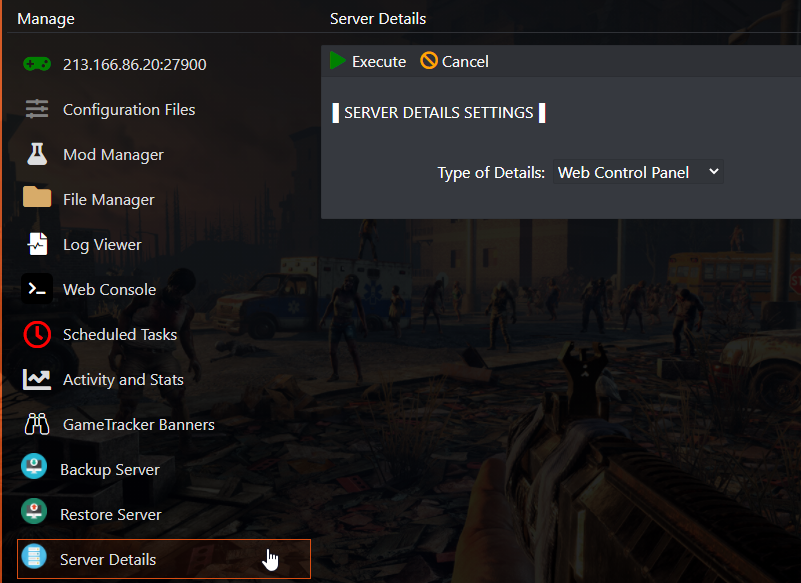
- In the game panel, navigate to Server Details. In the list, select Web Control Panel and then press Execute.
- Then navigate to the Web Control Panel, enter the password you got from Server Details and click OK.
- Now type the
helpcommand to get a list of commands. If you need further help on using a command, typehelp <CommandName>. Eg:help ban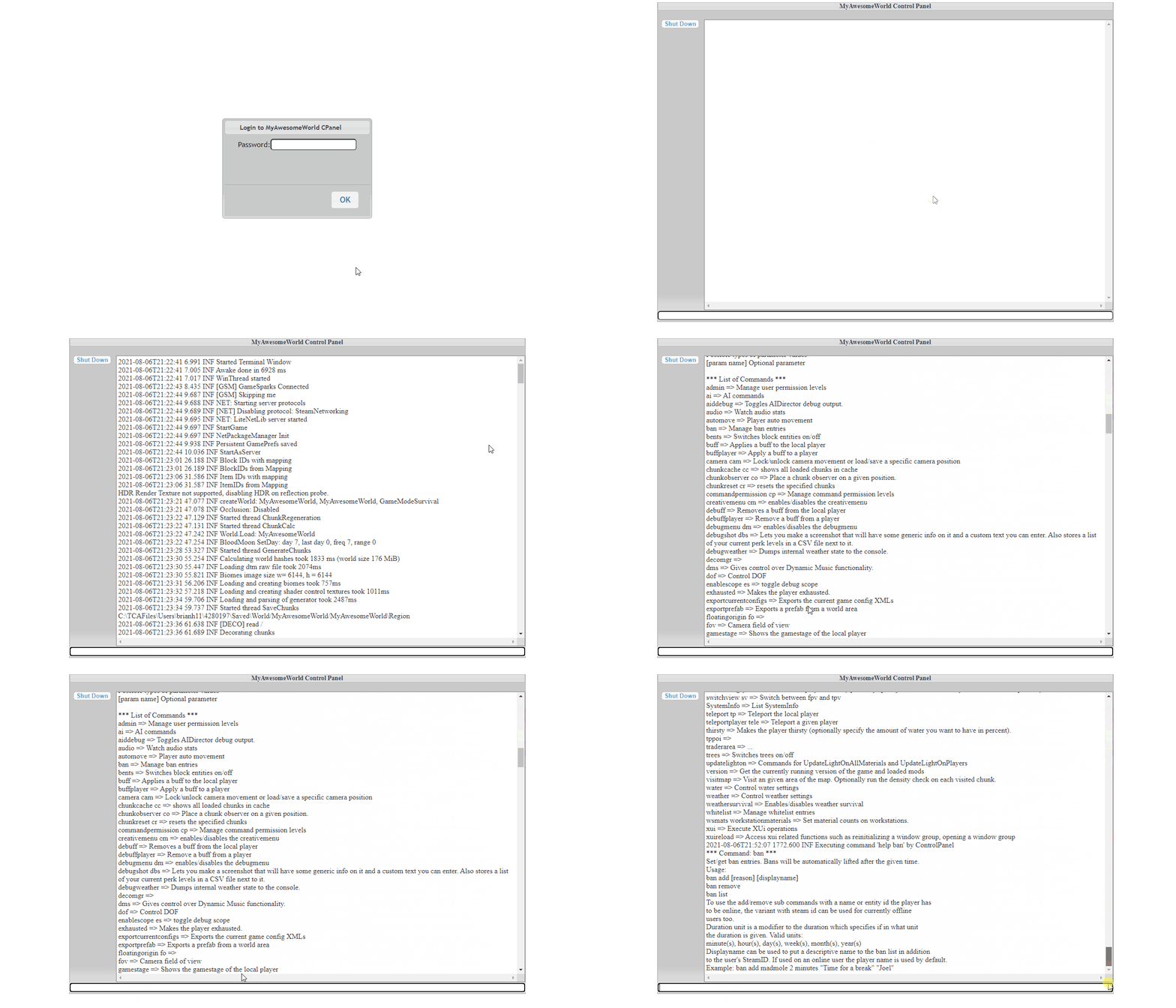
Ban, unban and kick commands
These are the most used moderation commands. Type help ban in the console to see the exact syntax for your game version.
lpi- lists all players and their IDs. Use it first to find the ID of the player you want to kick or ban.kick <id> [reason]- kicks a player from the game. The reason is optional.ban add <name / entity id / steam id> <duration> <duration unit> [reason]- bans a player. Duration units are minutes, hours, days, weeks, months and years. For example,ban add 171 10 hours griefing.ban remove <id>- removes a ban.ban list- shows every banned player with the duration, ID and reason.
Want to give other players admin rights, or limit which commands they can run? Set them up in serveradmin.xml: see How to add admins and set up their permissions on your 7 Days to Die server.
7 Days to Die admin and ban questions
How do I ban a player on my 7 Days to Die server?
Open the Web Control Panel (Server Details, select Web Control Panel, press Execute, then log in with the password shown). Type lpi to find the player's ID, then ban add followed by the ID, a duration, a unit and an optional reason, for example ban add 171 10 hours griefing.
Where do I find the Web Control Panel password?
In the game panel, go to Server Details, select Web Control Panel in the list and press Execute. The details include the password you enter in the Web Control Panel login box.
How do I see all 7 Days to Die admin commands?
Type help in the Web Control Panel console for the full list. For details about one command, type help followed by its name, for example help ban.
Want your own 7 Days to Die server? See 7 Days to Die server hosting.
Related guides
Need a hand with your server? Our support team is available 24/7: Open a support ticket.