



 DayZ
DayZ Palworld


 Enshrouded










Quick answer
No, you can't add mods to a Java Edition Realm. Realms don't load Forge, NeoForge or Fabric mods, plugins or OptiFine, and there is no setting or command that changes that. Bedrock Realms are different: they run add-ons (behaviour and resource packs), but not Java mods. If your group wants a real modpack, you need a Minecraft server, and you can bring your Realm world with you.
On this pageCan you add mods to Minecraft Realms?
Below: what a Realm does let you add, how Bedrock add-ons work, and how to move a Realm world onto a modded server step by step, with the screens from our own game panel.
Last updated 7 October 2026. Checked against Java Edition 26.3 and Bedrock 26.x.
Can you add mods to Minecraft Realms?
Here is what each option can run:
| Forge, NeoForge, Fabric mods | No | No | Yes |
| Modpacks (CurseForge, Modrinth) | No | No | Yes |
| Plugins (Paper, Spigot) | No | No | Yes (Java) |
| Data packs | Yes, inside an uploaded world | No (Java only) | Yes |
| Resource packs | Yes | Yes | Yes |
| Add-ons / behaviour packs | No (Bedrock only) | Yes | Yes (Bedrock server) |
| Players online at once | 10 plus the owner | Realms Plus: 10 plus the owner (Realms Core: 2) | Set by you and your hardware |
Click a column heading to sort.
Older guides (ours included, until this rewrite) claimed you could upload mods with a command or through the resource pack menu. That never worked. Mojang's Realms are locked to vanilla Minecraft on purpose, so every player can join without installing anything.
What you can add to a Java Realm
Data packs, inside an uploaded world
Data packs are the closest thing to mods a Java Realm accepts. They change recipes, loot, world generation and advancements, and add functions, all without new code on anyone's PC. You can't install them on the Realm directly, but you can upload a world that already has them:
- Create (or open) a singleplayer world on the same version as your Realm.
- On the world list, choose Edit, then Open World Folder, and drop the data pack's .zip into the
datapacksfolder. - Load the world and type
/datapack listto check the pack is enabled. - Open your Realm's Configure screen and replace a world slot with this world. Replacing overwrites that slot, so download a backup first (next section shows how).
Two limits: Realms refuse worlds with experimental features turned on, and a data pack can't add brand-new blocks or mobs with their own models the way a mod can.
Resource packs
A Realm can push one resource pack to everyone who joins, so the whole group sees the same textures and sounds. Upload a world that contains the pack as resources.zip, and players are asked to download it when they connect. Need ideas? See our pick of the most realistic resource packs.
Client-side mods on your own game
Mods that only change your own game still work when you join a Realm, because the Realm never sees them: performance mods like Sodium, shaders through Iris, zoom or minimap mods. What they can't do is add anything to the shared world. Your friends won't see a new block, mob or item unless the server has the mod too, and a Realm can't have it.
Bedrock Realms: add-ons, not mods
On Bedrock (Windows, Xbox, PlayStation, Switch, phones and tablets) the add-on system is built into the game, and Realms support it:
- Marketplace add-ons: anything you own from the Marketplace can be switched on in the Realm's world settings. Realms Plus includes the Marketplace Pass catalogue.
- Your own .mcaddon or .mcpack files: open the file so Minecraft imports it, apply the behaviour and resource packs to a local world, test it, then replace your Realm's world with it. Players download the packs automatically when they join.
Java mods (.jar files from CurseForge or Modrinth) never work on Bedrock, Realm or not. If your group is all on Bedrock and wants more than add-ons can do, a Bedrock server gives you the same add-on system with full control of the settings and no 10-player cap.
Want real mods? Move your Realm to a modded server
This is the route we walk customers through most often. Your Realm keeps running while you do it, so nothing is lost if you change your mind. The steps are for Java Edition.
1. Download your Realm world
- In Minecraft, click Minecraft Realms, select your Realm and click Configure.
- Open World Backups and click Download Latest. Only the Realm's owner can do this.
- The world appears in your Singleplayer list. Select it, click Edit, then Open World Folder, and zip that folder.
2. Pick a mod loader and version
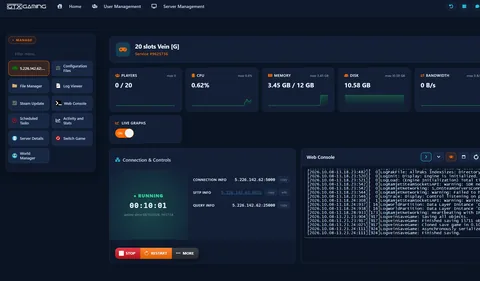
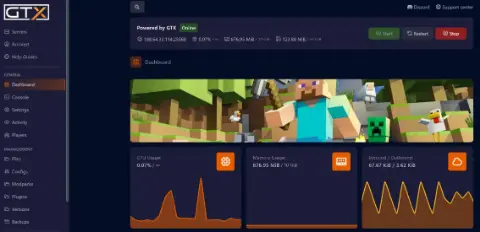
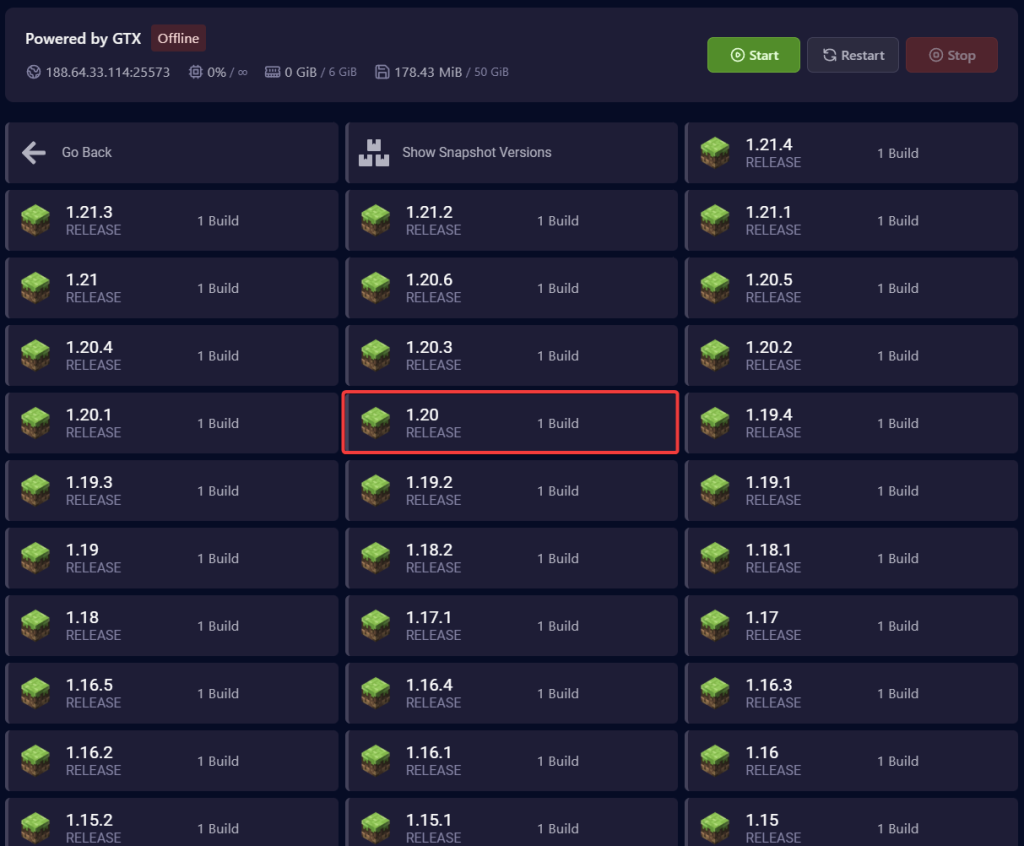
Mods are built for one loader (NeoForge, Forge or Fabric) and one Minecraft version, so choose the ones your mods need. In the GTX game panel, open Versions, pick the launcher (Vanilla, Paper, Fabric, NeoForge and the rest), then the Minecraft version. Take a backup first if the server already has a world on it.
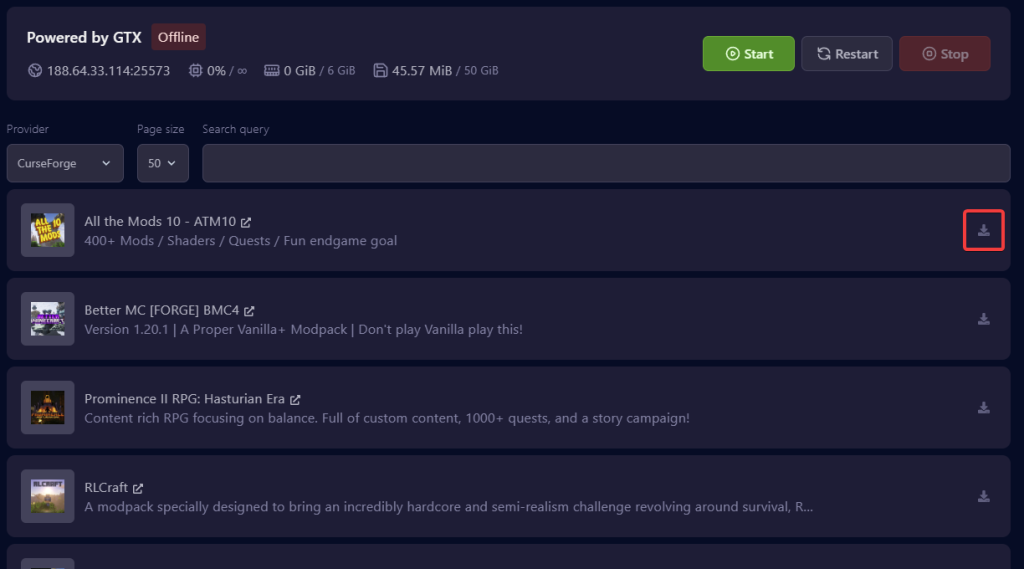
Going for a full modpack instead? Open Modpacks, choose CurseForge, Modrinth, FTB, Technic or ATLauncher, search for the pack and install the version your friends will play. The panel sets the loader for you. Full steps: installing a modpack on your Minecraft Java server.
If the server won't start after a change, the Java version is the usual cause: Minecraft 26.x needs Java 25, 1.20.5 to 1.21.11 need Java 21. Set it on the Startup page (how to set the Java version).
3. Upload your Realm world
- Stop the server in the panel.
- Open Files, upload your zipped world and unarchive it. Big worlds are quicker over SFTP (connect to your server with SFTP).
- Open
server.propertiesand setlevel-nameto the world folder's name, or rename the folder toworld. - Start the server. Your Realm builds, inventories and coordinates come across as they were.
Moving a world from vanilla to a mod loader of the same version is safe. Moving it to an older version is not, and adding world-generation mods only changes chunks you haven't explored yet.
4. Add mods and share them with your friends
Put single mods' .jar files in the server's mods folder (Files or SFTP) and restart. Most mods have to be on every player's game too, in the same versions, so share the list or, easier, a modpack everyone installs with the CurseForge, Modrinth or Prism launcher. Mods marked "server-side only" are the exception.
5. Invite your group
Give your friends the server address from the top of the panel (Multiplayer, Add Server). Then make yourself operator on the Players page and turn on the whitelist (whitelist on, then whitelist add Name), so only your group gets in. That's the same invite-only feel a Realm has.
Realm or modded server: which one fits your group?
- Stay on Realms if you play vanilla, you're ten or fewer, some of you are on consoles, and nobody wants to touch a setting. It's the simplest way to play together.
- Move to a server as soon as you want mods, a modpack or plugins, more than ten players online, or control over things Realms keep from you, such as the server files and every line of
server.properties.
We've hosted game servers since 2008 and see both sides: plenty of groups start on a Realm and move once they find a modpack they love. If that's you, our Minecraft server hosting installs modpacks from the panel and keeps your world online around the clock. For everything else about running one, from server types to backups and admin commands, read our Minecraft server guide.
Minecraft Realms mods FAQ
Can you put OptiFine on a Realm?
Not on the Realm itself. You can run OptiFine (or Sodium and Iris) on your own game and join the Realm with it, because those mods only change how your game looks and runs.
Can you play a CurseForge modpack on Realms?
No. Modpacks need a server that runs the same pack, which a Realm can't. Install the pack on a server, and everyone joins with the matching pack from their launcher.
Do Bedrock add-ons work on Realms?
Yes. Marketplace add-ons you own can be switched on in the Realm's settings, and your own packs work if you apply them to a world and then upload that world to the Realm.
Will Mojang ever allow mods on Realms?
There's no sign of it. Realms are built so anyone can join with an unmodded game, and Mojang hasn't announced any plan to change that.
Can Bedrock friends join a modded Java server?
Only partly. The Geyser plugin lets Bedrock players join a Java server, but it works best on plugin servers; blocks and items added by mods won't show up for them.
Ideas for what to run once you have your own server: our list of the best Minecraft minigames.