



 DayZ
DayZ Palworld


 Enshrouded













I want my own Assetto Corsa server
Your own PC or ours, the two config files, and your first race.
Start with the basics
Popular game servers
Your panels
Assetto Corsa knowledge hub
Everything you need to run an Assetto Corsa dedicated server: your own PC or a rented server, AC Server Manager, server_cfg.ini and entry_list.ini, admin commands, mod cars and tracks, AI traffic on the Shutoko Revival Project, rain and backups. Written by the team that hosts them.
No guides match your search. Try a shorter word, or browse a topic above.
Not sure where to begin? Choose the one that sounds like you.
Your own PC or ours, the two config files, and your first race.
Start with the basicsAssettoServer, AI slots and the Shutoko Revival Project.
AI traffic guideChampionships, locked grids, admin commands and rain races.
Races and championshipsRanked by visits from Google Search, July to October 2026.
Prefer to read it in order? 15 short chapters, about 28 minutes in all, from your first race to a busy AI traffic server.
Start readingServer details, files, SFTP, logs, stats, FAQ
6 guides
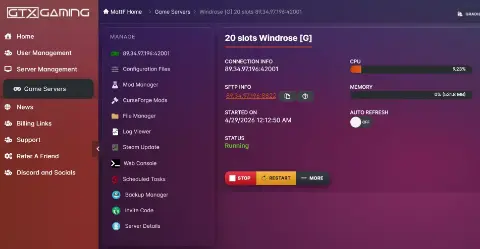
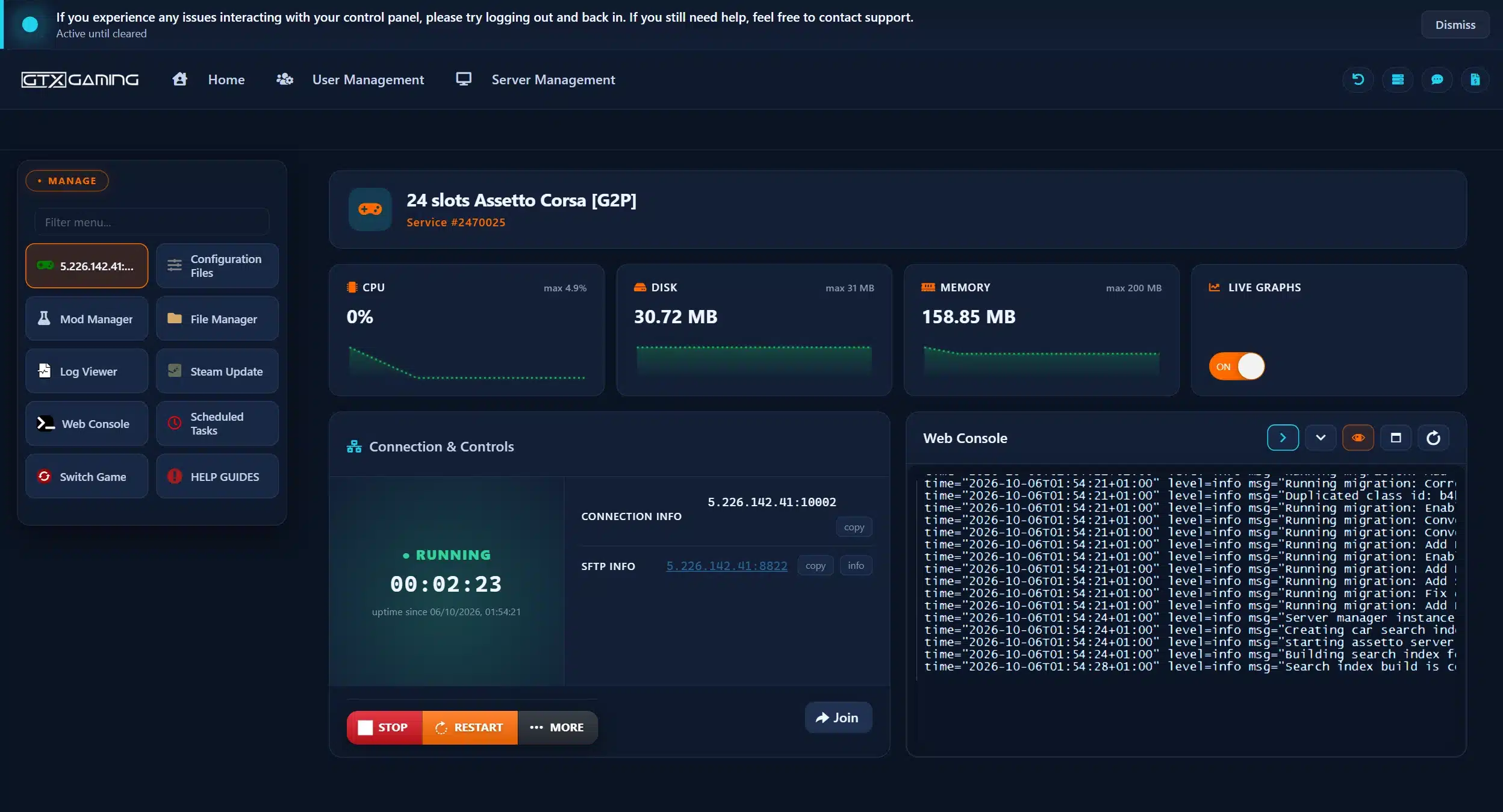
Good to knowDrivers can always join by IP address: the address and port are under CONNECTION INFO in the game panel, even when the server does not show in the online list.
Login, races, Free and Premium
2 guides
Good to knowAC Server Manager and AssettoServer never run together: Server Manager is for races and championships, AssettoServer for AI traffic.
Mod cars, tracks, weather and rain
4 guides
Good to knowThe server and every driver need exactly the same version of each car and track, or drivers are turned away with a checksum error.
AssettoServer and the Shutoko Revival Project
2 guides
Good to knowIn the version our Mod Manager installs, only the shibaura_pa_traffic layout of the Shutoko Revival Project has AI lanes.
Scheduled restarts, reinstall, sub-users
3 guides
Good to knowAutomatic backups run alongside your scheduled restarts, so a daily restart keeps them fresh.
RAM, slots, CPU, hardware, switching game
6 guides
Good to knowOur 24-slot demo server used about 160 MB of RAM idling with Server Manager. On a traffic server, more AI cars mean more work for the server.
The complete guide
server_cfg.ini by hand (Server Manager and the settings that matter).Assetto Corsa is the racing simulator from Kunos Simulazioni, published by 505 Games and released on Steam on 19 December 2014. Its online races run on a separate server program, acServer, which Kunos ships with the game. Kunos' changelogs on Steam show how it grew: since update 1.2 (July 2015) the game's server folder also holds acServerManager, Kunos' own tool for setting a server up, and the folder includes a Linux build of acServer as well (Kunos shipped a corrected one in 1.3.1, October 2015).
server_cfg.ini.server_cfg.ini: the server name, passwords, track, allowed cars, sessions and rules.entry_list.ini: the grid, one [CAR_0], [CAR_1] block per slot, with the car model, skin and, for a locked grid, the drivers' Steam IDs.A server either runs in pickup mode, where drivers join while a session is open and take a free car from the entry list, or starts with a booking session, where drivers reserve their car before the race. Assetto Server Manager's own help text tells you to use pickup mode. A pickup server can still be closed to strangers: since update 1.13 (March 2017) a locked entry list lets in only the drivers on the list, with no password needed (how to lock the grid).
This guide is about the original Assetto Corsa from 2014. Assetto Corsa Competizione and Assetto Corsa EVO are separate Kunos games with their own servers, settings and content, so nothing here carries over to them. Racing those instead? See our Assetto Corsa Competizione servers and Assetto Corsa EVO servers.
Running your own Assetto Corsa server costs nothing extra: the server comes with the game. The rough steps on a Windows PC:
server folder inside your Assetto Corsa install (in Steam: right-click the game, Manage, Browse local files). It holds acServer and Kunos' acServerManager.server_cfg.ini and entry_list.ini for you (what goes in them).content/tracks folder, so it knows every layout.Kunos does not publish hardware figures for the server, and it is light: our own 24-slot demo server used about 160 MB of RAM while idling with Assetto Server Manager running. What a home server really costs is a PC that stays on, your upload bandwidth, and your home IP address shared with everyone who joins. An AI traffic server is heavier, because the server drives every AI car (performance).
Free with the game, full control and a good way to learn how the server works. But it is only online while that PC runs, you open ports and update by hand, you set up Server Manager or AssettoServer yourself, and your home connection carries every race.
Online 24/7 in a datacentre with DDoS protection, set up when you order, with AC Server Manager already running, AI traffic and the Shutoko Revival Project one click away, daily backups and a 24/7 team. It costs a monthly fee, with no setup fee and no contract.
Our view after hosting game servers since 2008: for a quick private race with friends, a home server is fine. Rent one when the server should stay online while you are away, when a league or a drift crew drives at different times, or when you want championships, live timings and AI traffic without building it all yourself. Plans and locations are on our Assetto Corsa server hosting page.
Assetto Corsa servers on GTX run in our game panel with AC Server Manager (the free version, 1.7.9) already installed and running, and the KissMyRank, Real Penalty, stracker and Sol plugins set up. This is the order we suggest for your first race night:
Assetto Server Manager (often called AC Server Manager or ACSM) is a third-party web interface for the Assetto Corsa dedicated server. Emperor Servers describe themselves as its developers, and the free versions are published as open source on GitHub. Server Manager writes server_cfg.ini and entry_list.ini for you and starts the server. Its documentation lists what the free version does:
On GTX, the KissMyRank, Real Penalty, stracker and Sol plugins come pre-configured with Server Manager: switch on the ones you want and set them up to suit your rules. KissMyRank, for example, handles driver rankings, rules and penalties.
The free 1.7.9 release, from February 2021, is the last free version on GitHub, and that project is now archived. Emperor Servers sell the current Server Manager as a paid licence. Their feature list includes race weekends with advanced grid sorting, driver swaps, scheduled events, advanced weather with Custom Shaders Patch support, a multi-server manager, Discord notifications and Lua plugins. On GTX, Premium is a Mod Manager install with your own licence:
ACSM.License.ACSM.License with the File Manager.The rain setup in this guide needs Premium (rain).
Every Assetto Corsa server reads two files when it starts: server_cfg.ini for the server and the race, and entry_list.ini for the grid. On GTX, AC Server Manager writes both for you; with AssettoServer you edit them yourself in Configuration Files, with the server stopped. The key names below are the ones Server Manager writes, taken from its source code.
NAME, PASSWORD and ADMIN_PASSWORD: the name in the server list, the join password for a private server, and the password that makes you admin (admin commands).TRACK and CONFIG_TRACK: the track folder and its layout, for example TRACK=shuto_revival_project_beta with CONFIG_TRACK=shibaura_pa_traffic.CARS: the car models allowed on the server. MAX_CLIENTS: the number of cars, which Server Manager's help says must not be higher than the track's number of pits.PICKUP_MODE_ENABLED, LOCKED_ENTRY_LIST and LOOP_MODE: pickup or booking, a grid locked to the entry list, and whether the server starts again from the first track when the last session ends.ABS_ALLOWED and TC_ALLOWED (0 = no car may use it, 1 = only cars that have it, 2 = any car), and STABILITY_ALLOWED, AUTOCLUTCH_ALLOWED and TYRE_BLANKETS_ALLOWED (0 off, 1 on).FUEL_RATE and TYRE_WEAR_RATE (100 is realistic, 0 is none), DAMAGE_MULTIPLIER (0 to 100), ALLOWED_TYRES_OUT for track limits, and LEGAL_TYRES, the tyre compounds drivers may use.SUN_ANGLE sets the sun's position, and TIME_OF_DAY_MULT speeds time up online (Kunos added the multiplier in update 1.14).TCP_PORT, UDP_PORT, HTTP_PORT and REGISTER_TO_LOBBY, which lists the server in the game's online lobby.[BOOK], [PRACTICE], [QUALIFY] and [RACE], each with a length in minutes (TIME) or, for a race, LAPS. IS_OPEN decides who may join: 0 nobody, 1 anyone, 2 anyone until 20 seconds before the green light. WAIT_TIME is the wait in seconds before the session starts.[DYNAMIC_TRACK]: SESSION_START is the grip in % at the start, LAP_GAIN the number of laps that add 1% grip, SESSION_TRANSFER how much of the gained grip carries into the next session, and RANDOMNESS a random change to the starting grip.[WEATHER_0], [WEATHER_1] and so on: GRAPHICS must be exactly one folder name from the server's content\weather folder, with air and road temperatures, their variation and wind. Kunos moved weather to the server side in update 1.2.[CAR_0], [CAR_1] and onwards, with MODEL and SKIN, and optionally DRIVERNAME, TEAM, GUID (the Steam IDs allowed in that car), BALLAST, RESTRICTOR and FIXED_SETUP.MODEL must also be in CARS in server_cfg.ini. Kunos made the server stop with an error when the two do not match.AI line per slot for traffic servers (AI traffic).Kunos built admin commands into the in-game chat. Set an ADMIN_PASSWORD first (Kunos made it mandatory in its own acServerManager in update 1.3.4). In a session, type /admin followed by the password in the chat to become admin. If you join the server with the admin password instead of the normal one, you are made admin straight away, and you can join even when a session is closed. These commands come from Kunos' changelogs:
/help: lists the commands the server knows./next_session and /restart_session: skip to the next session or restart the current one./kick followed by a driver's name, for example /kick The Player./client_list shows the car ID of every driver, and /kick_id kicks by that ID: handy for names with special characters./ban_id: bans a driver by car ID and puts them on the server's blacklist./ballast: gives a car extra weight, up to the server's MAX_BALLAST_KG.Drivers can vote as well: Kunos' server has votes to kick a driver and to restart or skip a session, and KICK_QUORUM and VOTING_QUORUM in server_cfg.ini set the percentage of votes needed.
For a league, put each driver's Steam ID as the GUID of their car in entry_list.ini and switch on LOCKED_ENTRY_LIST. Since update 1.13 only drivers on the list can then join, and they need no password. A car can list several GUIDs, so team-mates can share a car, and the name on the entry list is shown as the driver name. Server Manager writes the entry list from your race or championship setup.
AssettoServer has its own admin commands, listed in its documentation, including /pit to send a driver to the pits, /kick and /ban with a reason, /settime, /setweather and /setcspweather, /forcelights, /whois and /restrict for restrictor and ballast. Steam IDs listed in admins.txt are made admin automatically.
Mods are what keep Assetto Corsa alive, from Touge mountain roads to full GT grids. Two rules decide whether a mod works online: the server needs the car or track, and every driver needs exactly the same car or track in their own game. Kunos checks track files with checksums, and AssettoServer also checks each car's data.acd, so modified or different versions are turned away.
For big content packs, upload with the File Manager or over SFTP instead. If you are moving a league or drift server from another host, upload its content and configuration files the same way and restart.
Share the download of every mod car and track with your drivers, and use the same version as the server. Content Manager, the popular third-party launcher for Assetto Corsa, has an online mode that can download missing content, and Server Manager can pass download links for your cars and track to Content Manager in the server's details. Many drivers join servers through Content Manager for exactly that reason.
Cruising a highway full of AI cars with your friends is one of the most popular ways to play Assetto Corsa online, but Kunos' server cannot do it. AI traffic comes from AssettoServer, a free, open-source third-party server built for freeroam, with AI traffic and dynamic weather. Its documentation says race and qualifying sessions and lap times are not supported yet, so it is for freeroam practice servers, not race nights. On GTX it installs from the Mod Manager:
server_cfg.ini with the Config Editor, tick Reset file to default and press Save & Exit. Do the same for entry_list.ini.extra_cfg.yml and set EnableAi: true.entry_list.ini with the text editor and add AI=auto to every car slot the AI should drive. Save and press START.AI=auto: the AI drives the car while no player uses the slot, and a joining player can take it over. With auto slots, AssettoServer's documentation recommends setting MaxPlayerCount in extra_cfg.yml.AI=fixed: the slot is always AI, and players cannot take it.AI line: a normal player slot.AI cars follow the track's AI fast lane: a fast_lane.ai or fast_lane.aip file in the ai folder of the track or layout. The default tracks have one; some custom tracks do not, and those need the file built first, or you pick a traffic track that ships with it, such as the Shutoko Revival Project.
AssettoServer's FAQ is clear about the most important setting: more traffic cars in entry_list.ini. Ten traffic cars will never feel busy. After that, lower MinAiSafetyDistanceMeters and MaxAiSafetyDistanceMeters for smaller gaps (not below about 12 m, or AI cars brake right after spawning) and raise AiPerPlayerTargetCount or MaxAiTargetCount to suit your player count. Every AI car is work for the server, so if traffic stutters, use fewer AI slots or a bigger package (performance).
[CAR_n] numbers in entry_list.ini must run in order: AssettoServer's FAQ says you cannot skip or repeat an index. And while AssettoServer is installed, you configure the server in its files, not in AC Server Manager.The Shutoko Revival Project (SRP) recreates Tokyo's Shuto Expressway for Assetto Corsa, and a favourite map for AI traffic servers. In the GTX Mod Manager it is listed as Shuto Revival Project under AI Traffic Tracks, with the AI fast lane files already included. Set up AI traffic first (AssettoServer), then:
server_cfg.ini with the Text Editor and set TRACK=shuto_revival_project_beta and CONFIG_TRACK=shibaura_pa_traffic.The track comes with these layouts: daishi_pa, heiwajima_pa_n, heiwajima_pa_s, shibaura_pa, shibaura_pa_traffic, tatsumi_pa and yoyogi_pa. In the version our Mod Manager installs, only shibaura_pa_traffic has the AI lanes: the other layouts load fine but stay empty.
content\tracks folder, usually C:\Program Files (x86)\Steam\steamapps\common\assettocorsa\content\tracks\ .shuto_revival_project_beta folder and install it again from the Mod Manager link.Out of the box, Assetto Corsa has no rain on a dedicated server. Rain comes from the Custom Shaders Patch (CSP), a third-party extension of the game: its RainFX is part of the CSP Preview version, which its author shares through a paid Patreon. With RainFX, rain works in solo and local sessions; online, every driver needs RainFX and the server needs a race set up for rain. On GTX that means AC Server Manager Premium: when we wrote this, there was no free way to have rain on an Assetto Corsa dedicated server. The setup in short:
[RAIN_PREVIEW] with INTENSITY = 1, REQUIRED = 1 and WITH_PHYSICS = 1 to the extra options, and allow the WET tyres.Not every custom track or car supports rain: on those the track feels wet, but drivers do not see the rain. All official tracks and cars support it, so test with one of them first.
AssettoServer has CSP weather built in: set EnableWeatherFx: true in extra_cfg.yml. Its documentation says WeatherFX needs CSP 0.1.76 or newer, and three bundled plugins change the weather for you: RandomWeatherPlugin, LiveWeatherPlugin and VotingWeatherPlugin. Drivers still need RainFX to see rain.
Kunos' own weather is set on the server for each race (the [WEATHER_n] blocks in server_cfg.ini), and custom weather folders upload through Server Manager's Content, Weather page. For 24-hour day and night cycles, Server Manager supports Sol for drivers who launch through Content Manager.
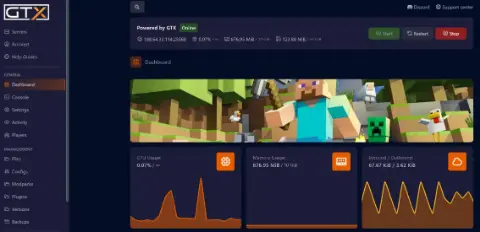
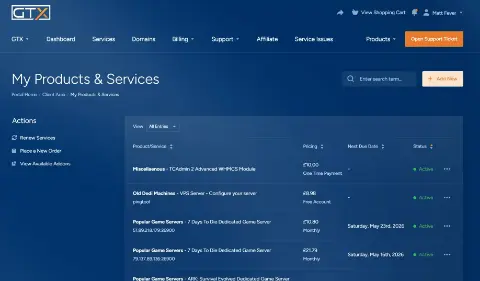
CLIENT_SEND_INTERVAL_HZ sets how often the server sends updates. Server Manager's help says a higher number means better multiplayer quality but more bandwidth, and really high values can cause connection problems. Its default is 18.As a rough guide: 8 or 16 slots for small groups and drift sessions, 24 or 32 for league nights, 48 or 64 for big open servers on tracks with large pit lanes. The live graphs on your server page and Activity and Stats show CPU and memory now and over past days. If you run close to the limit, change slots, RAM, CPU priority or hardware in the Client Area under Upgrade/Downgrade Options.
Kunos updates the game and the dedicated server through Steam. On GTX, update the server with the Steam Update button whenever Kunos releases a new version: press STOP, Steam Update, wait for it to finish, then START. Kunos' last announced version update was v1.16 in 2017, so in practice the updates that matter are those of your community tools and mods: keep the server's car and track versions the same as your drivers'.
If the server files are broken beyond repair, a reinstall from MORE puts the server back to a clean default install: it deletes every server file, including configs and uploaded mods, but keeps your backups. Our 24/7 team can help you get a backup back.
REGISTER_TO_LOBBY is on. Drivers can always add it by the IP address and port in CONNECTION INFO.entry_list.ini is not in CARS. And keep the grid within the track's pit boxes.EnableAi: true is saved in extra_cfg.yml, car slots have AI=auto or AI=fixed, and the track has AI lines. On the Shutoko Revival Project, use the shibaura_pa_traffic layout.ai folder of that layout in the game files to ai_off. This switches off AI for that layout in single player and some penalty systems such as track cuts; rename it back to undo.data.acd) or missing track parameters. Its documentation explains each one and the IgnoreConfigurationErrors setting in extra_cfg.yml.dwrite.dll is missing, means RainFX did not install correctly: unzip it into the Assetto Corsa folder.Still stuck? Our 24/7 support team reads the logs with you on live chat or a ticket.
The server comes with the PC game on Steam: the game's server folder holds acServer and Kunos' acServerManager. Set the name, passwords, track and cars in server_cfg.ini and entry_list.ini (or with a tool such as Assetto Server Manager), give the server every car and track it runs, open the game and HTTP ports and start it. On GTX the server is set up when you order, with AC Server Manager already running.
Three: a TCP and a UDP port for the game, 9600 by default, and an HTTP port for the lobby, 8081 by default (the defaults in Assetto Server Manager's documentation). They are set with TCP_PORT, UDP_PORT and HTTP_PORT in server_cfg.ini. On a GTX server the ports are assigned for you and shown under CONNECTION INFO in the game panel.
AI traffic needs AssettoServer, a free third-party server built for freeroam. Install it (on GTX: uninstall AC Server Manager in the Mod Manager, then install AssettoServer (AI Traffic)), set EnableAi: true in extra_cfg.yml, add AI=auto or AI=fixed to the car slots in entry_list.ini, and use a track with AI lines, such as the Shutoko Revival Project's shibaura_pa_traffic layout.
Every driver needs Content Manager and RainFX, which comes with the paid Preview version of Custom Shaders Patch, and the server needs a race set up for rain. On GTX that is AC Server Manager Premium: a custom race with CSP weather transitions, Rain (Sol) graphics, the Rain/Wet preset, a required minimum CSP version and wet tyres allowed. AssettoServer traffic servers use EnableWeatherFx: true instead.
No more than the track has pit boxes: Server Manager's help says MAX_CLIENTS must not be higher than the track's number of pits, and that differs between circuits, layouts and mod tracks. GTX plans run from 8 to 64 slots; pick one slot for every driver on track at the same time.
Yes. Every driver needs exactly the same cars and tracks in their own game, in the same version as the server, or they are turned away with a checksum or version error. Share the downloads with your drivers: Content Manager can download missing content, and Server Manager can pass download links to it.
The free version, 1.7.9, is open source and comes installed on every GTX Assetto Corsa server, with KissMyRank, Real Penalty, stracker and Sol set up. Emperor Servers, its developers, sell the current Premium version as a licence; on GTX you install it from the Mod Manager and upload your ACSM.License file. The rain setup needs Premium.
Set an ADMIN_PASSWORD, then type /admin followed by that password in the in-game chat, or join the server with the admin password instead of the normal one. Type /help for the command list, which includes /next_session, /restart_session, /kick and /ban_id.