On this pageSEARCHING ON THE COMMUNITY SERVER
- SEARCHING ON THE COMMUNITY SERVER
- DIRECT CONNECT WITH IP:PORT
- Go to your game panel and stop your Palworld Server hosting
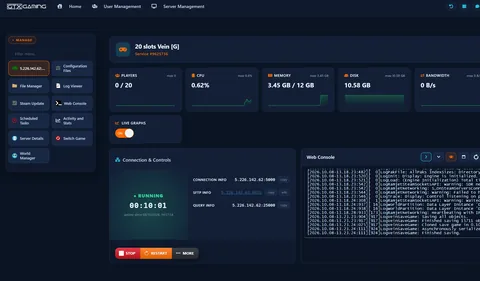
- Go to Configuration Files, edit Start.bat file, and be sure the Community Server option is enabled
- Go to Configuration Files, edit the PalWorldSettings.ini file, and define a nice and unique name
- Start your server and wait a few minutes to go online
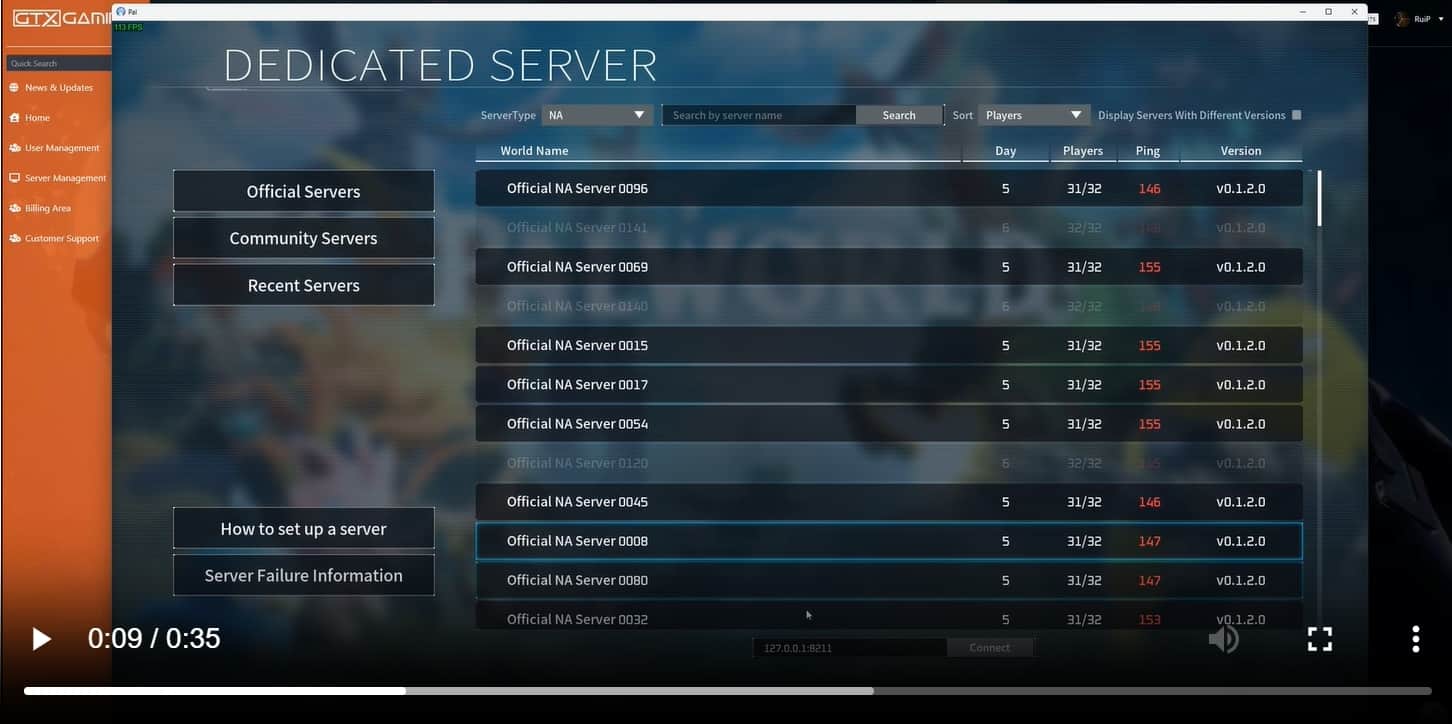
- Open the Palworld game and go to the Join Multiplayer Game menu
- Click on the Community Servers tab and search for your server name on the top search box
DIRECT CONNECT WITH IP:PORT
- Start your server and wait a few minutes to go online
- Open the Palworld game and go to the Join Multiplayer Game menu
- Type your server Connection Info IP:PORT on box at the bottom and press Connect
Keep playing: more Palworld guides




 DayZ
 Palworld


 Enshrouded