



 DayZ
DayZ Palworld


 Enshrouded








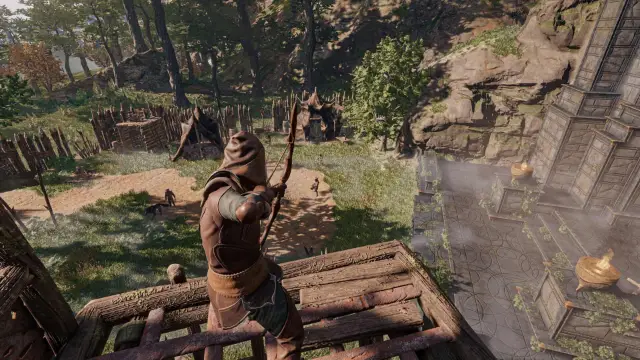







Here are the Palworld server admin commands for use on a Palworld server hosting.
- Stop your server
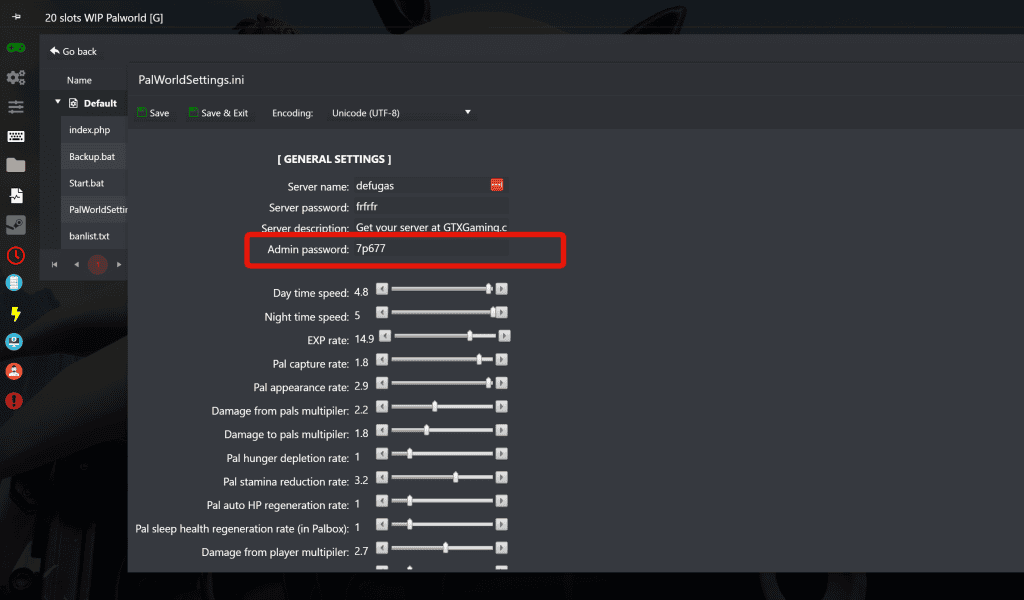
- Go to your game panel and inside the Configuration Files button, define your Admin Password, Save & Exit the file at the end
- Start your server and wait a few minutes for the server to go online and join it following this guide: How to connect to your Palworld game server
- Once inside your server, press the ENTER key to open the chat and type /adminpassword PASS_YOU_DEFINED_ON_STEP_2
- If the password was entered with success you will get a confirmation message and you are now admin
- You can now type admin commands on chat, check below all available admin commands

| /Shutdown {Seconds} {MessageText} | Shuts down the server after the specified number of seconds, displaying a message. |
| /DoExit | Immediately stops the server. |
| /Broadcast {MessageText} | Sends a message to all players in the server. |
| /KickPlayer {SteamID} | Removes a player from the server. |
| /BanPlayer {SteamID} | Bans a player from the server. |
| /UnBanPlayer {SteamID} | Unbans a player from the server. |
| /TeleportToPlayer {SteamID} | Teleports you to the location of the specified player. |
| /TeleportToMe {SteamID} | Teleports the specified player to your location. |
| /ShowPlayers | Displays information about all connected players. |
| /Info | Shows server information. |
| /Save | Saves the world data. |
| /ToggleSpectate | Switches to spectator mode (admin only). Toggle it with the backslash key. |
Click a column heading to sort.
Copying a SteamID in Palworld requires administrative permissions. To copy, double-right-click on the player in the player list.
To unban a player, use the /UnBanPlayer {SteamID} command.
We also have the official troubleshooting guide outlined nicely here.
More Palworld guides: Palworld: FPS Boost & Max Performance, Palworld Official Troubleshooting Guide and Palworld: How to play with friends.
Running your own server? Our support guides show how to use admin commands on your Palworld server.
Keep playing: more Palworld guides
- CrossplayPalworld pal trading: swap Pals with friends4 min read
- PlayPalworld Pals Guide: The Full List52 min read
- SettingsBest world settings for Palworld4 min read
- PlayPalworld Coal Guide: All Coal Farming Locations Revealed!3 min read
- PlayPalworld Stairs 101: A Beginner's Guide to Building Stairs3 min read
- PlayPalworld Ore Locations Revealed! Farm Rare Materials Easily3 min read