



 DayZ
DayZ Palworld


 Enshrouded









Terraria Server Hosting Australia
Rent Your Terraria Dedicated Server
About Terraria server hosting
Premium Terraria server hosting from GTX Gaming's Australian and worldwide datacentres. Rent a Terraria server for 10 to 255 players with instant setup, an always-on Terraria dedicated server, one-click vanilla, tModLoader and TShock installs from the Mod Manager, uploads of the world you already play, up to 5GB of RAM and 100GB of NVMe storage included, daily automatic backups, enterprise DDoS protection and 24/7 support. Rent your Terraria dedicated server from A$11.71/mo.
Terraria Server Hosting: Plans & Pricing
- Instant setup
- Up to 5GB RAM included
- Up to 100GB NVMe storage
- Daily automatic backups
- 24/7 support
- Vanilla, tModLoader or TShock
- Upload your own world
- Up to 5GB RAM included
- Daily automatic backups
- Enterprise DDoS protection
- TShock permissions and anti-cheat
- Server-side characters
- RAM upgradable to 32GB
- Daily automatic backups
- Enterprise DDoS protection
- 24/7 support
- DDoS protection
- Instant setup
One Terraria server, priced by slots, from 10 players up to the 255 a Terraria server allows. Every plan includes up to 5GB of RAM, up to 100GB of NVMe storage, vanilla, tModLoader and TShock in the Mod Manager and DDoS protection, and you can change your slots or add memory at any time without losing your worlds.
The Terraria Server Hosting Control Panel
Our custom panel puts your Terraria server's settings, server software, world files, updates and backups in a browser, so you spend your time digging instead of in config files.

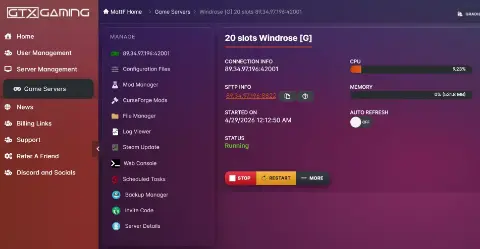
- 🎛️One-click controlsStop and restart your server with a single button, and see its status, uptime, IP address, port and SFTP details at a glance.
- 🧩Mod ManagerInstall Terraria Vanilla, Terraria tModLoader or Terraria TShock in one click, and add custom mods through the Steam Workshop provider.
- ⚙️Configuration FilesEdit config.txt for your password, message of the day, language and world settings with the Config Editor or the Text Editor, and keep banlist.txt in order.
- 📂File Manager & SFTPUpload the world you started on your own PC, or download your worlds, in the browser or over SFTP.
- 💾Backup Manager & Scheduled TasksDaily automatic backups plus the Backup Manager for your own, and restarts or other jobs on a timer.
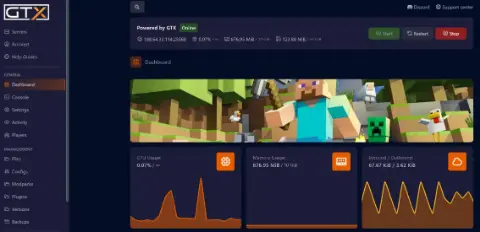
- 📊Web Console, logs & live graphsType server commands in the Web Console, follow the Log Viewer, update with Steam Update, and watch CPU and memory on live graphs.
Terraria Server Hosting: Vanilla, tModLoader & TShock
Play the game as Re-Logic made it, load your favourite tModLoader mods, or run a community server with TShock's admin tools. Switch between them in the Mod Manager whenever your group wants something new.
The official Terraria dedicated server, kept current with Steam Update, for the game exactly as Re-Logic releases it.
Official ServerThe free, community-made mod loader. Every player joins with tModLoader and the same mods as your server.
ModdedA server toolbox with anti-cheat tools, server-side characters, groups, permissions and item bans. Players join with the normal game.
Community ServersCreate worlds in Journey, Classic, Expert or Master mode, and decide who may use Journey powers on a Journey world.
Your DifficultyGenerate a Small, Medium or Large world with your own name and seed, or upload the world you already play.
Your WorldSet a server password for a private world and a message of the day that greets every player who joins.
Private or PublicAlready playing Terraria on your own PC or with another host? Upload your world through the File Manager and keep your base, your chests and your progress. Our 24/7 team can help with the move or handle it for you.
How Many Slots Does My Terraria Server Need?
Pick a slot for every player who will be online at the same time. A Terraria server allows up to 255 players, and every server includes up to 5GB of RAM.
| Slots | Best for | From |
|---|---|---|
| 10 slots | A group of friends sharing one world | A$11.71/mo |
| 20 slotsRecommended | Bigger groups, guilds and modded playthroughs | A$23.08/mo |
| 40 slots | Small communities and events | A$39.09/mo |
| 60 slots | Community servers with TShock | A$58.65/mo |
| 100 slots | Public servers | A$97.78/mo |
| 150 slots | Busy public servers | A$143.73/mo |
| 255 slots | The most players a Terraria server allows | A$244.34/mo |
Every tier from 10 to 255 slots is in the full plan list above. On memory, our own 20 slot demo server used under 600MB with a freshly generated world loaded and nobody online. A large world, more players and especially tModLoader mods use more, and big mod packs can use a lot more. Watch live memory use in the control panel and add memory from 8GB to 32GB at any time from your client area.
Terraria Server Hosting Locations: Low Ping Australia & Worldwide
Terraria servers deploy in 19 locations: Sydney in Australia; Tokyo, Singapore and Mumbai in Asia; London, Paris, Frankfurt, Amsterdam, Stockholm and Madrid in Europe; New York, Ashburn, Chicago, Dallas, Miami, Los Angeles, Portland and Quebec in North America; plus Moscow. Run a quick test to see your latency to our network.
What's Included With Your Terraria Server Hosting?
Every server ships fully loaded. Upgrade any part of it whenever you like.
| Resource | Included | Optional upgrade |
|---|---|---|
| Player slots | 10 to 255 slots, chosen at checkout | Change your slot count any time |
| Memory | Up to 5GB of RAM on every server | Tiers from 8GB to 32GB, changed any time |
| Storage | Up to 100GB NVMe free | Tiers up to 200GB, plus extreme 14,000MB/s NVMe |
| Server software | Vanilla, tModLoader and TShock in the Mod Manager | Switch between them any time |
| CPU priority | Normal priority on high-frequency cores | High and Realtime tiers |
| CPU clock | Standard high-frequency clocks | +5%, +10% and +20% clock boost tiers |
| Protection | Enterprise DDoS mitigation | Included on every server |
| Backups | Daily automatic backups | Backup Manager for your own |
Slots, RAM, storage, CPU priority and clock boosts are all picked at checkout and can be changed later without losing your worlds. Players need their own copy of Terraria to join, and tModLoader with the same mods for a tModLoader server.
Terraria Server Hosting Features: Everything Built In
Every server ships with the full GTX feature set, no hidden add-ons.
Terraria Server Hosting: the essentials
GTX Gaming Server Hosting Reviews
Verified Trustpilot reviews from GTX Gaming customers.
GTX gaming absolutely excels at customer service
GTX gaming excels at customer service. Every ticket is answered within minutes and issues resolved promptly and professionally. Nothing but wonderful things to say about the service GTX provides. I’ve had the pleasure of interacting with several of their support agents: Tom H, Rui P, Jamie R, John K, Robert P, James K, and man they’re all excellent! Kudos to the entire team and thank you for the service you provide to the gaming community. They’ve enabled our entire crew to spend many hours having a total blast.
TOP!!!
Speed, competence, and understanding. It's the first time I've found such a good support team from a server hosting provider. Top service, top support!
Thank you Mr. Gibbs
Absolutely loved the friendliness and the quick response time. Even though I felt a little dumb for not realizing the problem myself, it felt twice as good to know that the fix was simple and clear.
Terraria Server Hosting FAQ
How fast is Terraria server setup?
+What is Terraria server hosting?
+How do I join my Terraria server?
+Can I upload my own Terraria world?
+Can I run tModLoader mods on my Terraria server?
+What is TShock and should I use it?
+How do I host a dedicated Terraria server?
+How do I open the server console on my Terraria server?
+How many players can join my Terraria server?
+How much RAM does a Terraria server need?
+Which world sizes and difficulty modes can my server use?
+Can I upgrade my Terraria server later?
+Which locations can I host a Terraria server in?
+Can mobile or console players join my Terraria server?
+What are the most useful Terraria server commands?
+Should I host a Terraria server on my own PC?
+How much does Terraria server hosting cost in Australia?
+What makes the best Terraria server hosting?
+What is your refund policy?
+Do you offer monthly Terraria server hosting with no contract?
+The Complete Guide to Terraria Server Hosting in Australia & Worldwide
Everything you need to know before you rent a Terraria server in Australia or any of GTX Gaming's worldwide datacentres, from joining and world settings to uploading your world, vanilla, tModLoader and TShock, config.txt and server commands, mobile and console players, slots, pricing and locations.
What Is Terraria Server Hosting?
Terraria server hosting is a managed service that runs a Terraria dedicated server on professional hardware in a datacentre, around the clock, so your friends can keep digging, building and fighting bosses whether or not you are at your PC. Every GTX Gaming Terraria server includes up to 5GB of RAM, up to 100GB of NVMe storage, daily automatic backups, enterprise DDoS protection and a web control panel, so jobs like setting a password, uploading a world or switching to tModLoader take a few clicks.
People look for it as a Terraria dedicated server, a Terraria game server or simply a Terraria server to rent, and they all mean the same thing: a private, always-on home for your own Terraria server, with your worlds, your mods and your rules.
What Is Terraria?
Terraria is the 2D sandbox action adventure from Re-Logic: dig, fight, explore and build in a randomly generated world, alone or with friends. It was released on Steam on 16 May 2011 and has had free content updates ever since. For its 15th anniversary in May 2026, Re-Logic said Terraria had sold 70 million copies across PC, console and mobile.
- Bigger and Boulder: the huge 1.4.5 update arrived on 27 January 2026 on PC, console and mobile, with more secret world seeds, easier inventory management and crafting, and plenty of new content.
- Still growing: 1.4.5.7 followed on PC in August 2026 with a balance pass and new items, and the dedicated server is now on 1.4.5.8.
- Four ways to play: Journey, Classic, Expert and Master mode, from a creative sandbox to the toughest boss fights.
- Built for friends: multiplayer lets your whole group share one world, build one base and take on every boss together.
- A huge modding scene: tModLoader, the community mod loader, is a free app on Steam with its own Steam Workshop.
Why Rent a Terraria Server?
Re-Logic makes the Terraria dedicated server free, so you could run it on a spare machine at home. Most groups rent a Terraria server instead, for reasons that show up within the first week:
- Always online: the server runs 24 hours a day, so anyone in your group can log in and keep building without waiting for the host.
- Nothing to run at home: no port to open on your router and no PC left running, and your own PC stays free for playing.
- Room for everyone: from 10 slots for a group of friends to the full 255 players a Terraria server allows.
- Proper hardware: high-frequency CPUs and NVMe storage in a datacentre, with DDoS protection at the network edge.
- Backups and support: daily automatic backups and a 24/7 support team mean a corrupted world or a griefed base is an inconvenience, not the end of your playthrough.
Getting Started & Joining Your Terraria Server
Your server is set up the moment you order. From there, getting your group into the world typically looks like this:
- Order: choose your slots and your location, and your server is set up instantly.
- Pick your software: keep the vanilla server, or install tModLoader or TShock from the Mod Manager in one click.
- Set it up: set the password, message of the day and world settings in config.txt through Configuration Files, then restart.
- Join: in Terraria, open Multiplayer, choose Join and connect by IP address, then enter your server's IP address, port and password.
Terraria's default port is 7777, but your server may use a different one, so always copy the full address and port from your control panel. The Web Console shows the server's own output, so you can see straight away when the world has loaded and the server is listening.
How to Host a Terraria Dedicated Server
There are two ways to host a Terraria dedicated server: run Re-Logic's free server software on a PC at home, or rent a Terraria server that runs in a datacentre. Both run the same official server. The difference is who keeps it online. Hosting it yourself looks like this:
- Get the server: Windows installations of Terraria include TerrariaServer.exe in the game folder, and Re-Logic also offers the server as a separate free download, with builds for Windows, macOS and Linux.
- Start it: run the server, choose or create a world, then set the maximum number of players, the port (7777 by default) and an optional password. A config file can answer these questions for you on every start.
- Open the port: behind a home router, the server's port has to be forwarded to that PC, or friends outside your home cannot join. Your firewall has to allow it too.
- Keep it running: the world is only online while that PC and the server stay on, and memory use grows with the world size and the number of players.
Renting skips all of that. Your GTX server is set up the moment you order and stays online 24/7, with no router settings and no PC left running at home. You set the password, world and player limit in config.txt from your control panel, and your friends join by IP address and port. The steps are under Getting started.
World Size, Difficulty & Journey Mode
When your server creates a new world, config.txt decides what kind of world it is:
- World size: Small, Medium or Large. A large world has more to explore and uses more memory.
- Difficulty: Journey, Classic, Expert or Master. Journey characters can only play in Journey worlds and other characters only in the other modes, so agree on a mode with your group first.
- Name and seed: give the world its name and, if you like, a seed, including the secret seeds Terraria hides for special worlds.
- Journey powers: on a Journey world, the journeypermission settings decide whether powers such as freezing time or changing the weather are locked, open to the host only or open to everyone.
Settings like these apply when the world is generated, so set them before the first start, or create a new world later and keep the old one in your backups.
Uploading Your Own Terraria World
Already playing a world with friends? You do not have to start again. On your GTX server, moving it takes a few minutes:
- Back it up: make a copy of your world file before you move it.
- Find it: on Windows, Terraria saves worlds as .wld files in Documents\My Games\Terraria\Worlds, and tModLoader keeps its worlds in its own save folder.
- Upload it: copy the file to your server with the File Manager, or with SFTP if you prefer a desktop client.
- Load it: point the world setting in config.txt at your file and restart the server.
Moving from another host works the same way, and our 24/7 support team can handle the whole move for you.
Vanilla, tModLoader or TShock: Choosing Your Server Software
The Mod Manager in your control panel installs any of three server builds in one click. Take a backup with the Backup Manager before you switch:
- Terraria Vanilla: the official dedicated server for the game as Re-Logic releases it, updated with Steam Update. Choose it when your group plays the normal game.
- Terraria tModLoader: tModLoader is the free, open-source, community-made mod loader for Terraria, a separate app on Steam with Steam Workshop support. Every player needs tModLoader too, since vanilla players cannot play with tModLoader players, and players need the same mods as the server. The panel's custom mods page offers a Steam Workshop provider for adding mods.
- Terraria TShock: a free server toolbox with anti-cheat tools, server-side characters, user groups, permissions, item bans and many admin commands. It runs on the server only, so players join with the normal game, which makes it a favourite for public and community servers.
tModLoader and TShock are both made by their own teams and follow Terraria's updates on their own schedule, so after a big Terraria update it can take a little time before they, and your mods, catch up. Check that your mods support the current tModLoader before you switch.
config.txt, Passwords & Server Commands
Your server's settings live in config.txt, which you edit through Configuration Files in the control panel, with a Config Editor for the common settings and a Text Editor for everything else. The settings that matter most:
- password: the password players need to join. Leave it empty for a public server.
- motd: the message of the day every player sees when they join.
- world, autocreate and worldname: which world file to load, or the size and name of a new world to create.
- difficulty: Classic, Expert, Master or Journey for a new world.
- secure and language: extra cheat protection, and the language of the server's messages.
Your player limit follows the slot count you order. Server commands are typed in the Web Console: help lists them all, playing shows who is online, kick and ban deal with troublemakers (banned players go into banlist.txt), password changes the password, save saves the world, and dawn, noon, dusk and midnight set the time of day.
Terraria Server Commands: Quick Reference
On a GTX server you type these into the Web Console in your control panel, without a slash. On a server you host at home, you type them into the server window. These are the commands the vanilla Terraria dedicated server understands:
- help: lists every command.
- playing: shows who is online.
- say [message]: sends a message to every player on the server.
- kick [player name] and ban [player name]: remove or ban a player. Bans are kept in banlist.txt.
- password shows the current password, and password [new password] changes it.
- motd: shows or changes the message of the day.
- save saves the world. exit saves and shuts the server down, and exit-nosave shuts it down without saving.
- dawn, noon, dusk and midnight: set the time of day, and time shows it.
- settle: settles all the water in the world.
- version, port and maxplayers: show the server version, its port and the player limit.
Running TShock? It adds many more admin commands, with user groups and permissions on top. Take a backup with the Backup Manager before big changes, so one wrong command never costs you your world.
Mobile, Console & Crossplay
A GTX Terraria server runs the PC dedicated server, and PC players join it by IP address and port. Mobile players can join too when their game is on the same version as your server: DR Studios, who make the console and mobile versions, say that PC, mobile and dedicated servers already connect by IP address and port. Console players cannot join yet: crossplay for consoles is planned for Terraria 1.4.6, which had not been released when we wrote this in October 2026. A tModLoader server is for PC players only, since tModLoader runs on PC. Hosting for the separate mobile edition? See our Terraria: Mobile Edition server hosting.
How Much Does Terraria Server Hosting Cost in Australia?
Pricing is simple: you pay for the number of slots, with up to 5GB of RAM and up to 100GB of NVMe storage included on every server:
- 10 slots: from A$11.71/mo. A group of friends sharing one world.
- 20 slots: from A$23.08/mo. Bigger groups, guilds and modded playthroughs.
- 50 slots: from A$50.82/mo. Community servers.
- 100 slots: from A$97.78/mo. Public servers.
- 255 slots: from A$244.34/mo. The most players a Terraria server allows.
Every tier in between is in the full plan list at the top of this page. All plans include instant setup, DDoS protection, daily automatic backups and 24/7 support, with no setup fee and no contract. Billing is monthly by default, with three-month, six-month and yearly cycles available at a discount, and you can change plan or cancel at any time.
How Many Slots and How Much RAM Does a Terraria Server Need?
Choose a slot for every player who will be online at the same time. A Terraria server allows up to 255 players, so 10 slots suits a group of friends, 20 to 50 slots a guild or small community, and 100 slots or more a public server. On memory, our own 20 slot demo server used under 600MB with a freshly generated world loaded and nobody online. A large world, more players and especially tModLoader mods use more, and big mod packs can use a lot more. The up to 5GB included with every server is the place to start, the control panel shows live memory use, and you can add memory from 8GB to 32GB at any time.
Locations for Terraria Server Hosting
Boss fights are hard enough without lag, so host close to your players. GTX Gaming runs Terraria server hosting from an Australian datacentre in Sydney plus 18 more locations worldwide: Tokyo, Singapore and Mumbai in Asia; London, Paris, Frankfurt, Amsterdam, Stockholm and Madrid in Europe; New York, Ashburn, Chicago, Dallas, Miami, Los Angeles, Portland and Quebec in North America; plus Moscow. Some locations carry a surcharge, shown at checkout. Use the live ping test above to find the lowest-latency location for your group, pick it at checkout, and if you need to move later our support team can migrate your server.
Terraria Server Hosting Glossary
Quick definitions of the terms you'll meet across Terraria, our control panel and the Terraria dedicated server:
- Dedicated Server
- A server that runs your world by itself, around the clock, without a player hosting it from their own game.
- World File
- A .wld file that holds a whole Terraria world: terrain, buildings, chests and progress.
- config.txt
- The server's settings file: password, message of the day, world, world size, difficulty and language.
- tModLoader
- The free, community-made mod loader for Terraria, a separate app on Steam. Every player needs it to join a modded server.
- TShock
- A server toolbox with anti-cheat tools, permissions, groups and admin commands. Players join with the normal game.
- Journey Mode
- The creative mode with Journey powers such as item research and duplication. Journey characters only play in Journey worlds.
- Expert Mode
- A harder mode with tougher enemies and bosses and extra boss rewards.
- Master Mode
- The hardest mode, harder again than Expert, with its own rewards.
- Hardmode
- The second half of a world, unlocked by defeating the Wall of Flesh.
- Seed
- The value a world is generated from. The same seed builds the same world, and secret seeds build special ones.
- MOTD
- Message of the day: the greeting every player sees when they join your server.
- SFTP
- Secure file transfer for moving world files and mods between your PC and your server.
Setup Guides & Help for Your Terraria Server
Once your Terraria server is live, the Help Guides in your control panel cover the common tasks: setting a password and message of the day, creating or uploading a world, switching to tModLoader or TShock, using server commands and restoring a backup. Our 24/7 support team is on live chat and tickets for anything the guides don't cover:
Explore Other Services
Host more of your favourites with the same instant setup and 24/7 support.
Last Updated: 8 October 2026