



 DayZ
DayZ Palworld


 Enshrouded











I want my own Windrose server
Your own PC or ours, the first start, and the invite code your crew needs.
Start with the basics
Popular game servers
Your panels
Windrose knowledge hub
Everything you need to run a Windrose dedicated server for your crew: your own PC or a rented server, ServerDescription.json, invite codes and Direct IP, world presets and custom difficulty, mods, saves, backups, updates and RAM. Written by the team that hosts them.
No guides match your search. Try a shorter word, or browse a topic above.
Not sure where to begin? Choose the one that sounds like you.
Your own PC or ours, the first start, and the invite code your crew needs.
Start with the basicsDifficulty presets, custom worlds, passwords and invite codes.
World settingsRAM and slots, backups, updates and what to check first when it lags.
Performance guideRanked by visits from Google Search, July to October 2026.
Prefer to read it in order? 15 short chapters, about 22 minutes in all, from your first start to a crew of ten.
Start readingServer details, logs, co-admins, FAQ
4 guides
Good to knowYour crew joins with the invite code: open the Invite Code tool in the panel to see it, and set your own in ServerDescription.json with the server stopped.
UE4SS, Nexus Mods, File Manager, SFTP
3 guides
Good to knowKraken Express does not support mods: back up before you add one, and expect some to break after a Windrose patch until their authors update them.
Scheduled restarts, backups, reinstall
4 guides
Good to knowBack up before every Windrose patch: update 0.10.0.5 moved saves to a new format, and big updates can do it again.
RAM, slots, CPU, hardware, switching game
7 guides
Good to knowKraken Express lists 8 GB of RAM for 2 players, 12 GB for 4 and 16 GB for 10, so watch the memory graph as your crew grows.
Farming and selling loot
2 guides
Good to knowThese guides are about the game itself: Windrose is in Early Access, so check the details in game after each patch.
The complete guide
ServerDescription.json, your first world and an invite code such as f1014dc1. On GTX this happens when you order (the panel steps).ServerDescription.json (the settings that matter).WorldDescription.json (presets and custom worlds).Yes. Windrose is a PvE survival adventure in an alternative Age of Piracy from Kraken Express, published with Pocketpair Publishing, and in Early Access on Steam since 14 April 2026. You can play it three ways with friends. One player can host from the game: their PC runs the world, and the world is only there while they play. Or you run the Windrose Dedicated Server, a separate program that keeps the world running on its own, so your crew can join at any time, like building ships alone and sailing together later. A rented server is that same dedicated server, run for you in a datacentre with a control panel on top.
Kraken Express's dedicated server guide on playwindrose.com is the official reference, and the same guide ships with the server as DedicatedServer.md. Where to get the server:
login anonymous, then app_update 4129620 validate. The guide notes that the server does not need a purchased copy of the game to install.WindroseServer (or WindowsServer) folder from R5\Builds in your game files to another place on your PC. It does not run from inside the game folder.The server is a Windows program. Patch 0.10.0.7 (25 June 2026) added Docker images with Linux server support, and the Docker steps are in the guide; a Docker server is joined by Direct IP (more on joining). The guide's own FAQ answer still says Windows only, so follow the Docker section if you go that way.
Windrose has no PvP mode: your crew plays together against the world, at sea and on land. Your characters stay with each player; the dedicated server stores the world (Kraken Express's guide says dedicated servers keep only world data, not player characters).
Both run the same server software, so the world plays the same. The difference is who looks after the machine. Kraken Express's numbers help with the choice: the game alone needs 16 GB of RAM, and a self-hosted world on the same PC needs about 8 GB more (24 GB in total recommended, with an SSD). A dedicated server needs 8 GB for 2 players, 12 GB for 4 and 16 GB for 10, two CPU cores at 3.2 GHz and 35 GB of SSD space (sizing in detail).
Free software and full control. Invite codes work without port forwarding: the guide says ports are assigned by NAT punch-through, so your router should support UPnP. But the world is only online while that PC is on, you update it by hand after every patch, Direct IP from home needs a public IP and TCP plus UDP forwarding, and only one server instance runs per PC by default.
Online 24/7 without your PC, set up when you order, with a control panel for the two settings files, Steam updates, mods, scheduled restarts and backups, DDoS protection and support when something breaks. It costs a monthly fee, and for security you cannot upload .exe, .dll or .bat files yourself: our support team does that on request.
Our view after hosting game servers since 2008: if the host plays whenever the others do, hosting from the game is fine. Run a dedicated server when the world should stay online while the captain is away, or when the host's PC struggles to run the game and the world together. See our Windrose server hosting plans for current prices and the 19 locations.
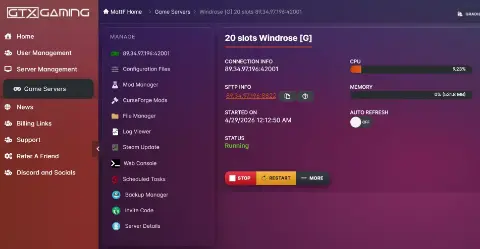
Windrose servers on GTX run in our game panel. They are set up and started as soon as you order, so the server already has a world and an invite code when you log in. This is the order we suggest for the first evening:
InviteCode in the settings file.ServerDescription.json with the Config Editor or the Text Editor: server name, password, player count (which fields). World settings live in WorldDescription.json (presets and custom worlds).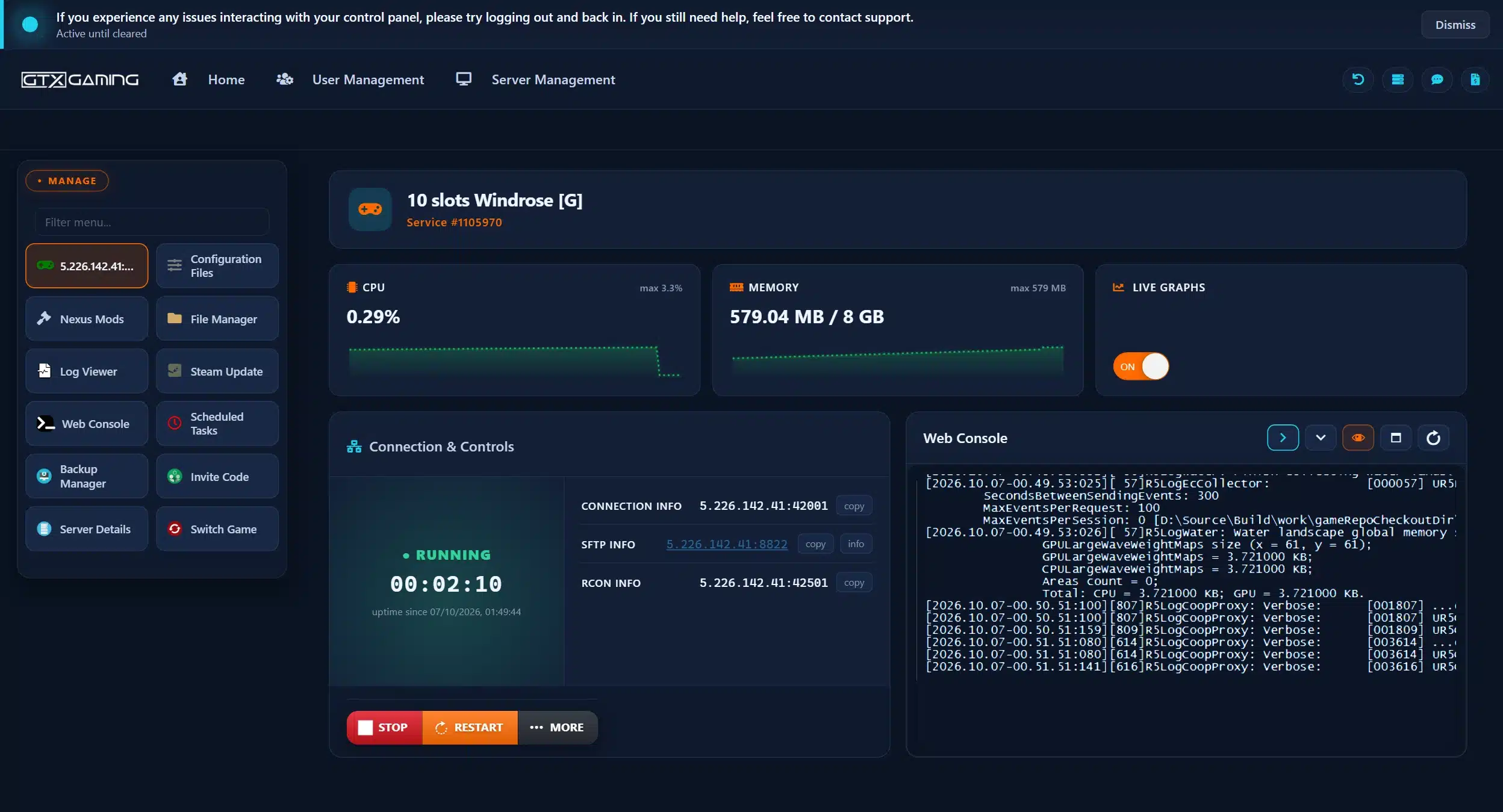
What the other buttons are for:
ServerDescription.json on your own PC. If a typo or an update ever resets the file, you can put your server name, code and password straight back.Windrose splits its settings into two JSON files. ServerDescription.json in the root folder holds the settings for the whole server; each world has its own WorldDescription.json (world settings). The server creates both on its first start. Kraken Express's guide is clear on one rule: only edit the file while the server is shut down, because the server may adjust fields when it detects a problem. These are the fields from the official guide:
ServerName: the name players see. Useful when two invite codes look alike.InviteCode: the code players use to find your server. At least 6 characters of 0-9, a-z and A-Z, and case-sensitive.IsPasswordProtected and Password: set true with a password, or false with the password empty. The guide warns that a mismatch between the two can cause unexpected behaviour.MaxPlayerCount: how many players can be online at once. On GTX, keep it at or below your slot count.WorldIslandId: which world loads when the server starts. It must match the IslandId of one of your worlds (several worlds).UserSelectedRegion: the region of Kraken Express's connection service: EU (covers Europe and North America), SEA or CIS. Left empty, the server picks the best region by latency (why it matters).UseDirectConnection, DirectConnectionServerPort and DirectConnectionProxyAddress: switch to Direct IP joining; the port must be open for TCP and UDP.AutoLoadLatestBackupIfHasBroken: if true, the server tries to restore a broken save from its backups at launch.CanLaunchMultipleServerInstances: false by default, a safeguard against two servers writing to the same save database.PersistentServerId: your server's unique id. Do not edit it.Windrose has two ways in. By default players join with the invite code through Kraken Express's connection service: Play, Connect to Server, paste the code. Nobody needs your server's address and nobody opens ports. The alternative is Direct IP, added in April 2026 for networks that block the connection service: set UseDirectConnection to true with the server stopped, and players join with the server's IP address and port. With Direct IP on, invite codes no longer work.
On a GTX server, start with the invite code: it is the simplest for your crew. Switch to Direct IP only when someone's network blocks the connection service, keep the port that is already set, and give your crew the server's address. If you are not sure which address and port to share, our support team will tell you.
Every world has a WorldDescription.json with its name, its id and a WorldPresetType: Easy, Medium or Hard. Change any value by hand and the world becomes Custom on its next start. Kraken Express's examples show what the presets set:
All three keep shared quests on. For a Custom world, these are the settings with the ranges the official guide gives (the full tag in the file is WDS.Parameter. plus the name):
MobHealthMultiplier and MobDamageMultiplier: how much health enemies have and how hard they hit, 0.2 to 5.0 (default 1.0).ShipsHealthMultiplier: health of enemy ships, 0.4 to 5.0. ShipsDamageMultiplier: damage enemy ships deal, 0.2 to 2.5.BoardingDifficultyMultiplier: how many enemy sailors you must defeat to win a boarding action, 0.2 to 5.0.Coop.StatsCorrectionModifier (default 1.0) and Coop.ShipStatsCorrectionModifier (default 0.0): how much enemy and enemy ship stats scale with the number of players, 0.0 to 2.0.CombatDifficulty: Easy, Normal or Hard; it sets how tough boss fights are and how aggressive enemies are.Coop.SharedQuests (default on): when one player completes a co-op quest, it completes for everyone who has it active.EasyExplore (default off): despite the old name, this is Immersive exploration in game. On, it hides the map markers for points of interest, so exploring gets harder.WorldDescription.json, then run R5WorldDescriptionUpdater.exe with the path to that file before you start again. On GTX you edit the file in Configuration Files with the server stopped; if a world setting has not changed after a restart, open a support ticket and our team will help.Tip from the official guide: it can be easier to set up a Custom world in the game first and copy the resulting values into the server's file. Kraken Express also warns that the list of settings and their ranges may change in later builds, so check the guide after big updates.
People often look for Windrose admin commands. When we checked Kraken Express's dedicated server guide, FAQ and patch notes on 13 October 2026, they listed no admin commands, console commands or RCON for Windrose. A Windrose server is run through its two settings files instead, and that covers what most crews need:
IsPasswordProtected plus Password).InviteCode and password, start it again, and send the new ones to your crew.MaxPlayerCount.WorldDescription.json (world settings).The Connection and Controls box in the GTX panel shows an RCON INFO line as part of its standard layout; since Kraken Express documents no RCON for Windrose, manage the server with the files above. Kraken Express also reminds players that its team never asks for login details or passwords on any platform.
Windrose has a growing mod scene, but Kraken Express does not support mods. Its FAQ says mods are used at your own discretion, that it cannot guarantee they work with the game, that you should back up your save folder before trying them, and that it cannot investigate problems that happen with mods installed. Windrose is in Early Access, so a patch can break a mod until its author updates it.
Many Windrose mods need the UE4SS mod loader. Our UE4SS guide for Windrose covers installing it and uploading mods by hand: each mod goes in its own folder under R5\Binaries\Win64\ue4ss\Mods\, without the ZIP file or extra nested folders. Uploads of .dll, .exe and .bat files are blocked for security, so if a mod needs one of those, open a support ticket.
A dedicated server keeps its saves in R5\Saved\SaveProfiles\Default\ and stores only world data there; characters stay with each player. Since update 0.10.0.5 (May 2026) the save folders work like this, according to Kraken Express's guide and FAQ:
RocksDB: the old main saves from before 0.10.0.5.RocksDB_v2: the runtime folder the server uses while it runs. Kraken Express says: do not touch it.RocksDB_v2_Backups: the backups made since 0.10.0.5, usually including a _Latest copy of each world.You can keep as many worlds as you like, each in its own folder named after its id. To switch, stop the server, set WorldIslandId in ServerDescription.json to the id of the world you want and start it again. Never rename a world folder: the save database relies on those ids.
%LOCALAPPDATA%\R5\Saved\SaveProfiles\, in your profile's RocksDB or RocksDB_v2_Backups folder, then <game version>\Worlds\<world id>. Copy the whole world folder.Worlds folder under R5\Saved\SaveProfiles\Default\ on the server (in RocksDB or RocksDB_v2_Backups, then the game version) with the File Manager or SFTP.WorldIslandId, then start the server and check that the world loads.If the server keeps creating a brand new world instead, the FAQ says it usually cannot find the world id: check WorldIslandId again. Kraken Express's FAQ also notes that some players saw saves corrupted when transferring them with FileZilla and suggests another client. Our support team can do the whole move for you.
The server makes its own save backups, and with AutoLoadLatestBackupIfHasBroken on it tries to restore a broken save from them at launch. On GTX you also get daily automatic backups that run alongside your server's restarts. Use the Backup Manager to download a backup to your own PC (how), and take a fresh backup before every patch, mod or world move.
Windrose is in Early Access and patches come often: from hotfix 0.10.0.1.6 on launch day to version 0.10.0.9 on 25 August 2026. Kraken Express's guide is firm that the server version must match the game: if they differ, players may be unable to join or run into bugs. Since April 2026 the game checks the server's version and shows an error when the server is out of date.
app_update 4129620 validate again; it downloads only the changed files.WindroseServer folder after the game updates and move your old R5\Saved folder into it.Big updates can change how saves are stored: 0.10.0.5 moved saves to a new format and migrated old ones automatically. Back up before every update. The next big step is Ashlands, Windrose's first major content update, with a fourth biome, a bigger story and at least one new ship class planned; Kraken Express revealed its release window in a trailer on 8 October 2026. Read the patch notes before you update a long-running world on release day.
A scheduled restart every few hours keeps a long-running server fresh and, on GTX, also runs the automatic backups. Set one up in Scheduled Tasks (how to schedule restarts).
These are Kraken Express's system requirements for a Windrose dedicated server:
Kraken Express also recommends crews of up to 4 for the best experience, because bigger groups may hit performance limits late in the game and boss encounters are not balanced for higher player counts. Patches have made the server lighter since launch: lower CPU use on idle servers (0.10.0.4), fewer disk writes (0.10.0.6), and the server process now starts with Above Normal priority (0.10.0.3).
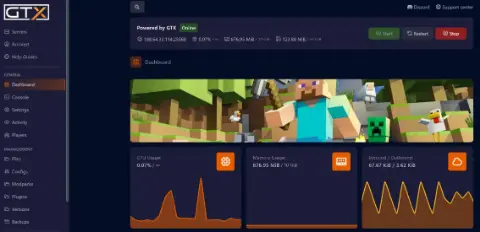
Choose one slot for every player who is online at the same time and set MaxPlayerCount to match. If the server feels slow late in a long session, check the memory graph first, then the restart schedule (scheduled restarts), and only then think about more RAM or a higher CPU priority (change your RAM).
WorldIslandId does not match your world's folder. If it does match, the save may be damaged: restore it from a backup (saves and backups).Kraken Express asks players who rent from a hosting provider to contact the provider's support for server problems. On GTX that is our team, 24/7 on live chat and tickets. For problems with the game itself, the developers run Windrose Support.
Once your crew is aboard, the game guides in the Play topic below help with two things that confuse many new captains: how farming unlocks and how to automate it, and which faction buys which loot, so your hold stops filling up with things nobody in Tortuga will take. Windrose is in Early Access, so check the details in game after each patch.
On a server you share, a few things are worth agreeing as a crew: who captains which ship (the Steam page names the ketch, the brig and the frigate), whether quests are shared (Coop.SharedQuests, on by default), and how hard boss fights should be before you start (world settings).
Yes. Kraken Express offers the Windrose Dedicated Server free in the Tools section of your Steam library (or through SteamCMD, app 4129620), and Epic Games Store and Stove players find it in their game files. It runs on Windows, and since patch 0.10.0.7 there is also a Docker image with Linux server support. You can run it on your own PC or rent one that stays online around the clock.
Install the server, start it once with StartServerForeground.bat so it creates ServerDescription.json, your first world and an invite code, then stop it and set the server name, a password and the player count. Start it again and share the invite code. On GTX the server is set up when you order: find the code with the Invite Code tool and edit the same file in Configuration Files.
In Windrose they choose Play, then Connect to Server, and paste the invite code. Everyone needs the same connection service region selected (EU and NA, SEA or CIS). If a network blocks the connection service, switch the server to Direct IP: players then join with the server's IP address and port, and the invite code no longer works.
When we checked Kraken Express's dedicated server guide, FAQ and patch notes on 13 October 2026, they listed no admin commands, console commands or RCON. You run a Windrose server through ServerDescription.json (name, invite code, password, player count, which world loads) and each world's WorldDescription.json (difficulty and custom settings).
The Steam page says Windrose supports up to 8 players in co-op, and the developers' server requirements go up to 10 players. Kraken Express recommends groups of up to 4 for the best experience, because larger groups may hit performance limits and boss encounters are not balanced for higher player counts. GTX Windrose plans come with 6, 8 or 10 slots.
Kraken Express lists 8 GB of RAM for 2 players, 12 GB for 4 players and 16 GB for 10 players, with two CPU cores at 3.2 GHz and 35 GB of SSD space. Every GTX Windrose server includes up to 10 GB of RAM; choose the 12 GB tier for four or more players and the 16 GB tier for a crew of ten, and watch the memory graph in the panel.
Yes. Shut down the game and the server and back up first. Copy the whole world folder from your save profile's Worlds folder into the server's Worlds folder under R5\Saved\SaveProfiles\Default, set WorldIslandId in ServerDescription.json to the folder's exact name and start the server. Never rename the world folder. Our support team can do the move for you.
Yes, at your own risk: Kraken Express does not support mods and asks you to back up first. On GTX, the Nexus Mods tool in the panel installs mods with one click, and our UE4SS guide covers mods you upload by hand. Read each mod's page to see whether players need it too, and expect some mods to break after a Windrose patch until their authors update them.