



 DayZ
DayZ Palworld


 Enshrouded









I want my own Space Engineers server
What it needs, PC-only or crossplay, and the first settings to change.
Start with the basics
Popular game servers
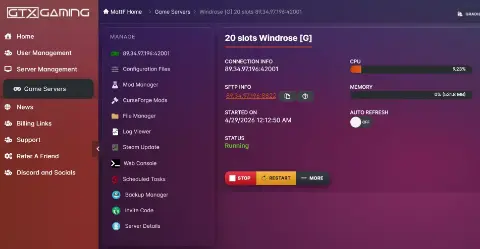
Your panels
Space Engineers knowledge hub
Everything you need to run a Space Engineers server your crew can build on: Keen's dedicated server at home or rented, PC-only or crossplay with Xbox and PlayStation, world settings and PCU, Steam Workshop and mod.io mods, Torch, admin tools and backups. Written by the team Keen lists as the official PC server host.
No guides match your search. Try a shorter word, or browse a topic above.
Not sure where to begin? Choose the one that sounds like you.
What it needs, PC-only or crossplay, and the first settings to change.
Start with the basicsCrossplay, world settings, mods, Torch plugins and admin tools.
Settings and mod guidesPCU and block limits, clean-ups, RAM and what to check first.
Performance guidesRanked by visits from Google Search, July to October 2026.
Prefer to read it in order? 14 short chapters, about 21 minutes in all, from your first world to keeping a busy server at full sim speed.
Start readingServer details, files, SFTP, logs, FAQ
5 guides
Good to knowCopy the full address from CONNECTION INFO in the panel: your server's port may not be Keen's default 27016.
Xbox and PlayStation, passwords, Steam groups
3 guides
Good to knowCrossplay servers are listed on EOS, not Steam: switch the Join Game list with the E button next to the search bar.
Upload a save, Workshop scenarios, clean-ups
3 guides
Good to knowMods belong to a world: generate the world first, then add the mods.
Steam Workshop, mod.io, Torch
3 guides
Good to knowA crossplay server takes mod.io mods only; Steam Workshop mods are for PC-only servers.
Admin rights, VRage Remote, sub-users
3 guides
Good to knowOn PC, Alt+F10 opens the Admin Screen once you are admin.
Backups, restores, restarts, reinstall
5 guides
Good to knowBackups are normally kept for up to six months.
RAM, CPU, hardware, slots, stats
6 guides
Good to knowKeen recommends 10 GB of RAM for a dedicated server; every GTX plan includes up to 10 GB, with tiers up to 64 GB.
GameTracker, donations, webstore
3 guides
Good to knowNot every plugin needs Torch: the Tebex plugin installs from the Mod Manager on its own.
The complete guide
The Space Engineers dedicated server is a separate program from Keen Software House, and Keen gives it free to everyone who owns the game. It runs without graphics or sound, so the machine can spend all its power on simulating your world: every ship, station, rotor and thruster. These are the figures from Keen's dedicated server guide:
Keen's official wiki adds that a machine below the minimum still runs the server, but forces Experimental mode on. The game talks over UDP, and the default port is 27016. Every server instance needs a port of its own, so a rented server often uses a different one. If you turn on the Remote API for VRage Remote, it listens on a separate port with its own security key (admin tools).
Running the server on your own PC is free and a good way to learn the tool. Keen's guide boils down to these steps:
steamcmd.exe +login anonymous +force_install_dir C:\SEDS +app_update 298740 +quit.SpaceEngineersDedicated.exe from the DedicatedServer64 folder, choose Local/Console and press Continue to server configuration.taskkill /IM SpaceEngineersDedicated.exe; adding /f kills it without saving.Your own PC or home server
Free and fully yours. The world is only online while the PC is on, it needs 6 to 10 GB of RAM on top of Windows and anything else you run, updates and backups are by hand, and everyone who joins sees your home address.
A rented server
Online 24/7, so your faction can log in while you sleep. RAM is sized to the world, the server updates with Keen's releases, backups and restarts run on a schedule, and players connect to a datacentre address with DDoS protection.
Keen Software House lists GTX Gaming as the official server host for the Space Engineers PC version. If your crew wants a world that is always up, our Space Engineers server hosting runs the same dedicated server for you, with the control panel described below.
A GTX Space Engineers server is created the moment your order goes through, and the first install takes up to 15 minutes. This is the order we suggest for the first evening:
SpaceEngineers-Dedicated.cfg opens in the Config Editor with the server and world name, password, admins and the crossplay switches. Sandbox_config.sbc belongs to the loaded world and holds its session name and mod list.Game ready... Press Ctrl+C to exit. Then copy your address from CONNECTION INFO: always use the full address, because your port may not be 27016.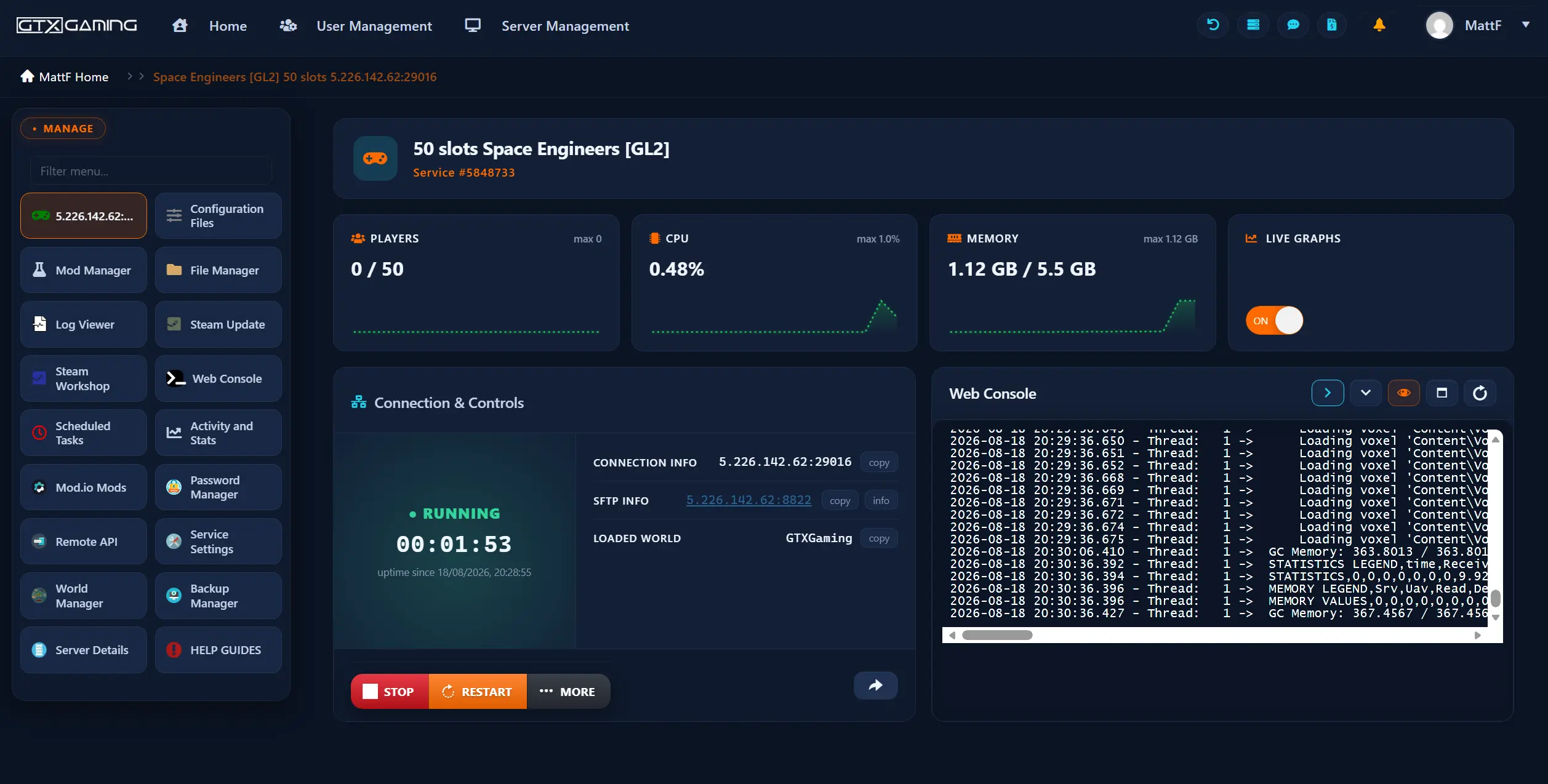
Space Engineers has crossplay between PC (Steam and the Microsoft Store), Xbox and PlayStation. Keen added PC and Xbox crossplay in update 197.1 in February 2021, together with the Epic Online Services (EOS) server list and mod.io support; PlayStation has been part of Keen's releases since 2023. On a dedicated server crossplay is a choice of network: Steam for a PC-only server, or Steam + Console through EOS. The choice decides what the world can run:
PC-only (Steam)
PC players only. Steam Workshop mods and scenarios, any world, and the server appears in the normal Steam server list.
Crossplay (Steam + Console, EOS)
PC, Xbox and PlayStation players in one world. Mods from mod.io only, console-ready worlds only, and the server appears in the EOS server list.
To switch crossplay on in the GTX panel (full steps in our crossplay guide):
SpaceEngineers-Dedicated.cfg under Configuration Files in the Config Editor.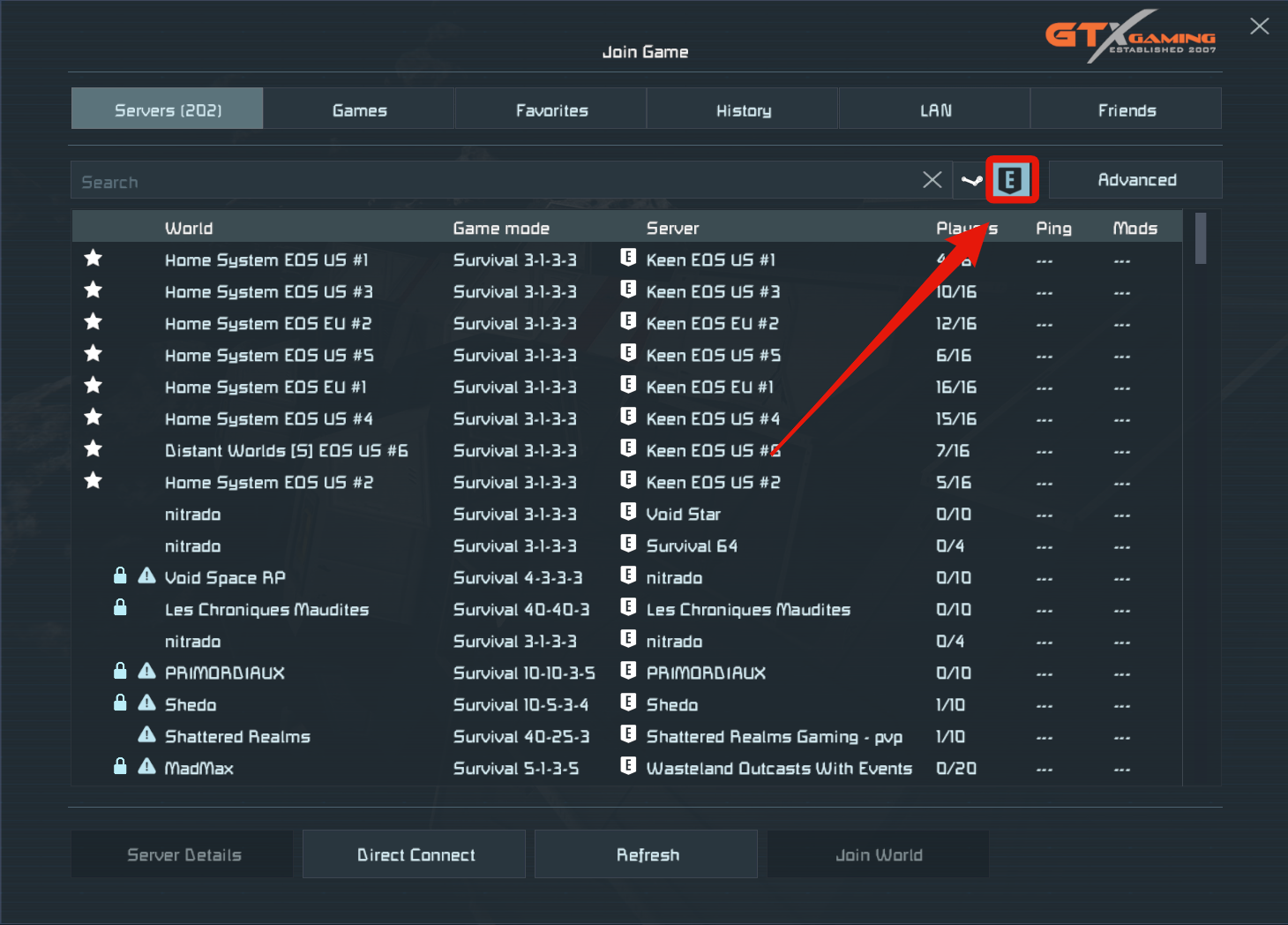
Keen's server applies a few console rules of its own. Since update 1.206 (April 2025) the dedicated server turns Console Compatibility off by itself when the world's mods add up to more than 3 GB, or when no PCU block limits are set. A server in Experimental mode is also hidden from console players who play in safe mode. If the server will not start after you switch crossplay on and the Web Console says World contains too many planet types, the world is not console compatible: generate a new one from a scenario with [CONSOLE] in its title.
Keen's server tool splits the options into server settings (who can join and how) and game settings (the rules of the world). On GTX you find both under Configuration Files. The server settings first:
World settings work as they do in the game, with one twist: on a dedicated server you can type any number, but Keen says values outside the in-game range are not tested and are officially unsupported. These are the ones that matter most on a busy server, with the defaults from Keen's official wiki:
Recent updates added server-side switches too: Economy 2 (May 2026) made the stored-grid timings configurable on dedicated servers, and Prosperity (July 2026) lets server owners decide whether stored grids can be pulled from very distant locations.
A dedicated server runs one world at a time: either a new world generated from a scenario, or a save you bring with you. Mods belong to the world, so generate the world first and add the mods after it: a newly generated world starts without them.
Pick a scenario for the new game and start the server so it generates the world. On a crossplay server, use a scenario with [CONSOLE] in its title, not one marked (PC).
SpaceEngineers-Dedicated.cfg to the exact name of the world you are bringing, and press START so the server generates a world with that name.Saves\ folder. Delete the new world's folder and upload your whole world folder in its place.On Windows your own worlds are in %AppData%\SpaceEngineers\Saves\, one folder per world. Rather not do it yourself? Order the World Migration Addon in the client area and our team imports the world for you (upload guide).
A crossplay server cannot download Steam Workshop content, so a Workshop scenario has to be uploaded by hand: its files go into Mods, its world goes into Saves, and the paths inside the save's Sandbox.sbc are pointed at your server's folder. Our RollCage 2022 Race DS guide walks through one example step by step.
Start.bat, generate the world, then switch Torch back on.As admin you get the Admin Screen, which Keen's wiki compares to "god mode": creative tools, ignoring PCU limits to paste a stuck grid back, cycling through the biggest or fastest grids, trash removal and the full entity list. How you become admin depends on the server type:
PC-only server
Press STOP, open the server config in the Config Editor, go to the admin settings, press add admin and paste your 64-bit Steam ID (17 digits). Save, press START, then press Alt+F10 in game.
Crossplay server
Start the server and join it on your Xbox or PlayStation. Then, in VRage Remote on a PC, promote your player name under the Admin tab. No PC? Our support team can promote the player for you: just send your player name, never a password.
VRage Remote is Keen's own remote admin app. It comes with the dedicated server as VRageRemoteClient.exe and connects through the server's Remote API with the address, port and security key. It shows the simulation speed, the global chat, connected, kicked and banned players, grids, characters, floating objects, planets and asteroids, and its Admin tools tab works like the Admin Screen. Keen's admin guide says players from every platform can be managed this way. Treat the security key like a password: anyone with it, your address and your port can run your server (connect to VRage Remote).
Full steps for both server types are in how to become admin. Make yourself admin before you open the server to the public, and take a backup before you touch trash removal or delete grids in bulk.
Space Engineers mods come from two places, and Keen's rule is simple: Xbox players can only use mods hosted on mod.io, so a server for console players, or for a mix of PC and console, runs mod.io mods only. A PC-only server can use the Steam Workshop. Keen's server tool writes each mod as Service:Mod ID, for example Steam:1234567890 or mod.io:1234567890.
Read a mod's page before you add it: some mods need other mods, and a mod that has not been updated since the last Space Engineers update can stop the world from loading (Workshop mods guide).
Sandbox_config.sbc under Configuration Files and find the empty <Mods /> tag near the end.<Mods> block holding one <ModItem> per mod: <Name> is the ID plus .sbm, <PublishedFileId> is the ID and <PublishedServiceName> is mod.io.The mod.io guide has the full block to copy, with one and three mods. Keep the console limit in mind: above 3 GB of mods, Keen's server switches Console Compatibility off.
Keen's dedicated server can load server-side plugins itself, but most communities that want plugins use Torch. Torch describes itself as "a community-made Space Engineers dedicated server" with a server window, in-game chat and commands without joining, an entity manager, a config editor and its own plugin system. It is third-party software: its site says it is not affiliated with Keen Software House.
On a GTX server you add Torch and its plugins without copying files by hand (Torch and plugins guide):
Torch.cfg under Configuration Files, enable its Crossplay option and press Save & Exit.Essentials.cfg), then edit that file in the File Manager with the server stopped.The plugin most servers start with is Essentials, which Torch's site calls a core plugin: votes, custom commands, ranks and permissions, and the !cleanup commands our clean-up guide uses. Not every plugin needs Torch: the Tebex webstore plugin installs from the Mod Manager on its own (Tebex guide).
Space Engineers worlds grow for months, so a backup is the one thing you will be glad of after a bad mod, a plugin update or a clean-up that went too far. The game keeps a few auto-saves inside the save folder (Auto-save and Max Backup Saves in the world settings), and on GTX you have full server backups on top:
Restarts keep a long-running server fresh. A Scheduled Restart task every 6 hours suits most servers and every 4 hours suits busy or heavily modded ones (automatic restarts). Tasks run on the server machine's clock, so check its time before you pick the hour.
Updates: Keen ships major updates a few times a year (Economy 2 in May 2026, Prosperity in July 2026) with hotfixes after them, and our servers update with Keen's releases. After an update, an outdated mod or plugin is the usual reason a world will not load, so check those first. A reinstall is the last resort: it deletes every server file, though your backups are kept (reinstall guide).
The number to watch is simulation speed. At 1.0 the physics runs in real time; below that, everything on the server slows down for everyone at once. VRage Remote's monitoring tab shows it. What pulls it down is what players build: grids, rotors, pistons, thrusters, drill arrays, turrets, scripts and floating debris. Keen measures that cost in PCU (Performance Cost Unit): every block has a PCU value, weapons cost the most, and each multiplayer world has a total that is shared out to factions and players. On consoles an armour block costs 2 PCU instead of 1.
!cleanup commands remove grids by block type, owner or size. Run !cleanup scan first, keep builds marked with a beacon with notype beacon, and back up first: a clean-up cannot be undone (clean-up commands).Our rule of thumb: a 10-slot vanilla world is comfortable on the included RAM, a modded server or a bigger community should step up a RAM tier, and a large public server with heavy scripts does best with 16 GB or more plus a CPU priority upgrade. The live graphs and Activity and Stats show your memory use at the busiest hours. RAM, CPU priority, hardware and slots can all be changed later in the client area without losing the world (upgrade your RAM).
Most problems show up in the Web Console or the Log Viewer: the last lines before a failure usually name the world, mod or plugin at fault. These are the common ones:
Won't start after enabling crossplay
The console says the world "contains too many planet types": it is not console compatible. Start a new world from a [CONSOLE] scenario.
Crossplay server not in the list
Crossplay servers do not show on Steam. Switch Join Game to the EOS list with the E button; "Game ready" in the Web Console means it is up.
Console players can't see it
Check Console Compatibility is still on: Keen's server turns it off above 3 GB of mods or without PCU block limits. Experimental servers are hidden from consoles in safe mode.
My mods disappeared
Mods are saved per world, so a new world starts without them. Install them again after the world exists.
World won't load after an update
Usually an outdated mod or plugin. Remove the last one you added or updated, or restore the backup from before the update.
VRage Remote says "Invalid date"
Your PC's clock or time zone is out of sync with the server. Set date, time and time zone to update automatically and connect again.
Torch won't make a new world
Torch cannot generate worlds. Switch it off in Start.bat, generate the world, then switch it back on.
Steam mods won't download at home
Keen's wiki: the server ships with outdated Steam files. Copy steamclient64.dll, tier0_s64.dll and vstdlib_s64.dll from Steam into DedicatedServer64.
Still stuck? Open a support ticket with the last lines of the log; our team is there 24/7.
Install Space Engineers Dedicated Server from Tools in your Steam library, or with SteamCMD as app 298740. Run SpaceEngineersDedicated.exe, pick Local/Console, set the server and world name and press Save & start, then forward UDP port 27016. On a GTX server it is installed for you: change the settings under Configuration Files and press START.
Yes. Players on PC (Steam and Microsoft Store), Xbox and PlayStation can play together. A dedicated server needs crossplay switched on: tick Enable Crossplay and Console Compatibility and choose Steam + Console [EOS]. Crossplay servers are listed in the EOS server list, not the Steam one.
Keen asks for at least 6 GB and recommends 10 GB, with a CPU of 3.2 GHz (4.5 GHz recommended) and 3 logical cores. Big worlds, lots of grids and long mod lists need more. Every GTX plan includes up to 10 GB, with tiers up to 64 GB.
On a PC-only server, add your 64-bit Steam ID as admin in the server config, then press Alt+F10 in game to open the Admin Screen. On a crossplay server, join on your console and promote your player name in VRage Remote, Keen's remote admin tool.
No. A crossplay server only takes mods from mod.io: Keen says Xbox players can only use mods hosted on mod.io, so a server with console players should run mod.io mods only. A PC-only server can use the Steam Workshop.
UDP 27016 by default. Every server instance needs its own port, so a rented server may use a different one: always connect with the full address your host shows you.
No. Torch is an optional, community-made server wrapper that is not affiliated with Keen. It adds a plugin system for plugins such as Essentials. Take a backup before you install or update plugins.
Not yet. Space Engineers 2 is in early access, and Keen says 4-player co-op hosted by a player is planned for early 2027, with dedicated servers coming later. This guide is about the original Space Engineers.