



 DayZ
DayZ Palworld


 Enshrouded







I want my own Valheim server
Hosted from the game menu, on your PC or rented, and the first settings to change.
Start with the basics
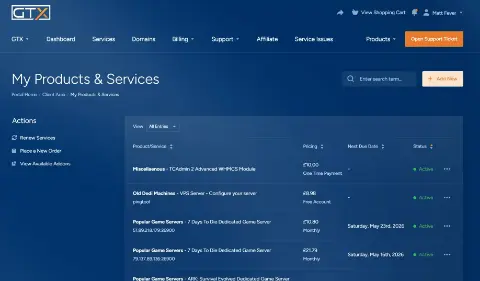
Popular game servers
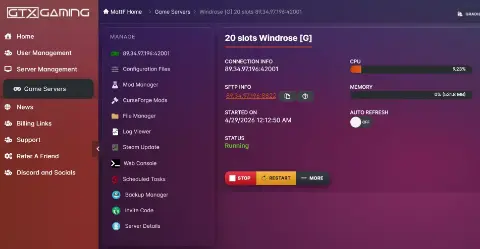
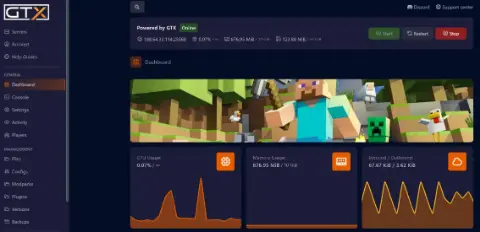
Your panels
Valheim knowledge hub
Everything you need to run a Valheim 1.0 server that stays up: dedicated or hosted from the game menu, your own PC or rented, crossplay for console friends, world modifiers, mods, admin, backups and RAM. Written by the team that hosts them.
No guides match your search. Try a shorter word, or browse a topic above.
Not sure where to begin? Choose the one that sounds like you.
Hosted from the game menu, on your PC or rented, and the first settings to change.
Start with the basicsWorld modifiers, crossplay for console friends, mods and an admin account.
World and mod guidesRAM and CPU, restarts and backups, and what to check first.
Performance guidesRanked by visits from Google Search, July to October 2026.
Prefer to read it in order? 14 short chapters, about 17 minutes in all, from your first world to keeping a busy server fast.
Start readingConnecting, SFTP, logs, FAQ
4 guides
Good to knowJoin with Join IP and your server's IP and port: it works even when the Valheim server list does not show your server.
Modifiers, seeds, moving a world
3 guides
Good to knowModifiers are saved with the world and apply to everyone who joins; choosing a preset overwrites custom settings.
Admin list, console, password, names
5 guides
Good to knowAdding anyone to permittedlist.txt bans everybody else from the server, so only use it for a whitelist.
BepInEx, Thunderstore, Valheim Plus
4 guides
Good to knowMost mods must be installed on the server and on every player's PC in the same version; console players cannot use mods.
Backups, restarts, updates, versions, Discord
5 guides
Good to knowValheim saves every 30 minutes by default; our servers also back up daily and on every restart and keep the last three days.
Memory, CPU, sizing
2 guides
Good to know10 GB of RAM is included with every GTX Valheim plan and runs a vanilla world for up to 10 players; modded groups do better with more.
Bosses and weapons
2 guides
Good to knowThese guides are about the game itself: check the in-game numbers after each patch.
The complete guide
Start.bat (panel setup).Valheim gives you two ways to run a shared world. Hosting from the game menu means one player starts the world and friends join that player. It costs nothing, but the world only exists while the host is playing and the host's PC does all the work.
A dedicated server is a separate program from Iron Gate that runs the world without a game client, so nobody has to keep Valheim open and the world is there whenever someone logs in. Iron Gate publishes it for free and documents it in its dedicated server guide. A rented server is that same dedicated server, run for you in a datacentre with a control panel on top.
Valheim left Early Access on 9 September 2026 with version 1.0, adding the Deep North biome and launching on PlayStation 5, Xbox and Nintendo Switch 2 alongside PC. At the time of writing the latest patch is 1.0.17 (6 October 2026). These are the points that matter if you run or plan a server, taken from Iron Gate's 1.0 FAQ and Steam patch notes:
Our Valheim server hosting page runs servers on the current version; the setup steps below are the same on any dedicated server.
Running your own is free and a good way to learn. Iron Gate's guide covers the basics:
steamcmd +login anonymous +app_update 896660 validate +quit.start_headless_server.bat (Windows) or start_server.sh (Linux) and edit the copy: the original is reset every time Steam updates the server.-name, -world, -password and -public.Ctrl+C, not by closing the window, so the world is saved properly.| Question | Your own PC or home server | A rented server |
|---|---|---|
| Online when you are not | Only while the machine is on | 24/7 |
| Setup | Steam install, edit a start file, router and firewall | Order, then name it and start it in the game panel |
| Updates and backups | By hand | Scheduled tasks, automatic backups and restarts in the panel |
| Your home address | Shared with everyone who joins | A server address in a datacentre, with DDoS protection |
| Cost | Free software, plus power and your connection | A monthly fee, no setup fee |
Our view after hosting game servers since 2008: if you play with a few friends and have a spare PC, start at home. Rent one when the world must stay up while you are offline, when console friends join, or when the group and the mod list grow. A vanilla world for up to 10 players runs comfortably in the 10 GB of RAM that comes with every GTX Valheim plan. See our Valheim server hosting plans for current prices.
Valheim servers on GTX run in our game panel and are online within minutes of ordering. This is the order we tell new customers to work in:
Start.bat with the Config Editor: server name, server password, the world to load, and the world modifiers. Press Save.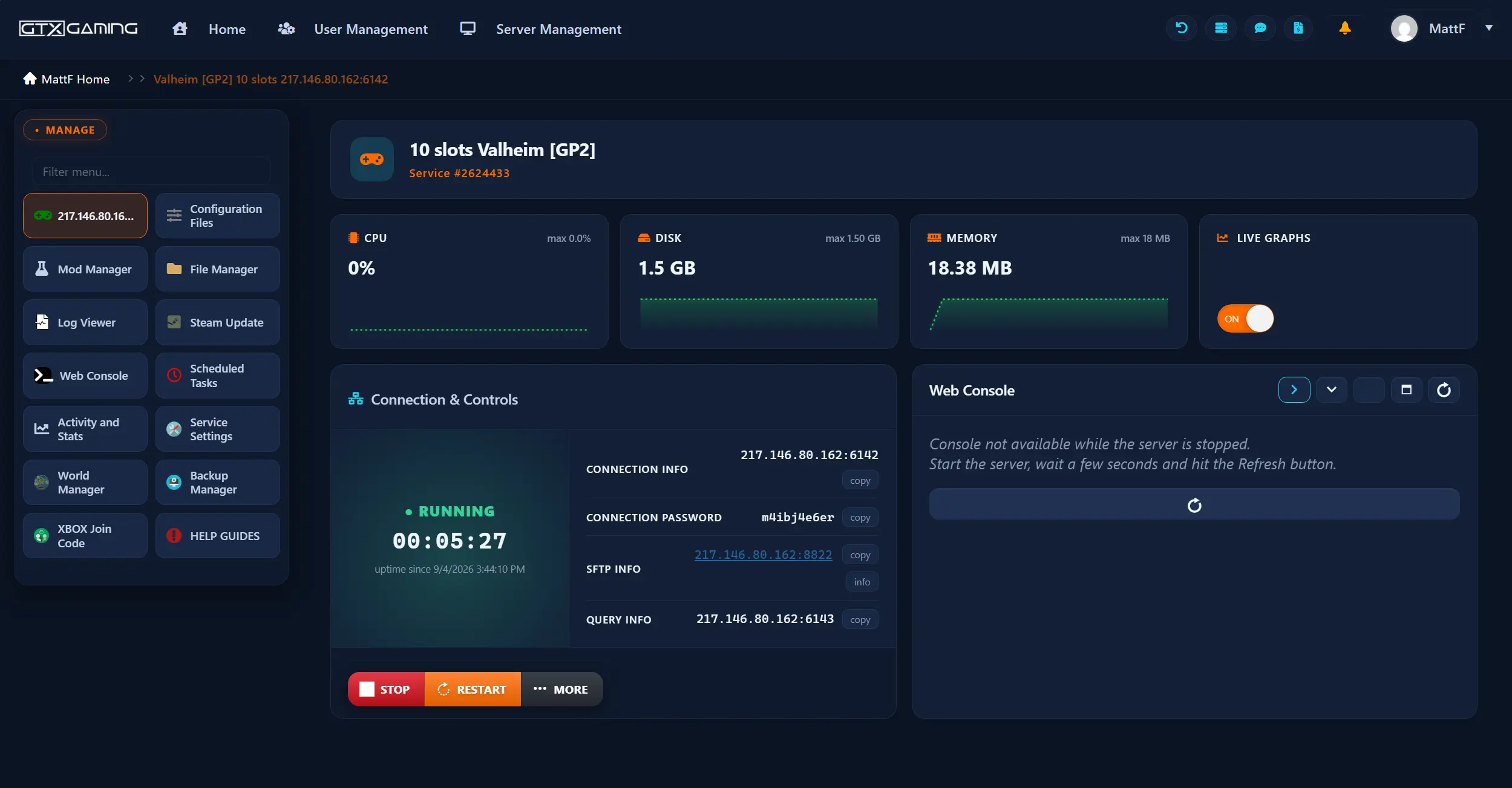
Start.bat. The settings in it are applied every time the server starts, so a change made in game can be undone by the next restart if it is not in the file too.There are three ways to find a Valheim server: the in-game server list, the IP and port, or a join code. The server list is the least reliable: our setup guide notes that it does not show every server, so a server missing from it is normal. Joining by IP and port with Join IP works on PC whether or not the list shows the server.
Crossplay is a switch on the server. Iron Gate's guide says the -crossplay launch argument runs the server on the crossplay backend (PlayFab), which lets players from any platform join. On that backend you can connect with the public IP and port, a join code or the server list, but not with a local or loopback address, and a relay server carries the data, so the server needs no port forwarding. Without the argument the server runs on the Steam backend and needs the port forwarded.
On GTX, crossplay is a server setting and the game panel has an XBOX Join Code button for the join code, so PlayStation, Xbox and Switch 2 friends can join the same world as your PC players. Our support team can switch crossplay on for you.
A world is a pair of files with the same name: the .db file holds the world and the .fwl file holds its name and seed. The -world argument (the Load World field in our Start.bat editor) tells the server which one to load, and it creates the world if it does not exist. By default Valheim saves every 30 minutes (-saveinterval 1800) and Iron Gate's guide lists options to keep several automatic backups.
World modifiers set the rules of the world and are saved with it. They apply to everyone who joins, and players need no mods or extra settings. Choosing a preset overwrites any custom values, so pick Customize afterwards if you want your own mix.
| Setting | Options |
|---|---|
| Preset | Normal, Casual, Easy, Hard, Hardcore, Immersive, Hammer |
| Combat | Very easy, Easy, Normal, Hard, Very hard |
| Death penalty | Casual, Very easy, Easy, Normal, Hard, Hardcore |
| Resources | Much less, Less, Normal, More, Much more, Most |
| Raids | None, Much less, Less, Normal, More, Much more |
| Portals | Casual, Normal, Hard, Very hard |
| Extra switches | No build cost, player-based raids, passive enemies, no map |
On a dedicated server you set them in the start file with -preset, -modifier and -setkey, as Iron Gate's guide shows (-preset hard, -modifier raids none, -setkey nomap). In the GTX panel the same options are in the World modifiers dropdown of the Start.bat editor. An admin can also change modifiers while the server runs from the F5 console with commands such as setworldpreset and setworldmodifier; keep a backup before trying something drastic.
A seed only decides how a new world is generated, so an existing world cannot get a different seed. In our panel the World Manager generates a new world with the seed you type, and our guide lists ten seeds for Valheim 1.0. To bring a world you already have, move it from the Valheim cloud to local in Start Game, Manage Saves, then upload the .db and .fwl files (Windows keeps them in %USERPROFILE%\AppData\LocalLow\IronGate\Valheim\worlds_local) with the Valheim World Uploader or over SFTP. Xbox worlds can be reached from a Windows PC through the Xbox app, because Iron Gate lets Xbox and Microsoft Store PC share cloud saves. Keep a copy of the original files: Valheim 1.0 converts an old world to its new save format on first load.
Valheim keeps three plain text lists next to the world files: adminlist.txt for admins, bannedlist.txt for bans and permittedlist.txt for a whitelist. Each holds one player ID per line, case-sensitive and written as the platform and the ID, for example Steam_1234567890. Iron Gate warns that adding anyone to the permitted list bans everybody else from the server.
F2 to open the player list. Copy your player ID.adminlist.txt (in Configuration Files on GTX) and add the ID on its own line.-console to Valheim's launch options in Steam, join, and press F5 to open the console. Type help to list the commands.kick, ban and unban with a name, IP or user ID, banned to see the ban list, and save to save the world.Passwords: Valheim needs a server password of at least five characters and refuses one that appears in the server name. In our editor use letters and numbers only, and the world name cannot be the password. The vanilla game cannot run without a password; a mod such as Valheim Plus can remove that requirement. Fancy server names work too: wrap the name in a colour tag with a hex code, for example <color=#FF0000>My Server</color>. To let a co-admin into the panel without sharing your login, create a sub-user. The full console command list is on our Valheim console commands page.
Valheim's mods run on BepInEx, a plugin loader. Iron Gate offers no official mod support, so what works depends on each mod's author. The routes on a GTX server:
author/name/, one per line, in Valheim.mods (Configuration Files), then press ThunderStore.io Mods. Never add BepInExPack_Valheim or HookGenPatcher as mods: they are loaders and installing them as mods breaks the server..dll to BepInEx\plugins\ over SFTP. Config files appear in BepInEx\config\ after the first start.Install one mod at a time and test it before the next; thirty mods at once make a broken one almost impossible to find. Most mods must be installed on the server and on every player's PC in the same version. If players see an incompatibility error, download the server's BepInEx ModPack from the panel and extract it into their Valheim folder. A scheduled Update ThunderStore.io Mods task keeps mods installed with the installer up to date. After a Valheim patch, outdated mods are the usual reason a server stops loading plugins: remove them until their authors release a fix.
Valheim saves the world as you play, by default every 30 minutes and when players sleep. On GTX the server also backs itself up daily and on every restart and keeps the last three days; a manual backup in the Backup Manager is a good idea before you install mods, change modifiers or change the server version.
A vanilla world for up to 10 players runs comfortably in the 10 GB of RAM every GTX Valheim plan includes. Memory use grows with big bases, widely explored worlds, more players and mods. Iron Gate has also been fixing performance in 1.0: patch 1.0.15 fixed a bug that duplicated terrain and cost performance, so run the current version before you blame the hardware.
| Group | What we suggest |
|---|---|
| Up to 10 friends, vanilla | The 10-slot plan with its included 10 GB of RAM |
| A modded group | 16 GB of RAM, and the mod list kept short |
| A large community or heavy mod pack | 24 GB to 32 GB and a higher CPU priority |
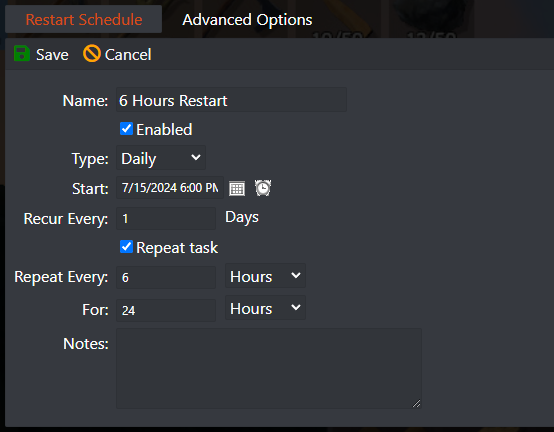
These are our own sizing notes for the plans we sell, not an official figure; Iron Gate's guide does not publish hardware requirements. If a world gets slow, the order we try is: update the server and mods, remove the newest mod, schedule a restart every six hours, then add RAM or CPU priority. Both can be changed later without losing the world.
.db and the .fwl file, and type the exact world name in the Load World or World Name field of Start.bat.Valheim.mods line reads author/name/ and every dependency is installed, then read the Log Viewer: BepInEx logs each plugin it loads and any error.Once the world is running, these guides help your group play it: bosses and the weapons to beat them, and the console commands for admins. We keep only the guides readers use and check them against Iron Gate's patch notes, but the in-game numbers always win. They are in one list: browse the play guides.
Install Valheim Dedicated Server from the Tools section of your Steam library (or with SteamCMD, app 896660), copy and edit the start file with a server name, world and password, forward UDP ports 2456 and 2457 and share your IP. Or rent one: on GTX it is online within minutes and you set the same options in the game panel.
Yes, with crossplay. Valheim 1.0 supports crossplay across every platform, and a dedicated server has to run on the crossplay backend (the -crossplay launch argument) for console players to join. Consoles can join a dedicated server but cannot run one.
Ten. Iron Gate says Valheim 1.0 is a game for 1 to 10 players. Some mods lift the limit, but that is not officially supported and every player needs the same mod.
Yes. Iron Gate says worlds from before the update stay playable and get the new content, but new biome generation only works properly in areas nobody has explored. 1.0 converts the world to a new save format on first load, so keep a copy of the original files.
Only if their authors have updated them. Iron Gate offers no official mod support, there is no Steam Workshop and consoles cannot use mods. Check the version a mod supports before you install it, and install one at a time.
The server list does not show every server, so this is normal. Join with Join IP and the server's IP and port, or with the join code on a crossplay server.
Set a preset (Normal, Casual, Easy, Hard, Hardcore, Immersive or Hammer) or the individual modifiers with the -preset, -modifier and -setkey launch arguments, or in the World modifiers dropdown of the Start.bat editor in the GTX panel. Modifiers are saved with the world and apply to everyone who joins.
Valheim saves every 30 minutes by default. On GTX the server also backs up daily and on every restart and keeps three days; press Backup Manager for a manual backup before you add mods, change modifiers or update the version.