



 DayZ
DayZ Palworld


 Enshrouded









I want my own Palworld server
Dedicated or co-op, your PC or rented, and the first settings to change.
Start with the basics
Popular game servers
Your panels
Palworld knowledge hub
Everything you need to run a Palworld 1.0 server that stays up: dedicated or co-op, your own PC or rented, settings, crossplay, mods, admin, backups and RAM. Written by the team that hosts them.
No guides match your search. Try a shorter word, or browse a topic above.
Not sure where to begin? Choose the one that sounds like you.
Dedicated or co-op, your PC or rented, and the first settings to change.
Start with the basicsWorld rates, crossplay for console friends, mods and an admin account.
Settings and mods guidesRAM and CPU, restarts and backups, and what to check first.
Performance guidesRanked by visits from Google Search, July to October 2026.
Prefer to read it in order? 13 short chapters, about 14 minutes in all, from your first server to keeping a busy world fast.
Start readingRequirements, game panel, community server, joining
5 guides
Good to knowXbox and PS5 players only see your server in the list if it runs as a community server; typing an IP and port is for PC.
PalWorldSettings.ini, rates, difficulty, death penalty
2 guides
Good to knowEdit PalWorldSettings.ini, never DefaultPalWorldSettings.ini: Pocketpair notes that changes to the default file have no effect.
Xbox, PS5, Mac and Steam on one server
4 guides
Good to knowServers are crossplay by default (Steam, Xbox, PS5, Mac), but the server software cannot run on a console.
Steam Workshop, UE4SS, PalDefender, mod safety
2 guides
Good to knowServer-side mods only work on the Windows dedicated server, and only mods built for servers will load.
Admin password, chat commands, RCON, sub-users
3 guides
Good to knowKeep your AdminPassword private: anyone who has it can kick, ban and shut down the server.
Backups, auto restarts, updates, moving a world
7 guides
Good to knowRun /Save before /Shutdown or /DoExit so no progress is lost.
CPU, memory, launch options, FPS
3 guides
Good to knowPocketpair recommends 16 GB of RAM and 4 CPU cores; 8 GB can boot but risks out-of-memory crashes.
Cannot find or join the server, settings not saving
2 guides
Good to knowEveryone needs the same game version as the server: update the server first, then the players.
Pals, base building, crafting, combat, exploring
26 guides
Good to knowMany of these were first written in early access. Where 1.0 changed something the guide has been corrected, and the in-game numbers always win.
The complete guide
ServerName, ServerPassword and AdminPassword in PalWorldSettings.ini (settings).Palworld has two kinds of server you host yourself, and Pocketpair's docs describe them like this: a dedicated server hosts the world without a game client, so nobody has to keep Palworld running and more people can join; players connect with an IP address and port. A community server is the same dedicated server, registered in the in-game server list. The only difference is whether it shows up in that list. Both are crossplay enabled by default for Steam, Xbox (and the Microsoft Store PC version), Mac and PS5.
Co-op is the other route: the host starts a multiplayer session from the game menu and friends join it. It costs nothing, but the world only exists while the host is playing and the host's PC does all the work.
Palworld left early access on 10 July 2026 with version 1.0; the latest patch at the time of writing is 1.0.5. Everyone on the server needs the same game version as the server, so after an update, console and PC players should update before joining.
Running your own is free and a good way to learn. Pocketpair publishes the hardware it expects:
| Part | Official requirement |
|---|---|
| CPU | 4 cores or more recommended |
| Memory | 16 GB recommended, more than 32 GB for larger servers; 8 GB can boot but raises the chance of out-of-memory crashes |
| Network | UDP port 8211 by default (changeable); you need to forward it on your router |
| Storage | A fast SSD recommended; slow storage can corrupt saved data |
| OS | Windows 64-bit or Linux 64-bit (Ubuntu, AlmaLinux and so on) |
Source: Pocketpair's requirements page. Pocketpair also advises against running its Docker image through Docker Desktop because of storage speed and the risk of corrupted saves.
steamcmd +login anonymous +app_update 2394010 validate +quit, or find Palworld Dedicated Server in the tools section of your Steam library.PalServer.exe on Windows, ./PalServer.sh on Linux) so the config folders are created, then copy DefaultPalWorldSettings.ini to Pal/Saved/Config/WindowsServer/PalWorldSettings.ini (LinuxServer on Linux) and edit that copy.-port) to the machine and open it in the firewall. To appear in the community list, start with -publiclobby.Free and fully yours. But it is only online while the machine is, your home IP is shared with every player, you need router access (and no CGNAT), there is no DDoS protection, and the server competes with your own game for CPU and RAM.
Online 24/7 without your PC, a safe address to share, DDoS protection, a control panel for settings, mods, backups and restarts, and support when something breaks. It costs a monthly fee, so it pays off once your group plays most days.
Our view after hosting game servers since 2008: if you play with one or two friends and have a spare machine, start at home. Rent when the world must stay up while you are offline or the group grows. On GTX every Palworld server includes up to 10 GB of RAM and 100 GB of NVMe storage, with 12 GB on the 16-slot plan and 16 GB on the 32-slot plan, plus crossplay, the Mod Manager and backups. See our Palworld server hosting plans for the current prices.
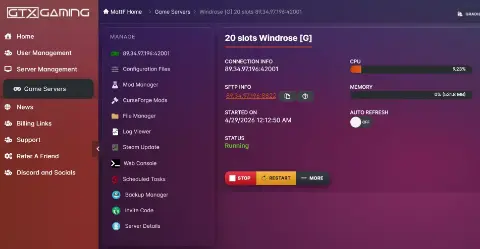
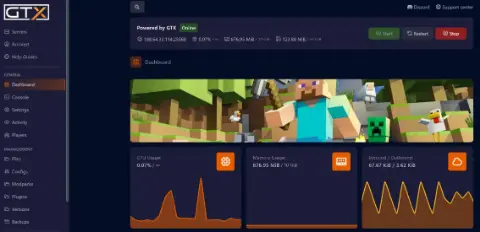
Palworld servers on GTX run in our game panel. After you order, the server is online within minutes. This is the order we tell new customers to work in:
PalWorldSettings.ini with the Config Editor: server name, password, admin password, player count. Press Save & Exit.-publiclobby argument).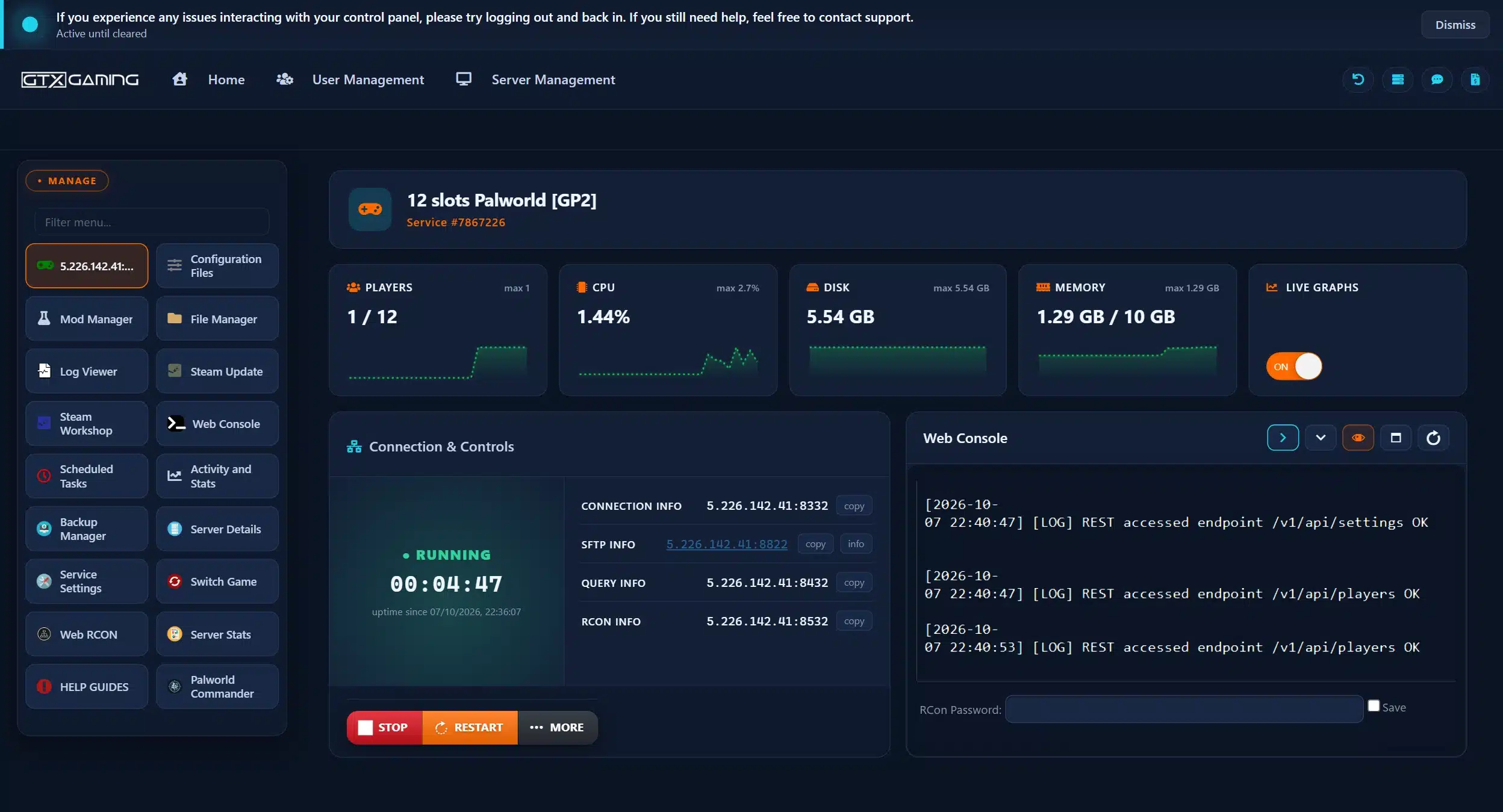
PalWorldSettings.ini. Changes made while it runs can be overwritten or ignored. Edit PalWorldSettings.ini, never DefaultPalWorldSettings.ini: Pocketpair notes that changes to the default file have no effect.Every rule of your world lives in one file. Since 1.0 the default dedicated-server settings are close to single-player Normal difficulty; you change what you want and leave the rest. These are the settings players change most, with Pocketpair's own description:
| Setting | What it does |
|---|---|
ServerName, ServerDescription | The name and description players see; a unique name also makes it easy to find in the community list |
ServerPassword | Password required to join |
AdminPassword | Password used to get admin rights in game |
ServerPlayerMaxNum | Maximum number of players who can join |
ExpRate | EXP gain multiplier |
PalCaptureRate | Capture rate multiplier |
DeathPenalty | None: no drops; Item: drop all items except equipment; ItemAndEquipment: drop all items; All: drop all items and all Pals on the team |
DayTimeSpeedRate, NightTimeSpeedRate | How fast day and night pass |
bHardcore, bPalLost | No respawn on death; Pals lost permanently on death |
bIsPvP, bEnablePlayerToPlayerDamage, bEnableDefenseOtherGuildPlayer | PvP needs all three set to True; Pocketpair calls it a trial feature that support does not cover |
bEnableInvaderEnemy | Invader raids on bases on or off |
BaseCampMaxNumInGuild | Bases per guild (default 4, maximum 10); raising it increases server load |
bEnableVoiceChat | In-game voice chat, new in 1.0 and available on dedicated servers when enabled in the world settings |
CrossplayPlatforms | Which platforms may join; default (Steam,Xbox,PS5,Mac) |
bAllowClientMod | Allow players who have mods enabled to join |
The full list is on Pocketpair's configuration parameters page. For recommended values for beginners, normal and veteran worlds, read our best world settings for Palworld guide, which also explains the Casual, Normal and Hard presets and how to change difficulty.
Palworld servers are crossplay by default. The platforms allowed to join are set by CrossplayPlatforms in PalWorldSettings.ini, and Pocketpair's default is (Steam,Xbox,PS5,Mac); remove a platform from the list only if you want to keep it out. The old AllowConnectPlatform setting is not available any more: use CrossplayPlatforms instead.
You cannot run the dedicated server on an Xbox or PlayStation itself: the server software runs on a PC or server. That is why console groups rent one. Console players then find it like this:
Start.bat) and has a unique name in PalWorldSettings.ini.Every player needs the same game version as the server, so after a Palworld patch update your game before you join.
Palworld has official mod support through the Steam Workshop, and a dedicated server can load Workshop mods. Pocketpair is clear on the limits: server-side mods only work on the Windows dedicated server, only mods built for servers work, and mods can cause save corruption or crashes, so use them at your own risk. Mods are switched on in Mods/PalModSettings.ini: set bGlobalEnableMod=true and list each mod's PackageName (the value in its Info.json, not the folder name) as an ActiveModList line. The launch argument -NoMods forces every mod off, which is the quickest way to test whether a mod causes a problem.
On GTX the Steam Workshop tool installs Workshop mods and the Mod Manager installs UE4SS (the mod loader many mods need) and PalDefender in one click. Your server starts vanilla until you choose otherwise.
Set an AdminPassword in the config, start the server, join it, press Enter to open chat and type /AdminPassword followed by your password. You get a confirmation message and you are admin. Keep that password private: anyone who has it can kick, ban and shut down the server. Pocketpair's official command list:
| Command | What it does |
|---|---|
/Save | Save the world data (use it before a shutdown) |
/Shutdown [Seconds] [MessageText] | Shut the server down after a delay and tell players why |
/DoExit | Force stop the server |
/Broadcast MessageText | Message to everyone on the server |
/ShowPlayers, /Info | List connected players; show server information |
/KickPlayer SteamID, /BanPlayer SteamID, /UnBanPlayer SteamID | Kick, ban or unban a player |
/TeleportToPlayer SteamID, /TeleportToMe SteamID | Teleport to a player, or bring one to you |
/ToggleSpectate | Spectator mode for admins |
Source: Pocketpair's commands page. Prefer a console over the chat box? The GTX panel has Web Console and Web RCON, and Palworld's settings include RCON and a REST API (RCONEnabled, RESTAPIEnabled). To give a co-admin access to the panel without sharing your login, create a sub-user.
A Palworld world is worth protecting. On GTX the panel makes automatic daily and weekly backups, stores them on your server and sends them to offsite storage, where they are kept for up to six months even if you cancel. You can also make your own: stop the server, open Backup Manager, choose Backup World (or Restore World, Wipe World, Download Backups), tick the confirmation box and press Execute. Restore and Wipe replace your current world, so back up first.
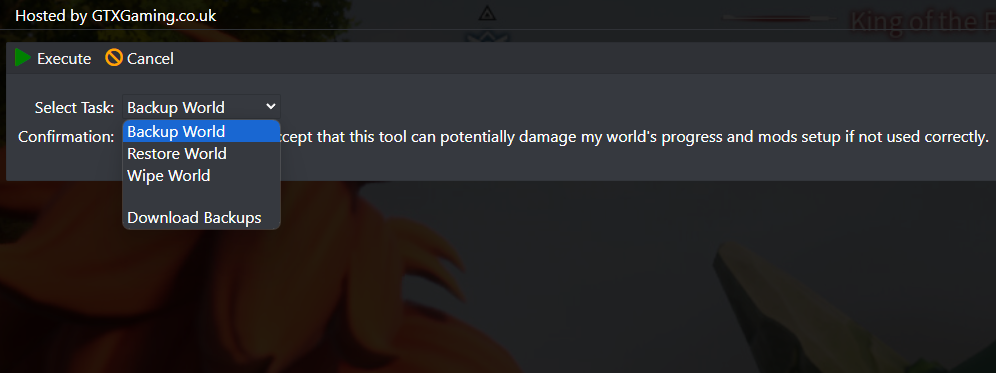
The game has its own safety net too: bIsUseBackupSaveData keeps rolling copies of the save (5 per 30 seconds, 6 per 10 minutes, 12 per hour and 7 per day, per Pocketpair), at the cost of more disk load.
Create a task under Scheduled Tasks: Backup and Restart with Messages repeating every 6 hours is a good start (every 4 hours for a busy server, every 12 for a small group). Players get warnings at 10, 5, 2 and 1 minutes, the world is saved, the server restarts and takes a backup. Palworld broadcast messages are limited to 48 characters, so keep warnings short. A Steam Update task keeps the server on the current game version, and you can send all of these messages to a Discord channel.
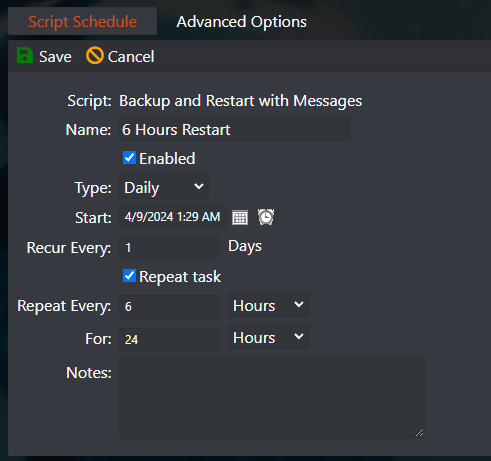
Moving an existing world? A single-player or co-op save can move to your server with your character, Pals and bases intact, but your character ID changes on a dedicated server, so the guide below walks through the fix.
Palworld servers are hungry because every base, worker Pal and wild Pal is simulated. Pocketpair's guidance is 16 GB of RAM and four cores for a comfortable server, and its docs mark the settings that raise load: BaseCampMaxNumInGuild, BaseCampWorkerMaxNum (up to 50 Pals per base) and PalSpawnNumRate. ServerReplicatePawnCullDistance (5000 to 15000 cm) sets how far away Pals are synced to players.
Launch arguments from the official docs: -players=32 sets the maximum players, -port changes the port, and -useperfthreads -NoAsyncLoadingThread -UseMultithreadForDS are the multithreading options; Pocketpair now says that in version 1.0 and later, leaving them unset may improve performance. Version 1.0 also optimised dedicated server processing for many players.
| Group size | What we suggest |
|---|---|
| Up to 10 friends | The 10-slot plan with 10 GB of RAM suits a normal world with a few bases |
| Guild, busy world or mods | 16 slots with 12 GB: room for several bases per player and a few mods |
| Full server of 32 | 32 slots with 16 GB and high CPU priority, the game's maximum player count |
These are our own sizing notes based on the plans we sell, not an official figure. You can change slots or RAM later without losing the world. Playing on a weak PC rather than hosting? Our Palworld FPS boost guide covers the graphics settings that matter.
Start.bat (the -publiclobby argument), the server needs a unique name in PalWorldSettings.ini and a few minutes online. IP:PORT always works while you wait.DefaultPalWorldSettings.ini. Stop, edit PalWorldSettings.ini, save and start.bGlobalEnableMod=False in PalModSettings.ini and restart. If it runs, a mod is the cause; many Workshop mods are client-only, and game updates break mods until their authors fix them.Once the server is running, these guides from our team help your group make the most of it: Pals, base building and crafting, combat and exploring. Many were first written during early access; where Palworld 1.0 changed something we corrected the guide, and the in-game numbers always win. They are all in one list: browse the 26 play guides.
Install the dedicated server with SteamCMD (app 2394010) or from your Steam library tools, start it once, edit PalWorldSettings.ini, forward UDP 8211 and share the IP and port. Or rent one: on GTX it is online within minutes and you edit the same file in the panel.
Yes. Servers are crossplay by default for Steam, Xbox, PS5 and Mac. Console players need the server started as a community server, then search its name under Join Multiplayer Game, Community Servers.
No. The dedicated server software runs on a PC or server. Console groups rent a dedicated server and everyone joins it from their own platform.
Pocketpair recommends 16 GB (more than 32 GB for larger servers) and four CPU cores; 8 GB can boot but risks out-of-memory crashes. Settings like base count and spawn rate change the load, so a small private world needs less than a full busy one.
UDP 8211, changeable with the -port launch argument. On a rented server the panel shows the right IP and port under Connection Info.
Yes. Back up the save, upload it to the server, join once, and fix your character's host ID with a save tool. Our step-by-step guide covers it and takes about 20 minutes.
Server-side mods work on the Windows dedicated server, if the mod is built for servers. Enable them in Mods/PalModSettings.ini. Mods can break after game updates, so back up first and test them one at a time.
Up to 32 on GTX plans, the game's maximum. The ServerPlayerMaxNum setting or the -players argument sets the limit on a server you host yourself.